WSL: WSL2 DNS stops working
Please fill out the below information:
- Your Windows build number: (Type
verat a Windows Command Prompt)
Microsoft Windows [Version 10.0.18932.1000]
- What you’re doing and what’s happening:
> bash
% host google.com
;; connection timed out; no servers could be reached
- What’s wrong / what should be happening instead: DNS resolution should work
/etc/resolv.conf:
% cat /etc/resolv.conf
# This file was automatically generated by WSL. To stop automatic generation of this file, add the following entry to /etc/wsl.conf:
# [network]
# generateResolvConf = false
nameserver 172.19.224.1
To my knowledge, I didn’t change anything. This has happened a few times, and rebooting fixes it. Sometimes just doing wsl --shutdown is sufficient to fix it. It correlates with my workstation going to sleep and resuming later with DNS in WSL2 not working.
About this issue
- Original URL
- State: closed
- Created 7 years ago
- Reactions: 188
- Comments: 297 (1 by maintainers)
Links to this issue
Commits related to this issue
- dns: # "az login" workaround for the gnarly bug: https://github.com/microsoft/WSL/issues/4285 - 8.8.8.8 — committed to sopra-steria-norge/aks-startup by mcpgeirivarjerstad 5 years ago
My workaround:
/etc/wsl.conf.cmdwindow, runwsl --shutdown/etc/resolv.conf. If it exists, replace existing one with this new file.gitworking fine now.For anyone seeing this, the “fixes” proposed are merely a workaround to the problem. In situations where internal/private DNS servers (eg. corporate or home network), DNS will not resolve as expected.
I consider this a critical bug.
wsl --shutdowndoesn’t seem to work for mewslconfig.exe /terminate UbuntudoesHot take: Instead of running Windows with Linux VM in it, you can just run Linux with optional Windows VM in it if necessary. Solved all my problems.
3 Years and 0 replies from Microsoft, awesome! 🎉🎉🎉
@Klein-Hu : tried your workaround, followed your steps, but it doesn’t seem to be working for me.
My
/etc/resolv.conffile is getting wiped out every time I relaunch wsl2 😕I got a clue in the following: Issue 4844 (I also removed docker WSL but I don’t think that that made any diff)
I exited wsl and then issued a
wsl --shutdownentered wsl force deleted the /etc/resov.conf to stop it being a symbolic link
sudo rm -fd /etc/resov.confI exited wsl and then issued a
wsl --shutdownentered wsl and recreated a resolv.conf
nameserver 8.8.8.8I exited wsl and then issued a
wsl --shutdownEntered wsl and everything was now working
Starting the docker daemon (inside of WSL2) seems to trigger this for me, very reliably.
@jordansissel This started happening to me yesterday, but it seems my whole network is busted:
Running with AV and Firewall disabled.
EDIT: I disabled, restarted, and re-enabled the WSL and Virtual Machine Windows Features and it looks to work now.
Also, this doesn’t seem to be resolved for me by switching to a different nameserver. It seems that after starting docker, eventually all network I/O completely stops working in my WSL2 environment.
For newcomers to this thread, try pinging a public IP address first to make sure that DNS is actually the culprit here (
ping 8.8.8.8). I found myself at this thread because I was receiving error messages about DNS failing to resolve, but it turns out I had actually lost complete external internet connectivity (yet another issue with WSL…). If you’re doing local development, this may not be apparent at first because networking between the Windows host & WSL still works great (VS Code, Docker Desktop, https://localhost/my-app/, etc). In my case, it turns out that WSL loses internet connectivity if Windows enters sleep mode (https://github.com/microsoft/WSL/issues/4992). Until that issue is resolved, the only solution that seems to work for me is rebooting Windows. As a result, I’d also recommend turning off sleep mode when the laptop is plugged in via the power settings menu. If the problem is actually DNS, then follow these steps instead: https://github.com/microsoft/WSL/issues/4285#issuecomment-522201021@nonbeing make sure resolv.conf is a file and not a link
@BtbN thanks boomer.
So what is the underlying problem with this, the 172… is the host IP, right? The resolv.conf is trying to use the host for the DNS lookup? That should in theory be correct especially if you’re on a VPN and this needs to make a couple of hops. Somebody at the WSL dev team should make this a priority as it’s literally making the whole WSL2 tool unusable so it’s literally a blocking issue!
The fix to disable WSL/restart/enable WSL/restart in the “Windows Features” settings fixed it for me. The problem does seem related to the docker daemon.
/dupe #8365
What I experienced is a little different, on
wsl2ubuntu 20.04. DNS works fine with the default, generated/etc/resolv.conf, nameserver 172.17.0.1. But DNS stopped working oncedockerdstarts. I tried to disable the auto-generation using the method described earlier, and explicitly set nameserver to a DNS server, e.g. 8.8.8.8. But it did not work for me. DNS stopped working oncedockerdstarts, and even if I subsequently stoppeddockerd. Noticing thatdockerdcreates an interface on 172.17.0.1, which may interfere withwsl2DNS forwarding, I changed the docker config to makedockerdcreate intf in a different subnet. After that change DNS works whendockerdis running. There is no need to disable the default auto-generation of/etc/resolv.conf. DNS inside a docker container, e.g.minikubepod, needs more configuration. But that seems to be a separate issue.The docker config change is simple. Just the following in
/etc/docker/daemon.json:Hi! We’ve identified this issue as a duplicate of another one that already exists in this repository. This specific instance is being closed in favor of tracking the concern over on the referenced thread.
Thanks for your report!
That is, again, not a fix, but just the workaround of using Google DNS. For one, it leaks DNS queries to Google, and it’ll also make it impossible to resolve internal names. So please don’t call it a fix. It really isn’t. And a whole program just to write google DNS into resolv.conf seems a bit over the top.
How is it that this issue was opened years ago, the other issue was opened 21 days ago, and this is the one that is closed?
I made this simple program the configures WSL DNS:
https://github.com/epomatti/wsl2-dns-fix-config
Hope it helps someone.
3 years later and we’re still here
I have the same, the connection works on a fresh reboot then it fails after some time
Example for a
apt-get updateMy
resolv.conf fileWe are a lot facing the same issue, I can’t believe Microsoft is not giving an official solution, or at least more communication on the issue. I planned to switch on Visual Code using a WSL2 hosted sources, but my nuget packages can’t even been restored due to this problem, it’s a pain…
Why is this closed…
The
resolv.confworkaround unfortunately prevents the typical method of finding the DISPLAY for X from working. However, I’ve found this can be placed in .bashrc/.zshrc instead:This is almost certainly a bug. There’s some parity between WSL 1 and 2. I am on a fresh image of Windows v2004. My company rolls out a VPN to us and preconfigures firewalls, which I can’t change. This shouldn’t really be relevant as I think the real issue is WSL. I need to use our internal DNS servers to get to our internal servers etc etc. For those that don’t need this then you’d just use 9.9.9.9 or your preferred DNS provider. For me, I’d use 10.x.x.x.
If you look at a WSL1 box you see something like this in
/etc/resolv.confWSL1 is working great because the resolv conf is getting provisioned perfectly.
If we look at WSL2 we see this:
The custom nameservers are completely missing. WSL1 is correct and WSL2 is broken. Seems that this behavior was somehow not ported over or simply broken?
The fix is to do what others said above, which I won’t repeat. For those who don’t need corporate DNS then you’d set to 9.9.9.9 and those who need corporate then make sure you set to your corporate DNS. Obviously, this sucks because 1. provisioning manually generally sucks and 2. if corporate DNS IP addresses update then your VM breaks.
This has nothing to do with virtual network adapters (at all).
I think it’s clear what WSL2 needs to fix though.
Here’s some more proof that if resolv.conf was correct then things would work: (WSL2 VM)
I have reason to believe that this behavior STARTED happening with the latest update of Windows Insider. I’m on build 19013.1.
I’m not sure where the issue lies here - if it is an issue with Canonical and their Ubuntu deployment on WSL or if it is a Microsoft issue. Maybe another distro works - I’ll give that a go this weekend, hopefully. If I have time.
That said: I dare any of the folks in the WSL partnership to do the following:
If this works for you with a stock, bare-metal Windows 10/11 installation with absolutely zero modifications done by you, then I’ll admit defeat.
And if someone at Microsoft actually does this, and shows that it works (via Twitter, whatever) I’ll send you a Texas Brisket (Prime, not Choice) smoked on Oak and Hickory from my own backyard offset wood smoker. I don’t do pellets. I’ll send in a cooler, wrapped in heat-retaining packaging straight off of the pit, priority overnight with an 8AM guaranteed arrival time and instructions on how to keep it warm from the cooler to your countertop that afternoon.
Once you edit
resolv.conf, you should do:sudo chattr +i /etc/resolv.conf- which makes the file immutable so it won’t be overwritten next time you start WSL. Maybe useful: https://command-not-found.com/chattrThis is what you’re looking for:
export DISPLAY=$(ip route | awk '/default via / {print $3; exit}' 2>/dev/null):0With how a lot of people behave here, that seems not that unreasonable really. Any productivity on trying to solve the actual issue is long over, and just bickering is left.
After 3 years of radio silence we finally have Microsoft hard at work trying to solve this:
“/dupe https://github.com/microsoft/WSL/issues/8365”
Issue closed, problem solved! Now, all that needs to be done is to lock this thread so nobody can reply anymore.
It doesn’t work for a few thousands people in MS. I’m not saying it’s necessarily WSL2 issue. I’m saying it’s a big enough issue to at least investigate it.
I made a workaround for this on wsl2 by:
nameserver 8.8.8.8Ahh, sorry for the hassle. Glad you figured It out though. But don’t use an ad firm as your DNS provider, use encrypted DNS:
@qhaas To avoid changes reverting back, you need to remove the file and recreate it. Because in the default state, it’s a symbolic link to a (in reality) read-only or protected file.
I made a gist with @Klein-Hu 's instructions. They worked like a charm for me.
Fix DNS resolution in WSL2
Whatever provides the internal WSL2 dns seems busted, but other dns servers are successful:
@benhillis Why do you close an unresolved issue? This one (contrary to the duplicit #8365) somehow shows how long is the history, how many users were affected, what they have tried, how many voted to resolve this problem etc.
For me disabling Windows Defender Firewall for Public Network solved the the problem.
Before disabling it I got timeouts. Using the DNS of my router worked though.
After disabling Windows Defender Firewall the name resolution worked fine.
On 23.10.2021 22:13, Xiaonuo Gantan wrote:
That’s not a solution, but merely the same hacked workaround mentioned here countless times.
Just a tip, if @tof1a and @gitolicious 's command fails for you, you can also do it manually.
i.e.: Open powershell, execute
Get-DnsClientServerAddress -AddressFamily ipv4 | Select-Object -ExpandProperty ServerAddresses | Get-Unique | Select -First 3 | ForEach-Object {echo "nameserver $_"}; Copy the output, open/etc/resolv.confwith vim/nano and then paste it on the file.Got excited when I found my WSL adapter also had manual DNS with no addresses. Alas, adding 1.1.1.1 here hasn’t fixed the issue for me, even tried a reboot (noting that my setting had disappeared on the WSL adaptor and I had to set them again).
EDIT: it seems odd to me, that even if I explicitly tell nslookup the IP of a DNS server it still fails. Does this shed any light on the problem?
@gnomeria if you run ls on /etc/resolv.conf, you’ll see that its a symlink to /run/resolvconf/resolv.conf. I was able to get around this by deleting the symlink and then adding a new file at /etc/resolv.conf
@peter-jerry-ye You can use my solution from above to set the display variable, even when resolv.conf is modified:
The workarounds here have never worked for me. This bug makes WSL2 completely unusable for development (or anything really). I’m on build 19041.
I believe this is Windows Firewall related (for me at least). Looking in the Windows Firewall Logs I found the following:
2020-06-02 18:36:22 DROP UDP 172.29.75.219 172.29.64.1 53860 53 79 - - - - - - - RECEIVE 2020-06-02 18:36:27 DROP UDP 172.29.75.219 172.29.64.1 53860 53 79 - - - - - - - RECEIVE 2020-06-02 18:36:32 DROP UDP 172.29.75.219 172.29.64.1 53860 53 79 - - - - - - - RECEIVE
.219 is WSL2 and .1 is the Windows Host.
If I do the following DNS to the host IP immediately starts working (Admin powershell prompt):
Set-NetFirewallProfile -DisabledInterfaceAliases “vEthernet (WSL)”
I have default Windows Firewall settings I believe. I can see two dynamic rules that get created - but they don’t appear to be working:
HNS Container Networking - DNS (UDP-In) - E8E88949-89CC-4317-B2A0-B47EDAA08189 - 0 HNS Container Networking - ICS DNS (TCP-In) - E8E88949-89CC-4317-B2A0-B47EDAA08189 - 0
Fresh install of Ubuntu 20.04 from windows store after upgrading to win10 2004 for wsl2 – cannot
ping google.com, etc inside my new VM 😦 but by IP works fineping 172.217.10.142so DNS definitely busted at the start.I followed the workaround from the very helpful and heavily emojied post above https://github.com/microsoft/WSL/issues/4285#issuecomment-522201021 and pinging external domains works now:
(btw
--shutdownis correct, not--terminate– at least now, in the public release of win10 2004)Using build: 18932.1000: I ran into this issue on Ubuntu also. Sometimes rebooting windows host and executing
wsl --shutdownworks. Will look into it further as it occurs and check back on solutions.I ran into this same issue; resolved for now after removing
etc/resolve.confand resetting the entire dns config via theresolvconfpackage, pointing to cloudflare’s1.1.1.1.I wasn’t having this problem until the newest Windows 11 update that recently occurred as of this post. I’ve tried all of the fixes mention above.
For context, I’m on a VPN using Cisco AnyConnect. I’ve tried both the Windows 11 version and the Microsoft Store version. I need to access a server on the intranet. (Of which, I do not know the IP of the internal DNS server)
As a hotfix, I created a static host file of the ip of the server I needed to ssh into. Kind of a gross fix, but it works if you already know the ip address of the server you need.
and add
<ip address of server> <domain.of.the.server.com>In case it helps anyone, I have a workaround that I use to “fix” DNS after I connect to my VPN, as that’s where I see the issue. In WSL I run
which updates my /etc/resolv.conf file with the correct nameserver from my VPN. After executing this I usually have to also run in Powershell
Restart-NetAdapter -Name "vEthernet (WSL)" -Confirm:$falseto force the adapter to reset, and then my WSL connections are all good.Static
/etc/resolv.confdoes not fix it for me, the symptom persists. @benhillis how confident are you that (1) the dupe issue encompasses enough of the discourse here and the details presented? And (2) resolving the issue with DNS is going to resolve issues with networking routing?WSL1 is not a VM, so there is no routing and DNS forwarding required.
I think nslookup mostly bypasses the normal Windows name resolution? iirc the default Win32 API resolver just sends a request to every single configured DNS server, and whoever replies first wins. No idea how up to date that knowledge is though.
If it affects all people in that network, but only a small handful of people outside of it, that VERY much hints at an issue with the network, not WSL or anything else.
Not being too much of a network guru, but Mac would have the same issue, which I’m sure you know 😃 But I get your point. However, counterpoint: I’m sure Apple would have just told you to take this to the Genius Bar and pay $150 to be told that they won’t look into the issue.
The network packets just aren’t making it to the right place for X or Y reason, and in this case I don’t think they’re even making it off of the host. It works for some, but not all. VPN (as in others’ cases) or no VPN (as in my case), WSL just isn’t routing the packets where they need to go in a reliable manner.
I did set up a bash script to invoke a powershell prompt, list the NICs, grab the IP of the NIC with the lowest metric and add that to /etc/resolv.conf on login in ~.bashrc. It did fix my specific issue, but I shouldn’t have to do that, which is why I’m still bumping this thread. Bonus - it worked with VPNs too. It’s here, if anyone wanted to tinker with it. The problem I still have with it is it needs to run as root on login, and admittedly its been a few years since my last RHEL Engineering course for something as basic as this so I’m probably forgetting a trick or two…
It should also probably use powershell to grab the DNS suffix to append to the nameserver line in /etc/resolv.conf after the IP but again, it works for my specific use-case so I didn’t need to do that. But maybe another variable set to DNSSUFFIX=
powershell.exe <some command>, if a search domain is needed.Then: echo “nameserver $DNSRESOLVER” |sudo tee /etc/resolv.conf > /dev/null echo “search $DNSSUFFIX”|sudo tee /etc/resolv.conf > /dev/null
You’ll need to type in your password upon WSL’s launch for sudo as I didn’t quite figure out how to work around that, should anyone implement this (and I hope not… dear god, I am definitely not a programmer, nor do I really qualify as a competent script-kiddie). But maybe someone more proficient than I can see what I’m trying to do and can enhance this a bit.
It honors them just fine if everything is working as intended. WSL comes with a small DNS proxy on the Windows-Host, which obviously follows Windows DNS settings, and acts as DNS resolver for WSL. The only time it breaks is if you have VPNs or other software messing with Firewall rules regarding DNS, in order to “protect” against leaks.
What if I don’t want it pointing to DNS on the internet? What if I want it to point to the DNS server that Windows uses, such as a LAN DNS resolver, and it changes because I hop around to different company networks? Windows handles this already. All /etc/resolv.conf needs to do is use whatever Windows is set to use, probably on the lowest metric device in use.
Note that I mean “hop around to different company networks” as I physically go on-site and connect to various wifi networks. If I use a VPN, I am fine making this more of “my” problem.
I’m not editing this file over and over.
Is there any other solution than doing this every half an hour?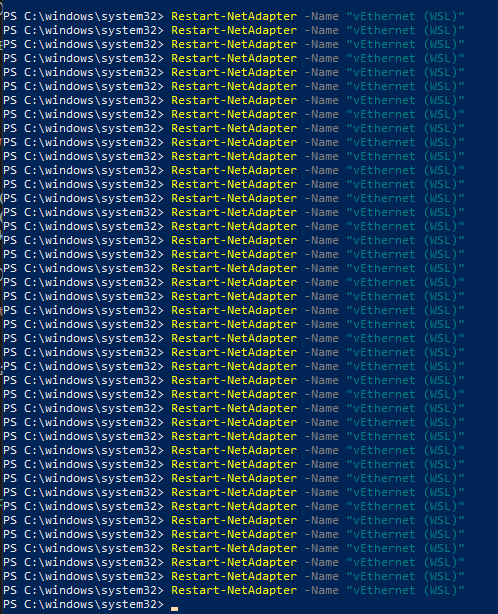
Following Process not working:
ERROR: [ Error writing /etc/resolv.conf: No such file or directory ]
For me the problem was that I had the public profile of Windows Defender Firewall set to block all connections. Setting it back to “Block (Default)” fixed things for me.
I think the bug there is that the public firewall rules are applying to the WSL subnet or adapter. I couldn’t find a way to explicitly declare the WSL adapter as a private network, however.
Here an other approach to do the same from WSL:
powershell.exe 'Get-DnsClientServerAddress -AddressFamily ipv4 | Select-Object -ExpandProperty ServerAddresses | Select -First 3 | ForEach-Object {echo "nameserver $_"}' | sudo tee /etc/resolv.conf > /dev/nullYou can run this command in wsl each time you have your DNS configuration which have changed. It will configure your /etc/resolv.conf with the top 3 DNS servers (Linux do not support more than 3)This needs to be fixed ASAP
I followed this https://github.com/microsoft/WSL/issues/5821#issuecomment-684092757 and it works now!! Hope it helps
I’m running Build 20201.rs_prerelease.200822-1922 and this happened to me a couple of times. I tried the workarounds but it didn’t work even after I restarted my host machine. Eventually I found that if I don’t mess with resolve.conf, a reboot would fix things until it happens again. I don’t use any other firewall other than the default windows defender.
So to sum up, for anyone tumbling here by google search : if inside a WSL2 with a default configuration, the DNS does not work, one of the possible explanation is that some firewall is blocking WSL2 from reaching the windows local dns resolver. Please check :
If none of the above works, your problem is probably somewhere else. Otherwise, it’s very likely a firewall issue, keep looking.
I’m really hoping a solution is found. I’m unfortunately having mixed results with the workarounds myself. On one machine the workaround does help, on another not at all. This is really frustrating and blocking me from adopting WSL 2 in my current workflow.
Just updated to the production version of windows 10 v2004, installed WSL2 and Ubuntu 20.04 from the Windows Store and verified via powershell it was using WSL2. I am not on a VPN, nor am I using a proxy. My firewall/antivirus are but those of Microsoft’s that ship with Windows 10 Pro for Workstations.
I too noticed DNS wasn’t working inside the WSL2 Ubuntu 20.04 environment. Adding the Google DNS servers to ‘/etc/resolv.conf’ resolves the issue, but my changes to ‘/etc/resolv.conf’ keep getting reverted every time I restart despite adding the blurb to ‘/etc/wsl.conf’ mentioned above by @non-static
Installed WSL 2 today on
19041.264Network is unreachable from Ubuntu 20.04 vEthernet (WSL) adapter is correctly created and its IP is 172.23.64.1 However, even that IP is unreachable from inside WSL 2.
Changing the content of
/etc/resolv.conf(and of/etc/wsl.confdoesn’t help).ifconfigdoesn’t return anything at all.Going back to WSL 1 for stability for now. I hope this gets fixed fast as it’s a breaking issue.
Using
nameserver 1.1.1.1in/etc/resolv.confallows me to reach the internet - but doesn’t allow me to reach the NAT-network behind my router. In my case, this is a deal breaker. Seems I’ll be forced back to using linux as my base OS instead of Windows.Did you enter ‘wsl --shutdown’ into the cmd?
From: ambar notifications@github.com Sent: Wednesday, September 11, 2019 2:36 PM To: microsoft/WSL WSL@noreply.github.com Cc: mahsoommoosa42 mahsoom_m@outlook.com; Comment comment@noreply.github.com Subject: Re: [microsoft/WSL] WSL2 DNS stops working (#4285)
@Klein-Huhttps://github.com/Klein-Hu : tried your workaround, followed your steps, but it doesn’t seem to be working for me.
My /etc/resolv.conf file is getting wiped out every time I relaunch wsl2 😕
— You are receiving this because you commented. Reply to this email directly, view it on GitHubhttps://github.com/microsoft/WSL/issues/4285?email_source=notifications&email_token=AFA4ITKHNAZWNB7F7W6376LQJCYK7A5CNFSM4H65IQMKYY3PNVWWK3TUL52HS4DFVREXG43VMVBW63LNMVXHJKTDN5WW2ZLOORPWSZGOD6NZ27Y#issuecomment-530292095, or mute the threadhttps://github.com/notifications/unsubscribe-auth/AFA4ITLPNO6V63C5UXARNC3QJCYK7ANCNFSM4H65IQMA.
Yeah. I did the same. I suppose it’s occuring due to the modifications to network settings with the last fast ring update.
Get Outlook for Androidhttps://aka.ms/ghei36
From: NonStatic notifications@github.com Sent: Saturday, August 17, 2019 9:09:55 AM To: microsoft/WSL WSL@noreply.github.com Cc: mahsoommoosa42 mahsoom_m@outlook.com; Comment comment@noreply.github.com Subject: Re: [microsoft/WSL] WSL2 DNS stops working (#4285)
My workaround:
[network]
generateResolvConf = false
nameserver 8.8.8.8
— You are receiving this because you commented. Reply to this email directly, view it on GitHubhttps://nam02.safelinks.protection.outlook.com/?url=https%3A%2F%2Fgithub.com%2Fmicrosoft%2FWSL%2Fissues%2F4285%3Femail_source%3Dnotifications%26email_token%3DAFA4ITLUCJ7RBWMFDIP3MHLQE5XIXA5CNFSM4H65IQMKYY3PNVWWK3TUL52HS4DFVREXG43VMVBW63LNMVXHJKTDN5WW2ZLOORPWSZGOD4QCPPI%23issuecomment-522201021&data=02|01||73660638a70d4dbc6c4f08d722c49219|84df9e7fe9f640afb435aaaaaaaaaaaa|1|0|637016099969731395&sdata=6rg9%2FiwAZkJoOhwhu6sHElqoJptYoS19AbuYTY5flPw%3D&reserved=0, or mute the threadhttps://nam02.safelinks.protection.outlook.com/?url=https%3A%2F%2Fgithub.com%2Fnotifications%2Funsubscribe-auth%2FAFA4ITMQRWJZKXU26K6BC33QE5XIXANCNFSM4H65IQMA&data=02|01||73660638a70d4dbc6c4f08d722c49219|84df9e7fe9f640afb435aaaaaaaaaaaa|1|0|637016099969741400&sdata=ufzaqjmQaVAOOmGeoirghbUOw9ZddYre3JAnJcprh5k%3D&reserved=0.
Maybe it is related to this: #4275
It’s been a while since I’ve had this problem, but it happened again today. Typical symptoms – dns timeouts. Targeting other DNS servers directly works fine (local router’s dns, google dns, etc). The default WSL2 dns server does not respond.
From further up this thread, lots of reports about firewall issues, so I can report that DNS(1) fails, but then if I disable the Windows Firewall, DNS(1) works again.
(1) “DNS” aka the default wsl2 dns server which on my system is some WSL-internal 172.20.128.1 address – the same address as the default route.
Using
nslookupfrom the Windows side, I can use the WSL dns server (settingserver 172.20.128.1). Inside WSL, however, it times out unless I disable the firewall.Hope this helps one of us eventually solve this 🤷♂️
You should self-reflect on why. Every second comment here is you saying “Works for me!”.
That sounds like a completely different issue than the one this issue is about. The primary issue with DNS is that a lot of VPN Software, or just sometimes Windows itself, somehow, ends up blocking access to the local DNS Forwarder used by WSL2. General internet connectivity is not typically affected by that, so that’s an entirely different issue.
And you are complaining about that on a public Github, that’s obviously not monitored by the responsible people? It’s very clearly something with your Network or Machine Config, given it works for other people. It’s not generally broken. Only your Admins can help you.
Yes, which is why I said you should investigate what’s special about your network and/or setup. Latest Docker on latest Windows 11 with WSL2 generally works. Most likely cause of this issue is an overzealous Firewall.
Great for you. The issue is that this does not happen for everyone.
It also seems to break, at least for me, when Windows Firewall is set to “block all incoming connections including those in the list of allowed apps”, this one:
(Screenshot from here)
Which sort of makes sense but it was a bit surprising because with WSL1 or VirtualBox DNS worked fine, probably because the implementation is different.
When the setting is enabled (all incoming connections blocked), then WSL can’t send DNS queries to 192.168.something.something (I don’t remember exactly but it’s a different IP range than the network range).
Adding new firewall rules for the WSL interface didn’t help. And I have no VPN running, no other firewall/AV software. All my network connections are set to “public”.
Ended up using DNSCrypt-Proxy (in my resolv.conf) so I can do DNS-over-HTTPS to DoH providers like 8.8.8.8 or 1.1.1.1 and others. I didn’t want to remove the “block all incoming connections” setting.
Short answer is that there are a variety of work arounds that don’t work universally. Corp vpns can have over 40 virtual adapters setup and diagnosing is tough, especially where permissions / visibility are difficult. Wsl1 typically works A-OK where wsl2 fails. The fact that nobody from MS has commented in almost 3 years speaks volumes. As for me, I’ve switched to a Mac and the lack of official support on this issue was a big reason why
The problem is that I do exactly the same and everything Just Works.
No, you don’t need to do that.
So - I shared my research above a few weeks ago. No VPN. It just does not work reliably if you hop between networks like, say, home network and then moving on to a coffee shop wifi. And I have just a stock install of WSL. If I’m missing something glaringly obvious, I’m happy to look into it.
And yes, I understand that I’d need to open a new terminal window after the network change happens.
delete the existing file with the command
rm /etc/resolv.confif you see any issues while creating the file.I found this and it worked for me on Global Protects Prisma VPN check the names referenced here for your computer by doing an ipconfig /all
then from an Admin Powershell, do the following:
Get-NetIPInterface -InterfaceAlias “vEthernet (WSL)” | Set-NetIPInterface -InterfaceMetric 1 Get-NetAdapter | Where-Object {$_.InterfaceDescription -Match “PANGP Virtual Ethernet Adapter”} | Set-NetIPInterface -InterfaceMetric 6000
It does. DNS is fine in a Hyper-V VM:
This is a stock install of Hyper-V. Steps I followed:
So once again, only WSLv2 has this issue.
This is a WSL2 problem. WSL1 worked - WSL2 is a write-off with this issue. Hopefully WSL3 will work (one-day). (classic alternating Microsoft versioning afterall)
You did something wrong with your computer if you experience this issue. Out of the box, on a clean Windows, DNS simply works in WSL2. And you are the person to investigate what particular actions that you’ve done cause this effect. After you do that, you either undo problematic change, or fix software that causes the effect, or complain to MS (or that software vendor): hey, guys, your stuff doesn’t work together, you can do X+Y+Z to reproduce it. Nobody here is going to analyze your setup for you.
PS. I had DNS not working on WSL2. And I figured out that it was caused by firewall settings set by sysadmins. And I demanded them to fix buggy settings, and now I have fully functional DNS, either with or without VPN.
So, you say that something breaks depending on Docker Desktop version. How this is related to WSL? WSL works without any Docker Desktop.
I experience this problem without a vpn (as originally reported). There is some correlation with folks reporting the problem while using a vpn, but that isn’t the only group of folks reporting this problem.
This is a three years old issue that doesn’t have a good solution from vendor? Is the only solution to really get rid of Windows all together ?
I think I tried everything (edited
etc/wsl.confand/etc/resolv.conf), but there was one last step when using VPN + WSL2:In Windows, Powershell with Administrator rights, run:
where
<VPN_InterfaceDescription>should be replaced with the starting characters of theInterfaceDescriptionof your VPN network adapter. You can check the correct name usingGet-NetAdapter(with and without VPN on, and you’ll see the Status change)For example, if using Cisco AnyConnect VPN:
Thanks to this old comment of @coltenkrauter pointing to here. There is also some critique against this method, and an alternative represented in this blog post, but the method was not “just copy paste a script” (at least yet).
You’ll need to run this every time after connected to the VPN. It might be handy to save the script as
.ps1file and create a shortcut to desktop with “Location of Item” defined asThe reasoning for all this is explained in the linked blog post.
Restarting the Windows vNIC solved this problem for me. Just run a privileged powershell with
Restart-NetAdapter -Name "vEthernet (WSL)"This started happening for me too and is making WSL2 completely unusable for me at the moment. I need to use both Docker and our company VPN, and both of those seem to trigger weird interactions with name resolution in WSL2.
Weirdly enough,
$ ping google.comworks fine, but other sites like$ ping github.comdon’t. On my Windows host, all of these work perfectly.I’ve tried every workaround listed in this thread, reinstalled WSL2 and Ubuntu, reinstalled Docker, and none of them work.
Turn off your VPN (just a comment, not a solution to the problem). I followed the instructions by @non-static and was not able to
ping google.comuntil AFTER I turned off my VPN connection. When I turned on my VPN again,ping: google.com: Temporary failure in name resolution. So in my case, running VPN seems to be related to the problem.Hello,
Same issue on Windows 11 and WSL 2 with a Debian distribution. When putting
generateResolvConfto false, each time I restart the WSL, the/etc/resolv.confdoes not exist.Addition to @SteveBurkettNZ, might be debian-based problem, i had this problem on Debian’s version
Did recreating the Virtual Adapters not help?
I found that it did have to to with the Virtual Network adapters. In simple cases it was easiest just to recreate them, in others I noticed VMs had been set to
local only.@dev-SR You probably still have the symbolic link there, delete it first and try again.
An even nicer solution to an ugly problem, thx. I think we should add
Get-Unique(oruniqin the WSL world) to avoid duplicates. As previously we appended to the existingreoslv.confI modified theteecommand as well.Nice idea. Be aware this command is dependent on your OS language. E.g. in German you need to
grepfor"DNS-Server.*: [\.0-9]+\s*$"I think we would be better off using pure PowerShell commands to extract the valueFull command would be: PowerShell on Windows:
WSL:
In my case, the DNS was resolving names just fine on Windows, but not in one of the subsystem distros after I deleted and recreated a WiFi connection in Windows (to fix a different, auto-connect-after-pc-restart, issue).
To fix that I ended up executing the following commands from PowerShell on Windows:
which updated the subsystem distro (which was misbehaving) with same DNS IPv4 address as Windows 10.
If the distro has only the root user and
sudocommand is not installed (typically the case with default Alpine install), dropsudofrom the command above to skip the password prompt.We can also do it from Unix shell:
this solved for me
Rebooting caused those etc files to be regenerated, for me. It has to do with a virtual network adapter from what I’ve read, and those get recreated every reboot. (Not a definitive answer!)
Editing
/etc/resolv.confmakesDISPLAY="$(cat /etc/resolv.conf | grep nameserver | awk '{print $2}'):0"not working… Hoping for a better solution to make them both works…I’m on build 18632, upgraded an existing WSL v1 Ubuntu distribution to v2 and DNS stopped working. Applied the wsl.conf / resolv.conf fixes but to no avail, DNS just won’t work at all. I also tried disabling WSL feature, reboot, enable WSL again, reboot, same thing still.
Just downgraded Ubuntu back to v1, DNS all working fine again. I may try a fresh Ubuntu v2 distribution (can I run this alongside v1 BTW?).
This is apparently how several default configuration errors are manifesting. For me, no editing of resolv.conf or disabling firewalls was working but disabling swap worked: https://github.com/microsoft/WSL/issues/5437#issuecomment-647161596
As @ScottyAU said :
I had exactly the same thing : the same firewall rules, the same bug and all was working when I disabled the firewall on the vEthernet (WSL) interface as suggested by ScottyAU
But disabling the firewall was not an option for me. Turns out it was a GPO from my company which was responsible : ./Vendor/MSFT/Firewall/MdmStore/*/AllowLocalPolicyMerge
The firewall rules created automatically by WSL where simply ignored because of the GPO even though they where displayed in the firewall configuration and nothing was visually indicating that they where ignored.
As soon as the GPO was changed to allowlocalpolicymerge=true, all went back to normal without having to disable the firewall.
Hope it helps some of you.
Changing nameserver did not work for me.
$:/mnt/c/WINDOWS/system32$ cat /etc/resolv.conf nameserver 8.8.8.8 nameserver 8.8.4.4 $:/mnt/c/WINDOWS/system32$ ping google.com ping: google.com: Temporary failure in name resolution
I don’t have any VPN running now. But I have NordVPN installed. No third-party anti-virus or Firewall solutions installed.
[Edit]: I forgot I had Checkpoint VPN and uninstalling it worked. Related #4246
Also having regular problems with DNS and WSL2, 2004. Only
wsl --shutdownhelps…Just for the info, if your DNS stops working only after connecting to Cisco AnyConnect VPN, check out https://github.com/microsoft/WSL/issues/4277#issuecomment-561649724
Perhaps related: I just noticed that something has being creating tons and tons of inbound rules at the Windows Firewall configuration relative to port 53 (DNS):
They are all of two types:
HNS Container Networking - ICS DNS (TCP-In), associated to svchost.exe. HNS Container Networking - DNS (UDP-In), for any program.
I’m at Windows 10 Pro build 19564 with WSL2, using regularly Ubuntu 18.04.4 LTS and Docker CE 19.03.6 (from the Ubuntu packages provided by Docker [1], not the new experimental Docker for Windows that uses WSL2).
[1] https://docs.docker.com/install/linux/docker-ce/ubuntu/
If they’re inbound rules, my first guess is that these are created by WSL2 for a local DNS server used on things like localhost resolution to the ip address of the WSL2 network interface.
It concerns me that so many rules have being created at the firewall, and I’m unsure about removing them, but could it be related that this registration process somehow fails, or it works but the addition of so many rules delays the actual DNS responses?
Ran into the same issue yesterday and couldn’t figure out why. That workaround actually solved the issue for me, thanks!
This happened suddenly, I just removed
/etc/resolv.confrebooted and let it regenerate the file, this makes sure you are not hardcoding your DNS server for easing further troubleshooting and keeping installation as close to defaults as possible. Most people want the DNS to follow in WSL if you decide to tether internet via phone, use VPN provider etc.@hwasoocho no, sorry. After some time (and maybe some windows updates) it magically stopped being a problem.
Running insider 10.0.18980.1, kernel 4.19…67 Seems as if the dns resolver running on 172 is single threaded? Request that timeout seem to block.
I am seeing this same DNS behavior on Build 18941. The local DNS server is not responding but I can route out to the internet and everything works fine once I set a manual resolv.conf. Using both the official Kali and Ubuntu distros in the store, converted to WSL 2. I have no other Hyper-V VMs.
Ifconfig:
bond0: flags=5122<BROADCAST,MASTER,MULTICAST> mtu 1500 ether 0a:b1:11:d2:aa:66 txqueuelen 1000 (Ethernet) RX packets 0 bytes 0 (0.0 B) RX errors 0 dropped 0 overruns 0 frame 0 TX packets 0 bytes 0 (0.0 B) TX errors 0 dropped 0 overruns 0 carrier 0 collisions 0
eth0: flags=4163<UP,BROADCAST,RUNNING,MULTICAST> mtu 1500 inet 172.18.201.80 netmask 255.255.0.0 broadcast 172.18.255.255 inet6 fe80::215:5dff:fe9a:1fe3 prefixlen 64 scopeid 0x20<link> ether 00:15:5d:9a:1f:e3 txqueuelen 1000 (Ethernet) RX packets 11 bytes 1507 (1.4 KiB) RX errors 0 dropped 0 overruns 0 frame 0 TX packets 16 bytes 1232 (1.2 KiB) TX errors 0 dropped 0 overruns 0 carrier 0 collisions 0
lo: flags=73<UP,LOOPBACK,RUNNING> mtu 65536 inet 127.0.0.1 netmask 255.0.0.0 inet6 ::1 prefixlen 128 scopeid 0x10<host> loop txqueuelen 1000 (Local Loopback) RX packets 8 bytes 560 (560.0 B) RX errors 0 dropped 0 overruns 0 frame 0 TX packets 8 bytes 560 (560.0 B) TX errors 0 dropped 0 overruns 0 carrier 0 collisions 0
sit0: flags=128<NOARP> mtu 1480 sit txqueuelen 1000 (IPv6-in-IPv4) RX packets 0 bytes 0 (0.0 B) RX errors 0 dropped 0 overruns 0 frame 0 TX packets 0 bytes 0 (0.0 B) TX errors 0 dropped 0 overruns 0 carrier 0 collisions 0