WSL: WSL2 distros fail on start with Error 0xffffffff. (Exit code 4294967295 if launched from Windows Terminal)
-
Your Windows build number: (Type
verat a Windows Command Prompt) Microsoft Windows [Version 10.0.19041.84] -
What you’re doing and what’s happening: (Copy&paste the full set of specific command-line steps necessary to reproduce the behavior, and their output. Include screen shots if that helps demonstrate the problem.) Problem occurrs anytime I try to launch a WSL2 distro.
C:\Users\10057871> wsl -d Ubuntu
Error: 0xffffffff
- What’s wrong / what should be happening instead: All WSL2 distros crash on start. WSL1 distros work fine. My current set:
C:\Users\10057871> wsl -l -v
  NAME                   STATE           VERSION
* Ubuntu                 Stopped         2
  Alpine                 Stopped         1
  docker-desktop-data    Stopped         2
  docker-desktop         Stopped         2
-
Strace of the failing command, if applicable: (If
some_commandis failing, then runstrace -o some_command.strace -f some_command some_args, and link the contents ofsome_command.stracein a gist here). N/A -
For WSL launch issues, please collect detailed logs. wsl_logs.zip
-
Additional info:
I recently got a new laptop. Before configuring WSL or Docker, I upgraded to insiders version 2004 (full version above). I then enabled WSL, installed Ubuntu, & set the version to 2. Later I installed Docker for Windows, and configure that to use WSL2 as well.
Everything worked great for a while, until my group policy forced me to enable Bitlocker. After that, I started seeing the errors mentioned above. While searching for a solution, I came across this reply on another issue. After executing those 2 commands and rebooting, I was able to install Ubuntu again & upgrade it to WSL2. I then reinstalled Docker, and configured it for WSL2 again as well. This worked great for almost 2 days, until my laptop Green Screened and rebooted (I have the minidump if you’d like me to send it). After the reboot, my WSL2 instances no longer work, and I’m unable to get them working again. I even executed the fsutil commands again just in case they got reset, but to no avail.
Is this behavior caused by Bitlocker, or is the timing merely coincidental?
About this issue
- Original URL
- State: open
- Created 7 years ago
- Reactions: 31
- Comments: 116 (3 by maintainers)
Links to this issue
Commits related to this issue
- Fix for wsl2 (#3574) Built-in Moby engine is not used in LCOW configuration. However, the service remains active and consumes the DNS port (53) that caused WSL2 to fail (https://github.com/microsoft/... — committed to Azure/iotedge by deleted user 6 years ago
- Fix for wsl2 (#3574) Built-in Moby engine is not used in LCOW configuration. However, the service remains active and consumes the DNS port (53) that caused WSL2 to fail (https://github.com/microsoft/... — committed to veyalla/iotedge by deleted user 6 years ago
- Fix for wsl2 (#3574) (#3633) Built-in Moby engine is not used in LCOW configuration. However, the service remains active and consumes the DNS port (53) that caused WSL2 to fail (https://github.com/mi... — committed to Azure/iotedge by deleted user 6 years ago
- Fix for wsl2 (#3574) Built-in Moby engine is not used in LCOW configuration. However, the service remains active and consumes the DNS port (53) that caused WSL2 to fail (https://github.com/microsoft/... — committed to gordonwang0/iotedge by deleted user 6 years ago
Definitely still an issue.
Atm, I quit Docker for Desktop when it fails to start the WSL2 backend, and run the following in an Admin Powershell.
There are always two processes it seems - DockerD, and an unknown service captured by svchost I have no idea what the ramifications of me simply killing the tasks like I do are, but Docker for Windows starts up fine afterwards, Starts the WSL2 backend successfully - and my system is stable
Uninstalled Acrylic DNS proxy and everything works as normal now. I guess it’s manual hosts file entries for me.
Stopped Acrylic DNS service, and the WSL worked again
I removed Acrylic DNS Proxy from my system and wsl started working again.
This post fixed it for me!
https://www.surfacetablethelp.com/2018/10/fix-hyper-v-not-working-after-windows-10-v1809-upgraded.html
Still couldn’t tell you how those options got set in the first place.
I went through the same issue and it comes out it was caused by Acrylic DNS Proxy.
Maybe services like that mess with networking settings necessary for Hyper-V to work (I noticed not even my plain Hyper-V VMs would come up).
I “solved” it by uninstalling Acrylic altogether and resorting to plain old hosts file editing.
Btw, I’m running Ubuntu 18.04.5 and Docker Desktop v19.03.12 on WSL2 on Windows 10 Build 19041.388.
Thanks for that; WSL stopped working for the same reason. What I ended up doing is set the service to start as delayed, which makes it start after a few minutes. That allows WSL to work again. If you need Acrylic earlier, you can always run Acrylic UI and start the service manually.
+1 for Stopping/Removing Technitium DNS Server. Conversion of a WSL 1 Ubuntu instance to WSL2 worked.
Its port 53 for me due to Cisco AnyConnect VPN that installed its umbrella client. Anyone understand why Port 53 has to be open for WSL/Docker/Hyper-V? Disabling the Cisco AnyConnect Services temporarily then restarting the Hyper-V Compute Service, then my WSL2 and Docker fired right up. I then turned on the cisco services. I have a feeling I will have to do each reboot 😦
I’m currently experiencing the same issue, minus Docker & Bitlocker. My Debian was working perfectly in WSL 2 up until today - now it hangs which causes Windows Terminal to hang also, I’ve tried remove/readding features etc to no avail.
I disable Hyper-v virtual Ethernet(VEthernet) in control panel, then start wsl2. That error disappear and wsl start successfully. then I enable virtual Ethernet, everything works fine for now.
deactivating Acrylic DNS Proxy fixed it for me
from post https://stackoverflow.com/questions/64191759/wslregisterdistribution-failed-with-error-0xffffffff
Check which service is using port 53 and kill it
@QuAzI It looks like the docker prune screwed up everything. Open an elevated cmd and run
netcfg -d. Reboot and you should have back the default network adapters.Windows lost WSL AGAIN. Just after reboot (updates was disabled from last issue). Now WSL can’t create right connection anymore. Even if I tried th0ger’s solution
I saw in Network Connections that WSL tries to create new connection and removes it. But where is logs or something which can help to diagnose problems?
After cutting down the %PATH% variable to 989 characters (including spaces), WSL starts working again. Unfortunately, this is on a machine with developer environments and Windows Kits. Cutting down the %PATH% permanently would be problematic. Hope they fix this problem with WSL soon.
I notice after running wsl and got Error: 0xffffffff because it fail to create a wsl network adapter like as @craigloewen-msft said. what I first upgrade to this new 2004 build + wsl2, no WSL adapter(in red circle) and my wsl2 can’t ping to local(host os) ip, if your wsl2 also can’t, I think will trigger this problem
I fix it by doing this,
my windows version is

p.s. English is not my native lang hope you can fix your too. I’m also using docker too but this problem isn’t docker relate.
Is there a fix for this or do I blow windows away and install a proper OS? This is crazy.
OK, I’ve converted my main machine back to v1 so I can atleast do some work.
The post shared by @privacyguy123 solved my issue too, it just requires an additional reboot.
Same issue here with my WSL2 distro (ubuntu 18.04)
The fix for me with this same issue was this:
wsl -l -vand noticed that thedocker-desktopmachine was stuck uninstallingwsl --unregister docker-desktopThanks, it is indeed a DNS issue, after stopping the Acrylic DNS service, not only WSL issue solved but also Windows Sandbox 0xffffffff problems disappears… 😅
For what it is worth, I noticed the Acrylic DNS Server situation above and I stopped my Technitium DNS Server and all of a suddden everything started working.
Eeeeesh!
Thanks for the help folks
After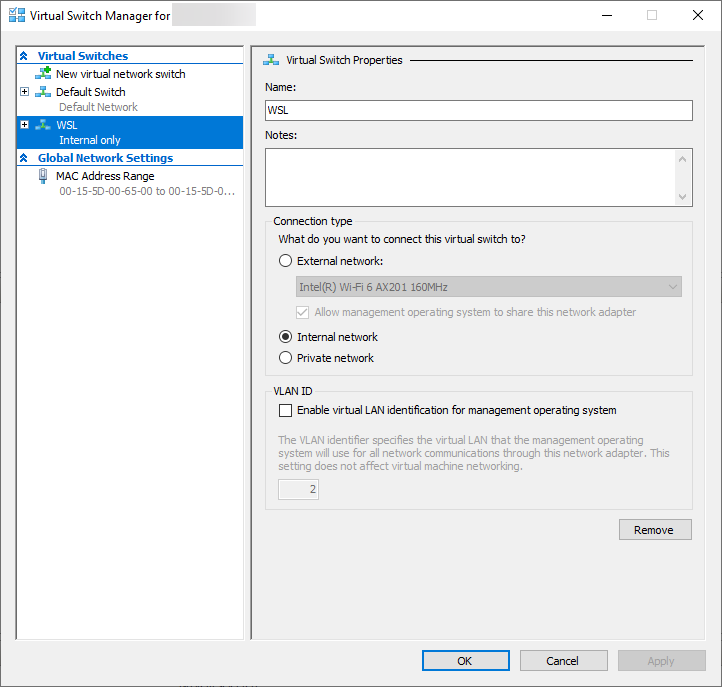 Now WSL write that network can’t be find instead of 0xffffff error. Remove WSL Switch manually from Virtual Switch Manager. After next run WSL will create it by self.
docker network prunerun Hyper-V Manager -> Hyper-V Switch Manager -> Virtual Switches Create WSL Switch againSettings will be same as on screenshot but WSL can’t work with it if you create it manually. Some hidden settings maybe
This works.
Check and stop any process listening 53/UDP https://github.com/microsoft/WSL/issues/4364#issuecomment-817124935
@onomatopellan Thanks,
netcfg -dworks fine. Just two moments:Device Manager -> Network adapters (+ Menu - View - Show hidden devices)should be removed before reboot:Hyper-V Virtual Ethernet AdapterHyper-V Virtual Switch Extension AdapterMicrosoft Wi-Fi Direct Virtual AdapterWAN Miniport- without this you will have a problems with VPN like on screenIf after reboot you will have troubles with WSL connection (not present in Network Connections) try to remove Hyper-V adapters again and reboot.
The same issue after upgrade to Win10 b20.04 and fixing issues with docker.
docker network prunedrops WSL? Why? And how to fix it?@dcharlespyle Your issue in WSL1 is #5633. Try shortening the Windows %PATH%.
I’m using dnscrypt-proxy. So in my case stopped the dnscrypt-proxy tried the wsl command twice and my default WSL instance booted, docker started, and I started dnscrypt-proxy. Everything is running! It seams that there is DNS resolution issues when running local DNS resolver! Some transparency how it works will definitely help!
for me, simply un-install Hyper-V and re-start computer, then everything works
I then ran the following to remove the stuck machine state wsl --unregister docker-desktop
This worked for me after a day of trying different things! Thank you so much @bolens
my solution is run the following command with administrator:
netsh winsock resetI had the same issue it took lot of my time, simply check which app is using port 53 and kill it try the following: Go to System Tools => Resource Monitor GUI for windows Check which service is using port 53, Once you identify it, kill the process as follows: taskkill /f /pid [PID].
Go to Users/[youruser]/AppData/Local/Packages/ and look for a folder called CanonicalGroupLimitedUbuntu… then right click on it, go to Properties => Advanced Options and disable compression for the folder, then click accept and also apply this change for subfolders.
Please try the following:
Go to System Tools => Resource Monitor GUI for windows Check which service is using port 53, Once you identify it, kill the process as follows: taskkill /f /pid [PID]. Go to Users/[youruser]/AppData/Local/Packages/ and look for a folder called CanonicalGroupLimitedUbuntu… then right click on it, go to Properties => Advanced Options and disable compression for the folder, then click accept and also apply this change for subfolders. [Note] Windows uses Compression for the installation folders so is not possible to run it.
Once this is done, try to run your installation and should be working.
Hope it helps. Regards
Yes, in my case i installed Technitium DNS Manager which operated in port 53. Which is a port apparently WSL needs to set up his network adapter.
Removing the program and restarting the system worked for me.
Are you using an Insider Preview version of Windows? If so, if it expires WSL will generate this error. It will appear out of the blue. The other potential cause is a damaged file. Check your hard drive for filesystem errors, including bad sectors.
Check the filesystem for corrupted files. Check the system’s image store for corruption. Make sure that Windows Hypervisor Platform and Virtual Machine Platform are installed properly in addition to Hyper-V. Also Containers.
Sometimes an update will cause the above three Optional Features not to be installed properly. The only way to fix them, if they are the cause. is to disable them, reboot, and then enable them all again.
Everyone mentioning they “fixed the problem” in this issue didn’t fix nothing at all.
In my case I had problems in the
~/.bash{rc,_profile}files which prevented bash from starting and wsl didn’t know what to do, thus presenting me this error code 4294967295. I had to usewsl.exe -d Debian -e /bin/shto use another shell and fix the offending files.So the problem here is that WSL2 distros lack automatic emergency shells and workarounds in the event of a problem in the system init (which it seems that inside Windows there are many more than regular Linux). Has anyone at @microsoft ever heard of busybox?
Regular Linux seem to have many layers of ways to prevent such failures, however when using Linux on Windows (where one would expect to see Linux crash much more frequently) there seems to be none.
I would comment the same thing on #5092
netsh winsock reset + restart fixes this issue for me
I had this issue when i was updating my windows to new build, I had a popup of “Windows build going to expire” every time i open my computer so I research a lot for this solution and came to know that I have switch the Insider setting from Beta or Slow ring to Dev channel and update/upgrade windows build. Once it updated I switch back to Beta channel now and this expire popup went away. Now, with this I had new issue, that is when i open my WSL Ubuntu terminal, it was blank. If I press anything, I received I/O operation error all the time. So, now I came to this Issue here and read all of them. I looks like i have re-enable Hyper virtual…, or WSL path …, it was confusing for me and i know it worked for some people here.
For my case, ( I am not sure if everyone had similar situation to mine ). what i did to solve this is:
dism.exe /online /enable-feature /featurename:Microsoft-Windows-Subsystem-Linux /all /norestart (enable Feature WSL)dism.exe /online /enable-feature /featurename:VirtualMachinePlatform /all /norestart ( enable Feature Virtual Machine )and ran this
wsl --set-default-version 2Set default version to 2 and see if i can set to new WSL version.wsl -l -vCheck what version of Ubuntu do i havewsl --set-version Ubuntu-18.04 2Set version of Ubuntu to 2.Then, I got this message:
So, I went to that link and downloaded Kernel
wsl_update_x64.msifile and installed, all went good.After installation, I ran this command again,
wsl --set-version Ubuntu-18.04 2Voila, done, I opened my WSL ubuntu terminal, and its all working like before.
Uninstalling Hyper-V according to these instructions: answers.microsoft.com/en-us/windows/forum/windows_8-windows_install/how-do-i-uninstall-hyper-v and then restarting also solved the problem for me.
Just as a final post-reboot thought… setting Cisco to manual helps as it wont take over however it does mean I manually have to turn it back on after rebooting but that is preferable.
Also to those not facing the cisco issue, I continued to have other issues but in general simply restarting that Hyper-V Compute Service then trying to fire up WSL2 worked most times.
Hello… is any one home?
Why are Microsoft putting out blog posts like this https://devblogs.microsoft.com/commandline/wsl2-will-be-generally-available-in-windows-10-version-2004/ when wsl2 is not working?
Try to install Ubuntu in WSL2 from scratch without migrating from v1.
wsl.exe --set-default-version 2will set WSL2 as default. Also make a backup of existing WSL user home folder and installed packages.