react-native: React Native server stories list infinitely loading
Hello! I had a problem with loading Storybook web explorer, it doesn’t load the left menu. But on a device Storybook works well. I met the problem both during Intro React Native Storybook Tutorial and in my bare workflow project. It just doesn’t build a web version.
Steps
-
In a terminal to a project folder:
npx -p @storybook/cli sb init --type react_nativeyarn add -D @storybook/addon-ondevice-actions -
In storybook/rn-addons.js
import '@storybook/addon-ondevice-actions/register'; -
In the terminal I tried this and reverse order:
yarn storybookyarn starta– both Android simulator and a real Android device, Storybook works well on both options but does not in a browser. -
On
yarn storybookthe answer:
yarn run v1.22.4
$ start-storybook -p 7007
info => Loading presets
info => Loading custom manager config.
╭────────────────────────────────────────────────────╮
│                                                    │
│   Storybook 5.3.18 started                         │
│   4.39 s                                           │
│                                                    │
│    Local:            http://localhost:7007/        │
│    On your network:  http://192.168.0.104:7007/    │
│                                                    │
╰────────────────────────────────────────────────────╯
From the tutorial it should be this

But I have this result on any projects and environments I tried

Environment Info: System: OS: macOS Mojave 10.14.6 CPU: (8) x64 Intel® Core™ i7-4980HQ CPU @ 2.80GHz Binaries: Node: 12.16.3 - /usr/local/bin/node Yarn: 1.22.4 - /usr/local/bin/yarn Browsers: Chrome: 81.0.4044.138 Firefox: 76.0 Safari: 12.1.2 npmPackages: @storybook/addon-actions: ^5.3.18 => 5.3.18 @storybook/addon-links: ^5.3.18 => 5.3.18 @storybook/addon-ondevice-actions: ^5.3.18 => 5.3.18 @storybook/addons: ^5.3.18 => 5.3.18 @storybook/react-native: ^5.3.18 => 5.3.18 @storybook/react-native-server: ^5.3.18 => 5.3.18
Also, I tried with the older 5.2.1 Storybook version, an Android simulator, and an Android phone via USB, Ubuntu, manual server setup, but the same error.
I also set up React Storybook Tutorial for a try to see if there is this error there. No problem, all works properly with React.
About this issue
- Original URL
- State: open
- Created 4 years ago
- Reactions: 38
- Comments: 71 (24 by maintainers)
Did you try it?
$ (adb reverse tcp:7007 tcp:7007 || true) && start-storybookworking well.I found there is an issue when using a real android device with expo. It can be resolved by specifying your port and host explicitly
When you start up the server you should see something with your IP here On your network: http://xxx.xxx.x.xx:7007/
Take this IP and set it explicitly as the host and then the storybookui should be able to reach the server
In code
In package.json
"storybook": "start-storybook -p 7007 -h 192.111.1.11"(replace this ip address with your local ip address port: “7007”)This should resolve the connection issues
This might also help some people if the above isn’t working
adb reverse tcp:7007 tcp:7007Hello everyone 👋🏻
I tried everything mentioned but the only solution was to use my network IP address instead of “0.0.0.0”. To avoid hardcoding the address in two places (
package.jsonandstorybook.js), I created a simple bash script automates this task for us.The final solution looks like this:
1. In
package.json, underscripts, add the following line:"storybook": "tasks/storybook.sh",2. Add the bash script below under a
tasksfolder. Name itstorybook.sh.2.1 Don’t forget to give the right permission to the script:
chmod +x tasks/storybook.sh3. Modify your
storybooks.jsto support the new format:4. DONE! Execute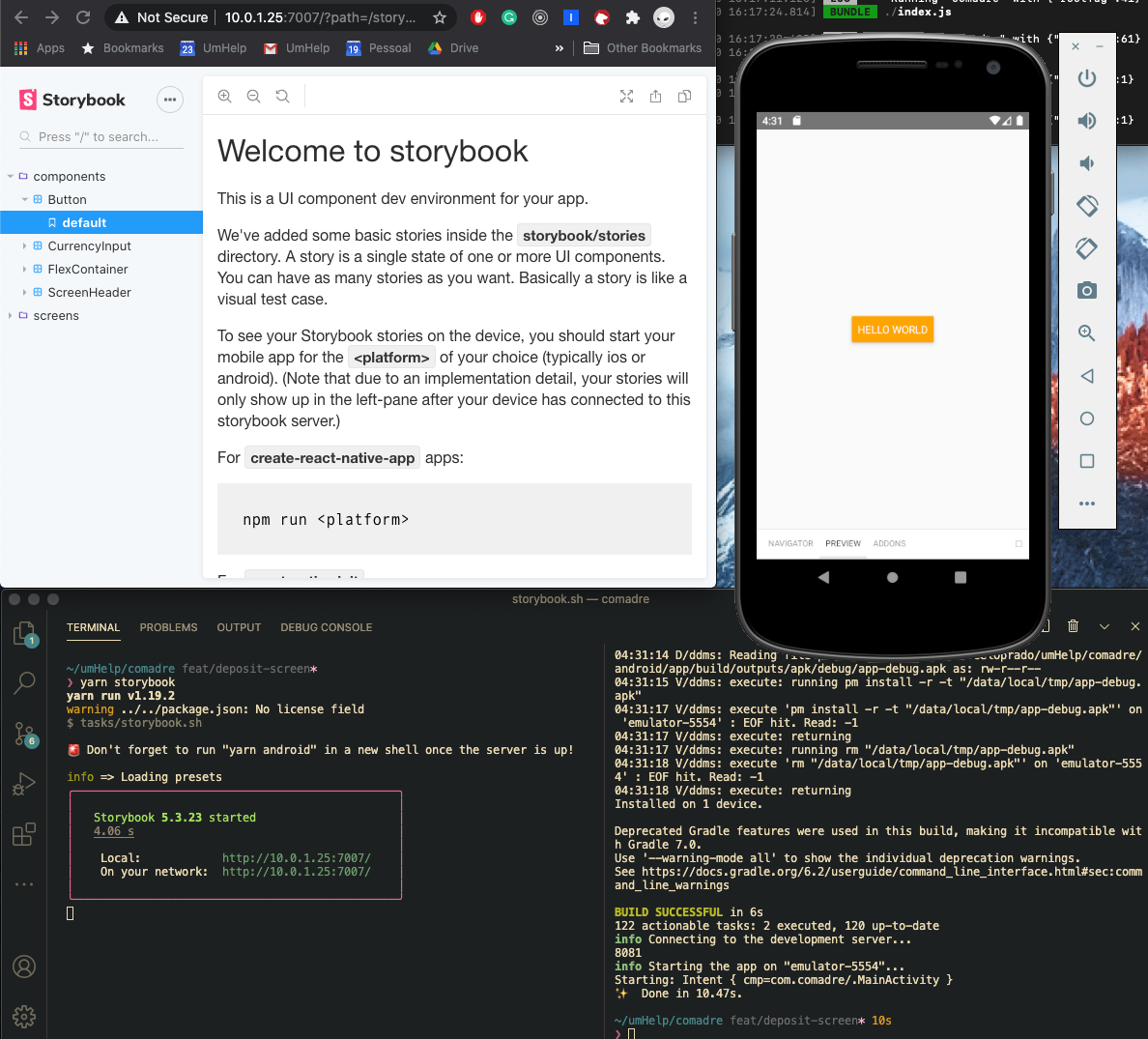
yarn storybookand, in a new shell,yarn androidoryarn ios.I found the solution. Same problem happened with me.
Please start your story book with this argument ->
-h 0.0.0.0. The whole command would be ->start-storybook -h 0.0.0.0, You can also change it in your “package.json” file, so that you can just use “yarn storybook”.After the server starts, if the browser says “This site can’t be reached”, for the ip
0.0.0.0, just open the server with yourlocal ip address, for example, my address is192.168.45.150, so I would open it with192.168.45.150:7007, (I have my server running on7007port, if you have it bind to some other port, please use that).There seems to be some network issue with storybook and it runs only on your localhost if the command
start-storybookis used without “host” argument. As a result the emulator or your device can’t find the storybook server, hence no stories are displayed. You can see below the screenshot, I can see the stories now.Also no need of writing any port or host in
getStorybookUI({}). It will work without it.Found the major hint in this reply.
EDIT 1: Okay… sometimes we do need to mention port and host in
getStorybookUI({}).Following steps will work in case you are able to load stories on your emulator and control them via on-device navigator, preview and addons and just
want to add the server control along with on device one. I faced this problem and @dannyhw helped me.Advantages:
Steps:
package.jsonfile will have"storybook": "start-storybook -c .storybookin scriptsnpm run storybookand the server will open in which the stories willload infinitely.npm run storybook. It will look like thishost->
192.168.137.15(copy your host) and port ->70075. Now specify these at exactly two places :npm run storybookcommand by pressingctrl +cand run it againnpm startand all in other terminals (keep thenpm run storybookrunning) and reload the storybook server. You will see it working now.You should run storybook server and then after run the react native app then if you refresh the webpage for react native server the stories should load.
@EsackN Did you add
hostingetStorybookUI({}). Example ->getStorybookUI({host:"192.168.43.66"});(your local IP or the one which storybook mentions in the box after starting)This function is used in
index.jsinsidestorybookfolder in your project.Also you have to start the app in your phone, without it stories won’t show.
I figured it out. I did not follow instructions properly and failed to put the export {default} from ‘./storybook’; into my App.js file. You all rock @kenchoong and @dannyhw. Your earlier posts saved me a ton of time.
add this to your package.json
The value of the host should start with 192, other than that, certainly it is wrong. Restart your computer, and get the new IP.
I did everything above and it is still not working 😕
@Shhhhhreyas Thank you so much. @dannyhw Thanks for the words. @Shhhhhreyas Helped me and the issue got fixed,
@jordanlang410 The important thing is having the same ip and port for both the storybook script in package.json and also in getStorybookUI. Also make sure its the right ip address for your machine. It should be the local network address, this ip will be shown when you initially run the server. This solution has been shown to work multiple times so I imagine you just need to double check your setup and double check the IP address.
In package.json
“storybook”: “start-storybook -p 7007 -h 172.1.1.1”,
and getStorybookUI
const StorybookUIRoot = getStorybookUI({ host:‘172.1.1.1’, port:‘7007’, asyncStorage: null });
Hello!! Thanks to @Shhhhhreyas I was able to configurate the Storybook. We did a call and we can notice I wasn’t importing in my app.js my storybook/index.js and rendering that component I will show what it was missing on a image below: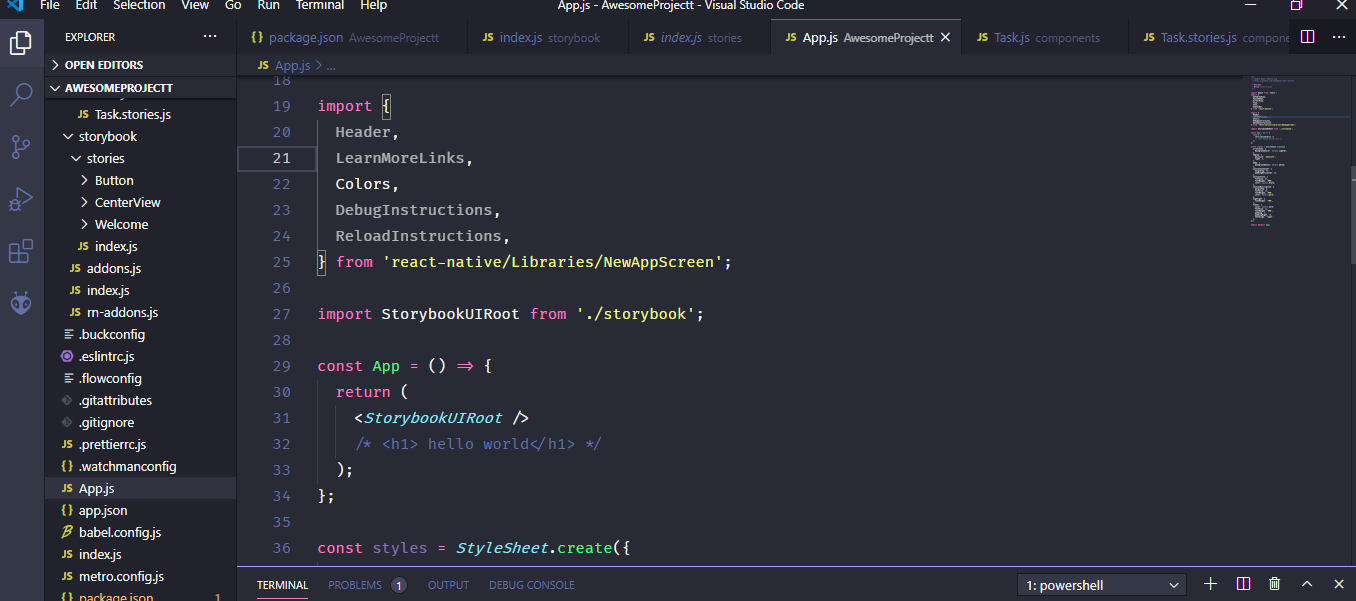
Hope you all get the problem done.
Thanks @Shhhhhreyas
Best regards,
Tomás Santos
@EsackN that’s not how it works, the server doesn’t show any preview. You’ll only see the selected story change. To see it on the web you need to run the on-device UI on the web. Like
yarn webif on expo.FYI: the cli is currently a bit broken for react native. I’ve already updated this but its in alpha. If you need to setup a new project I recommend you use the @next version of the cli
npx -p @storybook/cli@next sb init --type react_nativeAlso please bear in mind that the screenshots in the storybook tutorial actually show the web version of the tutorial and you won’t see the same thing on your side (it will be kind of similar). I’m currently working with the maintainer of the tutorial to improve it however it will take some time to update everything.
Hi @bouncycatt … How do you run the story book on the mobile or simulator? I have the same problem on web version and I did follow the tutorial steps but I feel something is missing. For Android and IOS … when I run “yarn ios” for example it runs the app on the ios but not the story book, so am not sure which commands runs the storybook on the device.
Omg, I’ve been banging my head against the wall for hours. I feel like such a dolt. Thank you!
@kxmatejka sorry to hear that, if you have issues like this is the future feel free to ask questions on the Discord I’m active there and I can help with these types of issues 😃
Another thing is that the server isn’t needed for a normal use cases and I would advise people to use the on device ui without the server for most cases.
Thank you @dannyhw 😅. Just trying to help people. 😃
@Shhhhhreyas thanks for going out of your way to help people in the community, its great to see 🙂.
@EsackN I think the link maybe correct I didn’t setup it this way. It seems long and lot of stuff has to be done.
I used the below steps ->
# Add Storybook: npx -p @storybook/cli sb init --type react_native(During Storybook’s install process, you’ll be prompted to install react-native-server, do so as this package will help out immensely throughout the tutorial.)
We’ll also want to add another package and make a change to storybook/rn-addons.js to allow the actions (you’ll see them in action later in the tutorial) to be logged correctly in the Storybook UI.
Run the following command:
yarn add -D @storybook/addon-ondevice-actionsChange storybook/rn-addons.js to the following:
// storybook/rn-addons.jsimport '@storybook/addon-ondevice-actions/register';This was all I did. Source - https://www.learnstorybook.com/intro-to-storybook/react-native/en/get-started/
And then that
-h 0.0.0.0thing.Try this and let me know.
EDIT: The link given by you is not for storybook server. It is for react native web. Don’t follow that.
@Shhhhhreyas thanks for sharing, hopefully this will help others with the same problem 🙌
I have the same issue, but, I resolve that, plz check your rn storybook port and storybook port are the same, in my case, default storybook server port is 6006, I change to 7007, or you can follow those document: https://github.com/storybookjs/react-native#storybook-for-react-native
getStorybookUI Options port: Number (7007) – port to use
hi @Esxiel … thanks i will give that ago by adding storybook to my other project using the manual steps.
But the idea is I was following the story book official React Native tutorial. and their app.js file looks very different compared to these manual steps … here is the code they ask you to add
// App.js async function loadResourcesAndDataAsync() { try { SplashScreen.preventAutoHide();
} catch (e) { // We might want to provide this error information to an error reporting service console.warn(e); } finally { setLoadingComplete(true); SplashScreen.hide(); } }
@akhudairy Hi! If I’m not mistaken, a Storybook viewer appeared on a device when I tried previous versions of Storybook. Unfortunately, I don’t remember. Today I retook all the tutorial steps with
abdcommand but nothing happened.