spfx-fast-serve: Unable to find .module.scss
Steps to reproduce: Following what’s outlined here:
- Run
npm install spfx-fast-serve -g - Scaffold a new webpart, node 14.15 and SPFx 1.12.1
- Run
spfx-fast-serveon the project directory - Run
npm iafter - Run WebPart
npm run serve
I get the below overaly on top of the webpart, seems like it is missing the module.scss file - gulp serve works fine.

About this issue
- Original URL
- State: closed
- Created 3 years ago
- Comments: 24 (13 by maintainers)
Thanks @PooLP for checking that. On my side, I will update FAQ to add words about unused components as well. Also I will check whether it’s possible to somehow exclude unused components completely from fast-serve build so that it doesn’t produce this problem.
Hi @M365Bass sorry for bothering you again, but while working on some other fast-serve features I was able to reproduce your issue (for me it happens approx. 4 out of 10 times). I discovered that the reason is the async nature of TypeScript checker plugin and clear-css-module plugin used inside fast-serve. However, I was able to fix it.
Could I ask you to check whether it works for you?
You can just grab this test project (just a hello-world) - test.zip, run
npm iandnpm run serve. I’m quite confident this time you shouldn’t see any errors.If you want to apply the fix to the existing projects you just need to make sure that you use
spfx-fast-serve-helpers@1.12.18or above.npm list spfx-fast-serve-helperswill print the actual version used. To update just runnpm update spfx-fast-serve-helpersor removenode_modules,package-lock.jsonand thennpm i.You can also have IntelliSense in VSCode if you slightly extend your solution above with
typingsfolder.Just install
npm install typescript-plugin-css-modules --save-dev --save-exact. Then modifytsconfig.jsonand add plugins section forcompilerOptions:Then you should tell VSCode to use the workspace version of TypeScript (by default it uses globally installed with VSCode). Here’s how to use the workspace version of TypeScript in VS Code (taken from SO here):
Here’s a screenshot to make that clearer: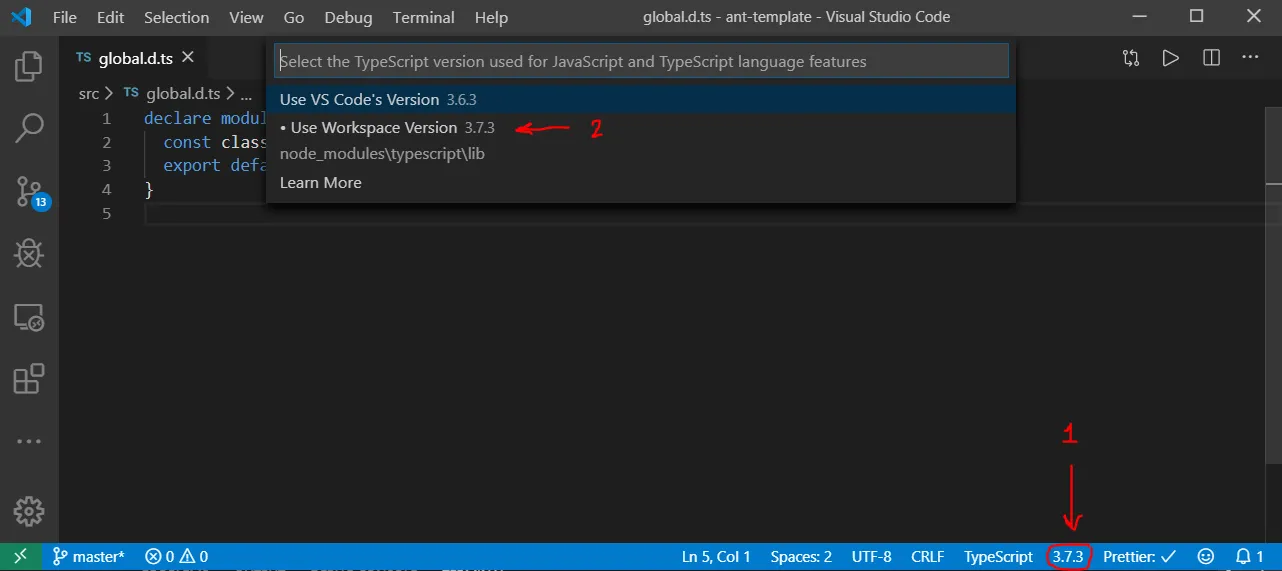
Now you should see the IntelliSense for scss modules.
typescript-plugin-css-modulesis a language extension, which adds support for such kind of IntelliSense, however, it doesn’t provide compile-time checking, thusdeclaration.d.tsstill needed in order to compile TS sources. It doesn’t break the default SPFx build, so “gulp serve” also just works, however, all this stuff requires some manual steps. As a workaround, you can implement it in your solution.I will close the issue having in mind the above workaround. We’ll see whether more devs have the same problems in the future.
The project from the zip file works fine in my environment (macOS 11.3.1, node 14.16.1, npm 6.14.12)
Yes, please check out documentation.