WSL: wsl2 no internet access (unable to resolve host address) on windows 1909 build 18363.1139
Environment
Windows build number: Microsoft Windows [Version 10.0.18363.1139]
Your Distribution version: Ubuntu 18.04 LTS
Whether the issue is on WSL 2 and/or WSL 1: Linux version 4.19.128-microsoft-standard (oe-user@oe-host) (gcc version 8.2.0 (GCC)) #1 SMP Tue Jun 23 12:58:10 UTC 2020
Steps to reproduce
sudo apt update
WSL logs:
Expected behavior
connect to linux archives and fetch the updates
Actual behavior
manukyae@GNELTCG8424MZX:~$ sudo apt update
Err:1 http://archive.ubuntu.com/ubuntu bionic InRelease
  Temporary failure resolving 'archive.ubuntu.com'
Err:2 http://security.ubuntu.com/ubuntu bionic-security InRelease
  Temporary failure resolving 'security.ubuntu.com'
Err:3 http://archive.ubuntu.com/ubuntu bionic-updates InRelease
  Temporary failure resolving 'archive.ubuntu.com'
Err:4 http://archive.ubuntu.com/ubuntu bionic-backports InRelease
  Temporary failure resolving 'archive.ubuntu.com'
Reading package lists... Done
Building dependency tree
Reading state information... Done
All packages are up to date.
W: Failed to fetch http://archive.ubuntu.com/ubuntu/dists/bionic/InRelease  Temporary failure resolving 'archive.ubuntu.com'
W: Failed to fetch http://archive.ubuntu.com/ubuntu/dists/bionic-updates/InRelease  Temporary failure resolving 'archive.ubuntu.com'
W: Failed to fetch http://archive.ubuntu.com/ubuntu/dists/bionic-backports/InRelease  Temporary failure resolving 'archive.ubuntu.com'
W: Failed to fetch http://security.ubuntu.com/ubuntu/dists/bionic-security/InRelease  Temporary failure resolving 'security.ubuntu.com'
W: Some index files failed to download. They have been ignored, or old ones used instead.
manukyae@GNELTCG8424MZX:~$
About this issue
- Original URL
- State: closed
- Created 6 years ago
- Reactions: 55
- Comments: 107 (4 by maintainers)
I had the same issue and used below code in my /etc/resolv.conf and worked ` nameserver 8.8.8.8
nameserver 8.8.4.4
nameserver fec0:0:0:ffff::1
search lan `
@armenic: Yes, something is clearly wrong with DNS.
Can you share the output of
cat /etc/resolv.conf, and then try to replace ‘nameserver X.X.X.X’ by ‘nameserver 1.1.1.1’ in that file and check if the wget command succeeds after doing that ?Easy fix for me just running, because I have install some VPN software, such as EasyConnect
then restart computer, everything goes to be OK.
This is what worked for me:
Note:
I had disabled my default windows firewalls previously. I had also disabled docker, settings, resources, wsl integration, Enable integration with my default wsl distro. I relogged in to windows after those. Not sure if they helped
In power shell as admin:
The ubuntu instance automatically closed
I opened it again and signed in to the ubuntu wsl
Tried to run docker build but it complained docker was not found
Back in docker, settings, resources, wsl integration, I check/unchecked ubuntu-20.04 until the apply and restart was active and then clicked on it (the check box assumed the connection was already made)
I created a simple docker file and tried the build from the wsl terminal
It worked
About 90K of my company employees are on this version of the windows and we do not have any means to upgrade windows ourselves. I assume similar thing happens in other companies. The biggest frustration was to find out that WSL2 does not work after waiting for this for a year. And now I have to wait another year and hopefully with the next enterprise incremental update wsl2 starts working. I hope Microsoft can push a hotfix.
Same issue and have tried all of the suggestions. Version 1 works but not version 2. Sad.
UPDATE: So funny story, I was prowling random threads on GitHub hoping to find something useful and came across this post by @EvoPulseGaming. With nothing to lose, I decided to try their fix and see what happened.
Here is exactly what I did, in this order:
1). Open PowerShell in administrator mode and run
wsl-shutdown(I knew it worked because Docker Desktop threw an error message).2). Run
compact /u %temp% /i /Q(In my case, the printout stated that no files had been de-compressed).3). Open Device Manager and delete the following Network Adapters.
Hyper-V Virtual Ethernet AdapterHyper-V Virtual Ethernet Adapter #2Hyper-V Virtual Ethernet Adapter #3Restart-ComputerAnd now, magically, WSL2 is running perfectly, even after multiple reboots…
🙄😳💀
Hope this helps! If anything else happens I’ll keep you all posted.
by the way if I convert the distro to use WSL-1
wsl --set-version Ubuntu-18.04 1it works like a charm and I really, really want that WSL-2 also works like it.我这边是因为安装了checkpoint vpn软件,卸载掉就好了
Hi as updates here we’re still investigating WSL’s overall networking story, and as others have mentioned in this thread some VPNs have released a fix (For example Cisco AnyConnect V4.10 references WSL 2 fixes in their release notes).
Easy fix for me just added the DNS Server of my VPN.
in /etc/resolv.conf nameserver DNS-of-VPN-Server
#delete everything else in /etc/resolv.conf
a very quick fix that worked on my machine is to set /etc/resolv.conf to just use Googles root DNS server. This won’t work in environments where you need internal resolution, which may or may not work with @mariolucasdev 's solution. It is just really, really specific to the environment.
nameserver 8.8.8.8
I met the same issue with VPN, and in my case, the root cause is the DNS resolution, wsl will update the /etc/resolv.conf automatically based on the network which is
nameserver 192.168.1.1, and this nameserver is not right once I enable the VPN, so I followed the steps in https://superuser.com/questions/1533291/how-do-i-change-the-dns-settings-for-wsl2#, and changed tonameserver 8.8.8.8, then it works.wsl --unregister, despite its name, which would seem to suggest that it somehow unregisters but doesn’t delete a distro, actually deletes a distro, and all your data, so don’t do that unless you really want to!Windows 10 Pro 2004 build 19041.804 WSL-2 Ubuntu 18.04.5 LTS
The issue came back for me after the last Windows update… a recurring theme.
Inspired by the @killshot13 and @wmhartl comment, I simply did:
It fixed the issue.
Short story : Just fixed a similar issue in a very strange way, it might be worth to give it a try : by deselecting compressing properties of my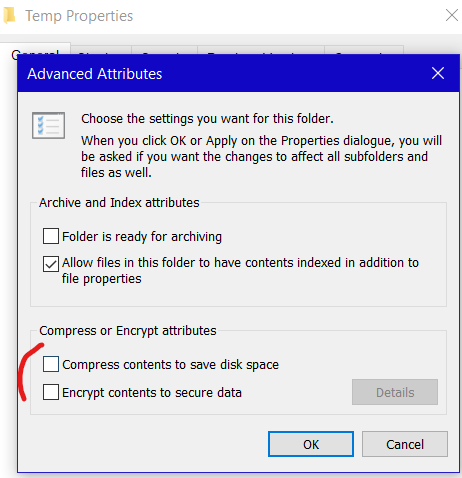
C:\Users\XXXXX\AppData\Local\Temp folder(Properties->Advanced attributes)Long story: All of a sudden, my WSL 2 Ubuntu distro wouldn’t start anylonger due to issue the the virtual disk. I found out that removing that pesky compression properties on the virtual disk file fixed the pb. But another issue came out, VSCode remote-WSL couldn’t connect anymore to my distro. After extensive research I found a dude who fixed the same issue by re-creating his missing
C:\Users\XXXXX\AppData\Local\Tempfolder Unfortunately my Temp folder was already there, so I tried to uncheck the compression properties as well , and… it worked@killshot13 I use WSL2 and haven’t had this issue, but have had an issue with the clock: https://github.com/microsoft/WSL/issues/5324 - at least one of two things I did seemed to fix that issue: 1) Upgrading from Ubuntu 18.04 to 20.04, and 2) Switching from the Windows Insider Beta channel back to the Windows Preview channel. I also had random green screen system crashes on the Beta channel.
As you’ve reinstalled Ubuntu - it seems that sometimes a distro needs to be re-registered with WSL, either by upgrading/reinstalling or by forcing it with
wsl --unregister <DistroName>, thenwsl --set-default <DistroName>- maybe that’s not the problem - but have you tried going back to the Preview channel? Just a shot in the dark to try, perhaps.My winver is 20H2 19042.746.
This immediately resolved my issue. Thank you!!!
Running WSL2 and Docker I had this problem a couple of weeks ago immediately after updating to 22H2. I couldn’t find a solution so I had to roll back the update. Just tried updating again and the same issue occured. Started searching again and found this thread. This solution from @rezarms worked for me.
UPDATE - The
resolv.conffile gets reset automatically from time to time so adding the following to/etc/wsl.confseems to sort that out:@craigloewen-msft - I was experiencing the same problem and what worked for is that i had to connect Cisco AnyConnect VPN for internet to work in Ubunto distro. I followed the following steps.
wsl --shutdownwslping google.comworks fine and alsosudo apt updateworks fine.One issue i have is internet speed on wsl is very slow as i am getting download: 25.44 Mbit/s and upload: 7.44 Mbit/s when actual speed I am getting is around 100 Mbit/s and 10 Mbit/s.
I would like it to work even when Cisco VPN is NOT connected. Any suggestion ?
My whole SSD ist not compressed.
I took a look if the %temp% folder was compressed and it isnt.
I think this has to be how your VPN is setup.
Like I said… I tried all the workarounds found here and the only one that really works is the using the docker vpnkit.
https://github.com/sakai135/wsl-vpnkit
I think Microsoft should add a workaround like that out of the box, where every other fixes dont work.
I dont like it, because you have to have your console everytime open for it to work.
i fix this issue by setting file in /retc/resolv.conf like below
For anyone try to manually set the nameservers by editing
/etc/resolv.conf, you may found that it will be recoved after wsl reboot. To fix this, you can create a/etc/wsl.conffile and input:To me set this in windows side does not work, I can only make it work by setting this in wsl side.
I dont know why my
resolv.confhave the config likenameserver 127.0.2.xafter adding thenetworkingMode=mirroredin.wslconfig. I have changed it to 1.1.1.1 and it works. Thank youI just installed WSL2 on a Windows version: 21H2 - build: 19044.1889
The WSL could not solve domain names, thus the DNS IP was not configured by default. I just followed this guide https://gist.github.com/coltenkrauter/608cfe02319ce60facd76373249b8ca6 which solved the DNS.
is there any good solution, I’m behind a heavy VPN/Proxy setup and i do not maintain nor can I access. If I upgrade to WSL2 it doesn’t work. I tried the VPN fix but its not a good approach. And from this ticket I do not get a feeling its being worked on. And its more a logging of workarounds and not a permanent fix.
Hey @armenic ,
I was able to get the root cause of my problem, after I noticed I have Symantec Endpoint Protection installed on my work machine, which was blocking all the traffic I was generating in WSL2. Do you have anything similar installed?
In Symantic Endpoint Protection View Logs -> Network and Host Exploit Mitigation -> Traffic Log
@meister245
I also tried all workarounds and couldn’t find a solution.
This have to be on how your vpn is being handled.
WSL works without a problem when not in a VPN.
Two things finally fixed this issue for me:
Finally, WSL2 was able to access the Internet again.
https://github.com/microsoft/WSL/issues/5437#issuecomment-647161596
Fixed it for me
It seems there are two seperate issues here. Some can just not resolve dns entries, for some no internet access at all. Like for me, even pinging 8.8.8.8 woudln’t work. DId a “netsh winsock reset” as suggested above and it worked. Also it should be said that WSL1 works fine.
It doesn’t make sense to me, 'cause when I restart my PC and run to test it (I guess, before some adapter of configuration be set) it works, but after this it just give up, I’m going to 3th week with this issue 😕
Had this issue when I updated to Windows 11,
/etc/resolv.confwas empty and everything started to work after creating it and adding thenameserversettings to it.Right now, I switch frequently between several VPNs, from different providers (Cisco, OpenVPN, Array Networks), each one with its own DNS servers. Disabling
resolv.confgeneration is therefore not an option for me.What I do is hack my required hosts list together and add it to /etc/hosts (actually (c:\windows\system32\drivers\etc\hosts). This is ugly and error-prone - whenever IPs change for a VPN some things start breaking out of the blue.
From what I can tell, the DNS issue, which seems to be the root cause of this issue, is caused (at least for me) by the fact that the DNS servers provided by the VPNs are IPV6 only, and WSL 2 seems to have sketchy support for IPV6 (didn’t dig too deep into it, though, but it seems no IPV6-only site is reachable from within WSL, except things running inside wsl on ::1).
I stumbled across the same problem today setting up WSL2 on my company controlled machine. This suggestion fixed it for me.
EDIT: The system overwrites this configuration after a few minutes. To fix that, I just set up a cron job running every minute to set this configuration again. For now it works like a charme 😃 I’m no linux expert to know possible side effects of this, I just wanted to share a solution to annoyingly resetting this whenever you need to download a package 😄
Going to post this in a few of the longer running threads. Long story short, the AnyConnect fix for this issue is available. The fix requires two pieces, an update to the client of version 4.10.01075 or later and a new custom attribute in the ASDM. Links to info below:
Release Notes Admin Document Troubleshooting Section that describes the custom attribute that needs to be set up by the VPN adminstrator.
Same problem here. Since the last time WSL 2 was able to connect to the Internet I got this Microsoft update: KB4023057 Could be this the issue?
Happy now! Just did a windows update and now everything works in Version 2. Feature update to Windows 10, version 20H2
@drkvogel I ended up trying this; fortunately, I wasn’t distraught because deleting the distro was my next plan of action anyway – simply out of desperation at the time. I made copies of my
.configfiles, pushed all my local repos, and was about torm -rf /whenwsl --unregisterdid it for me. 😅That being said, thank you for circling back with the warning. Quite frankly, I don’t think any of us knew exactly what the heck we were doing, being that WSL2 is still relatively new, so it was an excellent period of trial and error for everyone.
I’m just glad that the root cause was finally uncovered with #5324 (comment). That explains why sometimes, right after boot, I would run
sudo apt-get updatein Ubuntu, and the terminal would return something like this.Till today I couldnt get a workaround for using my WSL2 when on VPN.
I dont have any admin rights on my PC and so I never could fix it.
It is still a problem for me.
I was having this issue with a Realtek ethernet controller and WSL2 (with a Windows docker installed). A windows update has now fixed my issue (updated Windows to 20H2 as well as the ethernet driver from Windows update).
This seems to be a fix, but we need something more bullet proof.
I cant delete any Network Adapter as I dont have admin rights, but I also have the same problems as you.
WSL2 and Docker are my choice for developing and it doesnt work in our VPN since they had to change the MTU value of the VPN because people with DS-Light were having problems connecting to the VPN.
There are so many issues with exactly the same problem sind early 2020 and even in the pandemic time Microsoft is not willing to fix this. YES, during the pandemic time there are more people having this issue, because almost all of them work through VPN.
https://github.com/microsoft/WSL/issues/6549
Microsoft Windows [Version 10.0.19042.746] Ubuntu 20.04 LTS 4.19.104-microsoft-standard
I just hit this after a reboot - my Intel WLAN driver did update as part of that reboot which may be pertinent. I followed @killshot13’s steps above (which ultimately for me was mostly just deleting the virtual ethernet adapter and restarting) and that seems to have fixed the issue.
@drkvogel I have not tried that yet; honestly I hadn’t thought of it but it’s certainly worth a shot. Stay tuned, and thank you!
The same problem has appeared today for me after the last Windows update kb4598242. On Windows 10 Pro 2004 build 19041.746 There is no VPN.