WSL: wsl 2 ubuntu 18.04 unable to connect to IP resources with Cisco Annyconnect active
Please fill out the below information:
-
Your Windows build number: (Type
verat a Windows Command Prompt) Microsoft Windows [Version 10.0.18932.1000] -
What you’re doing and what’s happening: (Copy&paste the full set of specific command-line steps necessary to reproduce the behavior, and their output. Include screen shots if that helps demonstrate the problem.) I’ve installed ubuntu 18.04 and converted it to wsl v2 using the following command in windows powershell running as administrator. PS C:\WINDOWS\system32> wsl --set-version Ubuntu-18.04 2
When I start the Ubuntuu 18.04 instance I’m able to communicate with resources using IPs and hostnames.
eclay@wh-lpt-eclay:$ ping 8.8.8.8 PING 8.8.8.8 (8.8.8.8) 56(84) bytes of data. 64 bytes from 8.8.8.8: icmp_seq=1 ttl=49 time=115 ms 64 bytes from 8.8.8.8: icmp_seq=2 ttl=49 time=95.4 ms 64 bytes from 8.8.8.8: icmp_seq=3 ttl=49 time=77.3 ms 64 bytes from 8.8.8.8: icmp_seq=4 ttl=49 time=92.6 ms 64 bytes from 8.8.8.8: icmp_seq=5 ttl=49 time=90.6 ms 64 bytes from 8.8.8.8: icmp_seq=6 ttl=49 time=78.9 ms 64 bytes from 8.8.8.8: icmp_seq=7 ttl=49 time=84.1 ms 64 bytes from 8.8.8.8: icmp_seq=8 ttl=49 time=90.9 ms 64 bytes from 8.8.8.8: icmp_seq=9 ttl=49 time=80.7 ms 64 bytes from 8.8.8.8: icmp_seq=10 ttl=49 time=80.0 ms ^C — 8.8.8.8 ping statistics — 10 packets transmitted, 10 received, 0% packet loss, time 9081ms rtt min/avg/max/mdev = 77.316/88.602/115.084/10.734 ms eclay@wh-lpt-eclay:~$ trace tracepath traceroute6 traceroute6.iputils tracerpt.exe eclay@wh-lpt-eclay:$ tracepath 8.8.8.8 1?: [LOCALHOST] pmtu 1500 1: wh-lpt-eclay.mshome.net 0.497ms 1: wh-lpt-eclay.mshome.net 0.379ms 2: 10.179.10.1 2.890ms 3: 192.168.1.1 8.474ms 4: 192.168.1.1 10.395ms pmtu 1430 4: 172.26.96.161 71.223ms 5: 172.18.84.36 73.898ms asymm 6 6: 12.249.2.25 73.083ms asymm 7 7: 12.122.146.97 96.016ms asymm 14 8: 12.122.111.33 95.857ms asymm 13 9: sffca22crs.ip.att.net 95.209ms asymm 12 10: 12.122.163.61 90.288ms asymm 11 11: 12.255.10.236 103.555ms asymm 15 12: no reply 13: no reply 14: no reply 15: no reply 16: no reply 17: no reply 18: no reply 19: no reply 20: no reply 21: no reply 22: no reply 23: no reply 24: no reply 25: no reply 26: no reply 27: no reply 28: no reply 29: no reply 30: no reply Too many hops: pmtu 1430
Resume: pmtu 1430
Once I connect to my work VPN using cisco annyconnect client v 4.7.00136 I’m not longer able to connect to IP resources.
eclay@wh-lpt-eclay:$ ping 8.8.8.8 PING 8.8.8.8 (8.8.8.8) 56(84) bytes of data. ^C — 8.8.8.8 ping statistics — 8 packets transmitted, 0 received, 100% packet loss, time 7277ms
eclay@wh-lpt-eclay:$ tracepath 8.8.8.8 1?: [LOCALHOST] pmtu 1430 1: ??? 0.362ms 1: ??? 0.364ms 2: ??? 0.392ms pmtu 1200 2: no reply 3: no reply 4: no reply 5: no reply 6: no reply 7: no reply 8: no reply 9: no reply 10: no reply 11: no reply 12: no reply 13: no reply 14: no reply 15: no reply 16: no reply 17: no reply 18: no reply 19: no reply 20: no reply 21: no reply 22: no reply 23: no reply 24: no reply 25: no reply 26: no reply 27: no reply 28: no reply 29: no reply 30: no reply Too many hops: pmtu 1200 Resume: pmtu 1200
- What’s wrong / what should be happening instead: I should be able to ping 8.8.8.8 or other outside IPs once the annyconnect vpn client is running.
About this issue
- Original URL
- State: open
- Created 7 years ago
- Reactions: 143
- Comments: 254 (13 by maintainers)
I was able to resolve this by installing anyconnect pwa from the windows store the vpn connection now works with WSL when my stand alone installation of anyconnect 4.6 does not work… hope this helps someone
So many workarounds. When can we expect Micosoft and/or Cisco to pick one and provide an official fix???
Yes we are tracking this and are looking into solutions with the networking team! I’ll post any updates here as soon as they become available.
Changing the Interface Metric 1 -> 6000 for AnyConnect VPN Adapter resolves the connection issue, but this has to be done every time I connect the VPN.
To automate this, I put the PS command in a script and created a Task to run every time there is a network change.
Save the script in a file
First, create the script. I have a ‘scripts’ directory in my user home, so I put it at:
%HOMEPATH%\scripts\UpdateAnyConnectInterfaceMetric.ps1
You can save it where you want, just make sure to use that path in step 13 below.
Create the scheduled task:
When AnyConnect finishes connecting, a Powershell window pops up for a couple seconds and WSL can reach the network.
One way to workaround this is for me was:
and… in elevated windows every single time I connect to to VPN 😢 (fortunately, not very often)
@marwatk here’s the scripts I’m using. It’s a bit of a mash right now, but should be simple to edit and setup your own. https://github.com/sakai135/wsl-vpnkit
I worked around this using the following PowerShell script hack:
Unfortunately, like @matheuscanela mentions above, you have to run this after you connect to the VPN each time.
I’m not sure if the fault lies more with WSL or Cisco AnyConnect, but it would be great not to have to resort to hacky workarounds for this.
Hi folks, this is something we’re working on. VPN issues like these are difficult to fix, and we are working on WSL 2’s networking story overall. Thank you for your patience!
For those folks affected, does moving to the Cisco AnyConnect app in the Microsoft store fix you? It’d be helpful for us to know if any folks are using the store app and are still seeing network issues there. EDIT: If you’re able to use that version!
Hi folks,
I may have a solution to run the script automatically 😃
Basically, I have created a Windows Task to fire every time that a Cisco Connected event is registered from the Cisco client. I am not sure if it will fit everyone here as we may have different versions; however, it is worth trying.
cisco.ps1 script
Get-NetAdapter | Where-Object {$_.InterfaceDescription -Match "Cisco AnyConnect"} | Set-NetIPInterface -InterfaceMetric 6000Command to run
powershell.exe -executionpolicy bypass -file "C:\cisco.ps1"Next steps
Fully automated solution hahahah
Hi folks, we have put out a new update that aims to address networking issues in WSL. In your
.wslconfigfile you can setexperimental.networkingMode=mirrored, as well as some other key settings that should improve your network compatibility! Please try them out and let us know what you think.More info on this release and the changes can be found here in the blog post.
I think for a lot (like in my case) it’s not possible to switch to a different cisco client as this is often in corporate environments where things are heavily locked down.
I was having the same issue; i found that Anyconnect was setup to do full-tunnel, and therefore a route existed to throw all traffic through the VPN connection (likely including packets destined for the WSL2 vm).
WSL2 routes are configured with a metric of 5256, and anyconnect routes have a metric of 2, and therefore take priority. I amended the routes for anyconnect (where metric == 2) to be 5257 instead, which seems to largely work. I used “NetRouteView” run as Admin to do the changes because I was too lazy to find the powershell equivilent commands 😃
This restored connectivity, but I found DNS to still be broken with the WSL default resolvconf (
nameserver 172.xx.xx.x) so i dropped innameserver 1.1.1.1instead which seems OK. Will likely replace this with the work DNS for work resources to resolve nicely 😃 and now full connectivity is working; no additional changes needed; but this likely will need applying each time I start anyconnect.@kzeitz Company I work for requires 2FA authentication which it seems the Windows store version of AnyConnect doesn’t support.
for me Turning on this setting worked.
I’ve been working with my company’s networking team on a resolution to this for the Cisco Anyconnect client. Cisco is aware of this issue and has an enhancement “issue” item in their support system alongside an approved workaround. The Cisco bug tracker is hidden behind a login, but if you have an account it can be found here. You can consider sending that link to your networking team, as well as a reference to
CSCvw81982which is the Bug ID for that issue.Here’s a screenshot of the page in their system.
I’m told that in early June there will be some features coming in AnyConnect 4.10 that are said to, if configured correctly, enable WSL2 to work seamlessly with full-tunnel VPN configurations. My fingers are crossed.
Yes, let me infiltrate the IT of the Fortune 500 that I’m working for like Ethan Hunt from the ceiling and change the settings. Nothing easier.
@trallnag, et al,
I figured it out and have resolved my issue. When the InterfaceMetric is lowered, the DNS server list changes. Before I connect to VPN, when I use this command:
Get-DnsClientServerAddress -AddressFamily ipv4 | Select-Object -ExpandProperty ServerAddresses192.168.1.1 is at the top of the list which is my router. When I connect to VPN and run the same command again, my company’s internal DNS servers are at the top of the list.
Then when I change the VPN (Cisco AnyConnect) InterfaceMetric to 6000 with this command:
Get-NetAdapter | Where-Object {$_.InterfaceDescription -Match "Cisco AnyConnect"} | Set-NetIPInterface -InterfaceMetric 6000my router’s ip address is back at the top of the DNS list.
I found that with the VPN interface metric set at 6000, and the modifications mentioned in previous posts made to the WSL2 /etc/resolv.conf and /etc/wsl.conf files, that accessing both VPN internal sites and external internet sites worked fine in WSL2. In Windows, the external internet sites resolved fine but the VPN internal sites were only accessible by IP address not by name.
I modified the IPv4 DNS server addresses used by the Windows network adaptor for my home network, setting the Preferred DNS server to one of my VPN DNS servers and setting the Alternate DNS server to Google’s (8.8.8.8). This is a persistent setting.
This works perfectly! After months of struggling with this, I can now access both internal and external sites at the same time from both WSL2 and Windows. Docker also runs fine in either OS. Even after rebooting, all I need to do is:
a. Connect to the VPN b. Run the command to set the VPN interface metric to 6000.
Note: I am not using dnsmasq or chattr and did not set either the “vEthernet (WSL)” interface metric or firewall rules.
I hope this helps someone.
I tried this route, but our AnyConnect uses 2FA which makes using openconnect impossible
That’s nice, consolidated information, which still requires ADMINISTRATOR privileges. Not everyone has that. Everyone with this problem however DO have a COMPANY MANAGED device which they are dependant on. MICRO$OFT, ARE YOU LISTENING?
I have the same issue, that from within the WSL 2 shell, I’m unable to use AnyConnect running in Windows. However, in WSL I installed openconnect, and I run:
sudo openconnect --no-dtls -u myUsername vpn.myhost.comThen I can access my company ip addresses from within WSL 2 sessions, but not from Windows, but this lets me at least ssh and run git, so that’s an improvement.Also, this only works if I disconnect the VPN in Windows first, which is annoying.
Just FYI this issue is still not resolved in any way.
None of the workarounds listed in this guide have worked.
I’ve built upon the above solutions and written some documentation: https://gist.github.com/pyther/b7c03579a5ea55fe431561b502ec1ba8
Enhancements:
Hey guys! This solution worked for me, using Internal Cisco AnyConnect as well, please let me know if it works for you as well 😃 ! https://github.com/microsoft/WSL/issues/5068#issuecomment-731861198 (Apologies for the weird render here, quoting the reply from the other thread seems to break the markdown…)
We have the official WSL change log here on our docs which you can follow to see any changes that we implement. I’ll be pinging this thread when we have an updated networking story for y’all to try and see if it can help resolve some of these issues.
This is still busted out of the box. C’mon, Microsoft…I don’t care if it’s FOSS, it’s a PRODUCT you offer- fix this properly.
I shouldn’t have to use Admin Mode Powershell scripting hacks to “fix” this. Even though it’s slower, VirtualBox manages to actually WORK in NAT mode and YOU DO NOT here.
Five years, guys. This isn’t acceptable.
I had the same issue and resolved it with:
after connecting my VPN and then restarting WSL. I also had to downgrade my Cisco AnyConnect to the version found here: https://olemiss.edu/helpdesk/vpn/windows.html
Yes, that’s exactly what I had in mind. Because there are literally no other options, like actually communicating with your IT staff to address a work-prohibitive issue instead of being snarky in a GitHub issue. Nothing easier.
I tried all the proposed solutions without success. I hope for a better solution one day, for now the only thing that I can do is to go back to WSL 1.
Also please note this affects more than just Cisco. My work place uses GlobalProtect and I have this same issue. We are all WFH now so none of the software team can use WSL2 because of this issue.
Note we can’t change to Cisco as we used to use it but InfoSec replaced it with GlobalProtect due to security issues.
These workarounds are great until an IT policy at some company gets tweaked, and they break. I’d love not to have to manually repair repeatedly—tools should help you do work, they shouldn’t be the work. A canonical solution would change WSL from “a neat little toy I use at home” to “a tool I can actually use at work”
I also have the same issue with AnyConnect, also gave feedback in the Hub (although the option to post a recording was grayed out for me).
Here is a great blog post which deals with the 3 different VPN issues and why you should not change the Interface Metric to a high number. https://janovesk.com/wsl/2022/01/24/wsl2-and-vpn-dns.html
It’s not half-baked if it works. FWIW our VPN also requires MFA with Duo. As a fix, we can do “sms” or “push” in the secondary password field. Sounds like you need to work on your VPN setup…
My office upgraded but I was still facing this issue until I did the following:
No idea why this worked or why the client versions are different but it worked for me.
Release notes for Cisco AnyConnect 4.10 include support for interoperability with VM-based subsystems, especially mentioning WSL2: https://www.cisco.com/c/en/us/td/docs/security/vpn_client/anyconnect/anyconnect410/release/notes/release-notes-anyconnect-4-10.html Under “AnyConnect 4.10.01075 New Features”
I had to set the metric on my Wi-Fi interface to 6000 as well today. For some reason Windows would continue to use my regular DNS settings until I increased the metric. So I have this script running when I connect to the VPN using Cisco AnyConnect:
Hopefully this helps someone who runs into the same issue.
We’re working on improving WSL 2’s networking story which should help with this use case (more details coming soon!). As well, we (Microsoft) have worked with Cisco to help resolve some of these issues, I believe the latest version in the Microsoft store has these fixes, I’ll try and look internally to see if I can get the latest updates here.
I have this problem as well, but I have a workaround, which is to adjust my
/etc/resolve.conffile:Before adjustment, when connected to VPN (with mocked ip addresses):
After adjustment:
I hope this workaround can work for others.
If possible utilize the configuraiton of AnyConnect, then it works without any hacks. If you have access though:
@c3101 Maybe this could work for you https://github.com/sakai135/wsl-vpnkit
@JosephHalter @flashadvocate I don’t think your comments are adding anything new to the conversation right now. Please focus on the subject or be quiet.
A point of clarification for @bwdbethke and others who just need a fix - It won’t be enough just to use the 4.10.x release, you’ll also need to configure the AnyConnect serverside appliance to permit the newly supported features. It sounds like this is done using:
Whoever administrates your AnyConnect server appliance(s) will need to make this configuration change. I believe the new config is pushed down to the client the next time you connect.
This worked for me, thank you very much!
This solution worked for me amazingly. Haven’t tried the automated script approach yet so do have to repeat the process of altering the route tables each time vpn connected. But this works!! Finally!
It’s work for me. Thank you you saved my time.
I can confirm AnyConnect 4.10.01075 resolves this issue. However, as others have pointed out, there is further configuration on the firewall to be done. Fortunately for me, I also manage the firewalls. What needs to be done specifically is:
When you connect to VPN, the the AnyConnect Client receives this new custom attribute and treats it similar to how it treats split tunneling exemptions. The client looks at the virtual adapters on your machine and creates split-tunneling entries for those associated subnets. When I tested, split tunnel routes were created for both of my VMWare workstation adapters as well as my WSL adapter.
I tried to see if this new attribute can be entered in the AnyConnect preferences/config XML files on the local machine, but just as you can’t define split-tunnel exemptions in the local XML files, you also can’t seem to reference this new “BypassVirtualSubnetsOnlyV4” attribute.
Crazy idea, and it actually worked…
Why not just run VPN on the VM itself?
Mine got working by setting Cisco AnyConnect
InterfaceMetric = 6000for both IPv4 and IPv6 (verify byGet-NetIPInterface):To get WSL2 connection working under all conditions (with and without VPN), I ended up reverting everything else to default except for the settings above, so keeping the InterfaceMetric of
vEthernet (WSL)the default (not 1) and using the automatically generated/etc/resolve.conf.The InterfaceMetric can be automatically updated by Windows, so have to check the value from time to time. It seems that this behavior can be disabled by
... | Set-NetIPInterface -AutomaticMetric disabled(doc) but haven’t had a chance to try it for long.For anyone having problems with Cisco AnyConnect, using either the Cisco AnyConnect from Windows Store (now supports 2FA, as jamespotz said) worked for me after I rebooted computer (didnt work first time I tried it).
Also, as an alternative, using OpenConnect (which supports Cisco AnyConnect) windows 10 client https://github.com/openconnect/openconnect-gui/releases/tag/v1.5.3 also works for me (with 2fa) for DNS resolving, connectivity etc.
If you dont need the VPN in Windows and only in WSL2 env, you can install OpenConnect in WSL2 and connect to VPN with: sudo openconnect --no-dtls -b -u your_username vpn.hostname.domain
It will create a working VPN connection in WSL2 env.
I got WSL2 working with our Cisco AnyConnect VPN using VPNKit and npiperelay. This requires no settings changes or admin privileges on the Windows side. Basically what Docker Desktop does for containers, just applied to the WSL2 VM.
Same issue, I filed feedback using Feedback Hub.
Finally the BypassVirtualSubnetsOnlyV4 fix from Cisco solved it for us! No more messing with interface metric workarounds.
It’s only been 2 years, I’m sure Microsoft is working on it. It’s not like we pay for the produ… oh, wait…
is anybody going to fix this issue that has been open for more than 2 years on an OS I pay for?
@mguay22 Based in your solution, I created a script to automate the process here:
https://gist.github.com/MatMercer/f7e25b9c8ce7ca40dd3b220346136d23
@rileymcdowell yes, this admin guide is linked in the release notes: https://www.cisco.com/c/en/us/td/docs/security/vpn_client/anyconnect/anyconnect410/administration/guide/b-anyconnect-admin-guide-4-10/troubleshoot-anyconnect.html#Cisco_Task_in_List_GUI.dita_3a9a8101-f034-4e9b-b24a-486ee47b5e9f
Thanks for working with Cisco on this issue.
did 4.10 fix the issue for anyone else? Doesn’t seem to be fixing the issue for me. My WSL2 ubuntu VM is still unable to resolve DNS once AnyConnect VPN is up, but it can once again when I disconnect the tunnel.
UPDATE: issue likely remains because no server-side changes have been made yet. I’ll take this up with the admins for that device and try again once changes mentioned in Administrator Guide are in place.
Is Microsoft ever going to address this? I’ve tried so many workarounds and hacks, and some work for a while, then break. With so many people on VPN nowadays and working remotely you’d think they would give this a higher priority or at least address this issue in some fashion.
Problem Resolved with windows 10 and Cisco AnyConnect vpn
Well the first thing i realised is the problem is with the WSL 2 if u downgrade to WSL 1 (wsl --set-version Ubuntu 1) u dont have any problem with connection.
Thats steps worked for me:
1 cd ~/…/…/etc (go to etc folder in WSL). 2 echo “[network]” | sudo tee wsl.conf (Create wsl.conf file and add the first line). 3 echo “generateResolvConf = false” | sudo tee -a wsl.conf (Append wsl.conf the next line). 4 wsl --terminate Debian (Terminate WSL in Windows cmd, in case is Ubuntu not Debian). 5 cd ~/…/…/etc (go to etc folder in WSL). 6 sudo rm -Rf resolv.conf (Delete the resolv.conf file). 7 In windows cmd, ps or terminal with the vpn connected do: Get-NetIPInterface or ipconfig /all for get the dns primary and secondary. 8 With the dns primary and secondary getted replace the numbers in the next step in the X.X.X.X 9 echo “nameserver X.X.X.X” | sudo tee resolv.conf (Create resolv.conf and append the line.) 10 echo “nameserver X.X.X.X” | sudo tee -a resolv.conf (Append the line in resolv.conf) 11 wsl --terminate Debian (Terminate WSL in Windows cmd, in case is Ubuntu not Debian). 12 sudo chattr +i resolv.conf 13 And finally in windows cmd, ps or terminal: Get-NetAdapter | Where-Object {$_.InterfaceDescription -Match “Cisco AnyConnect”} | Set-NetIPInterface -InterfaceMetric 6000
Credits to @yukosgiti, @machuu and @AlbesK: https://github.com/microsoft/WSL/issues/4277 https://github.com/microsoft/WSL/issues/4246
@TBG-FR, here you go:
How I got WSL2 to work with Cisco AnyConnect and split DNS
First, I reinstalled Win10, no idea if this was necessary, but nothing worked before. I started without being in VPN.
I followed https://docs.microsoft.com/de-de/windows/wsl/install-win10. Ensured features are all activated and your WSL distro is on WSL version 2. Remember, you can have WSL1 distros despite having WSL2 activated. Also ran
bcdedit /set hypervisorlaunchtype auto.Powershell Admin: Find out the name of the network interface used by WSL. You can do this with
Get-NetIPInterfaceIn my case it is
vEthernet (WSL). Next, I added two firewall rules and restart PC just to make sure.At this point I was able to access the internet from WSL2 distro and use
apt. Runsudo apt install dnsmasq.Next, I switched to
sudo -isession.Added
/etc/wsl.confwith following content:Run
rm -rf /etc/resolv.conf. Nowvi /etc/resolv.confwith following content:Add
/etc/dnsmasq.confwith following content:Run `/etc/init.d/dnsmasq start``. Internet should still work.
Next I activated VPN and updated the priorities of network interfaces. And WSL2 internet is still working
After some searching, I found a solution from sysblog which shows the issue might be interface priority. After running the recommended fixes, adjusted for GlobalProtect (Palo Alto Networks), everything started working again.
Get-NetIPInterface -InterfaceAlias "vEthernet (WSL)" | Set-NetIPInterface -InterfaceMetric 1Get-NetAdapter | Where-Object {$_.InterfaceDescription -Match "PANGP Virtual Ethernet Adapter"} | Set-NetIPInterface -InterfaceMetric 6000There may be an issue with this fix not being persistent after reboot or restart of the VPN client but it does solve the issue I was having.
@craigloewen-msft is there any update on this issue? It has been more than a year, and the workarounds are not feasible for everyone.
Anyone having trouble with Cisco Anyconnect with 2FA, you can now use Cisco Anyconnect from Microsoft Store it does support 2FA now 😃
Just wanted to drop in and say thanks @sakai135 - this is working great for me. It would be great if the WSL team could use vpnkit out of the box (or even enable systemd so we can make it a service 😃 ), but I guess good things come to those who wait. This is a great interim fix, and I can finally use the full-fat Anyconnect Client again to get some real speeds 😃 (Windows store app is terribly slow!)
SOLVED! THANKS!!
Hi, thanks for this; it worked but the connection is really slow. Is this the behaviour of the command? I’m using wifi, when I’m not in the VPN my download speed is up to +20mb, but with the vpn it rarely exceeds 8mb
I guess we will all be stuck at home for more time in the coming months and VPN will be our daily bread. This has really become an issue for all those that use AnyConnect with a form of 2FA that does not work with the Windows Store App. At least 20 people in my team. We have a system with a Certificate installed on a card with a PIN needed to unlock the card. Only the old school client works there. I am now constantly changing routes which is becoming very tedious. Any progress on this or maybe even an ETA?
I am having the same problem too. Anyconnect from the App store works but is unstable/sucks and the Anyconnect package install, breaks the network in bash as soon as I successful connect
I have tested OpenConnect Gui and that seems to be an ok replacement. https://github.com/openconnect/openconnect-gui/releases
I got my choices of profiles, my 2FA and WSL2 seems to be working so this is my solution. as I can’t download the most recent Cisco AnyConnect so stuck on AnyConnect 4.5.0058
Any movement on a fix for this? In my attempt to move away from macOS to Windows for dev, this has effectively stopped me completely as the company I work for uses AnyConnect.
I’m also having this problem and opened an issue for it in Feedback Hub with logs: https://aka.ms/AA6fthe
Also, if WSL 2 starts first, Cisco AnyConnect will fail to connect.
I’m definitely experiencing this issue and I’m running 18970. I can capture logs if needed. The problem is easy to reproduce.
@NiklasBr my mistake I failed on copy and pasting. I’ve adjusted it!
Please change your .wslconfig to this content instead. Does that resolve you? (You need to remove the quotes!)
You shouldn’t change the Interface-Metric due to the than different routing. See the following blogpost for explanation: https://janovesk.com/wsl/2022/01/21/wsl2-and-vpn-routing.html TLDR: If it works, it doesn’t mean that it doesn’t have side effects. And it’s not only solving the thing that you was intended to fix.
The problem of not using the correct DNS-Server is properly explained and the suggested solution should be used from networking point of view.
For the IP-Range problem you have only the following two options:
How second could work, is shown in this Microsoft Q&A: https://learn.microsoft.com/en-us/answers/questions/1123820/set-wsl2-subnet
TLDR: Change SubNet of WSL NAT-Router to a different one which does not collide with your Company-VPN subnet. To do so got to regedit and edit the following entries: Path:
Computer\HKEY_LOCAL_MACHINE\SOFTWARE\Microsoft\Windows\CurrentVersion\LxssEntries:NatGatewayIpAddressandNatNetworkValues e.g.:19.16.0.1and19.16.0.0/16Again: Please don’t change the InterfaceMetric!
That’s great when you have one catch-all route; but in full-tunnel-default with some split-tunnel exclusions, or where the VPN client enforces/refreshes routes that are deleted, this isn’t a suitable solution.
That will solve it but most companies that disable local LAN access will disable that setting as well.
AnyConnect 4.10.00072 (Microsoft Store app) resolved issue for me (upgraded from 4.9.00086), with no additional configuration
This hack has already been suggested before. Sadly, it doesn’t work with my company VPN which relies on a popup with MFA. Can we please stop proposing half-backed hacks, since this repository doesn’t contain any code we can’t submit any pull request. Only Microsoft can actually fix the issue once and for all.
This worked perfectly for me on Ubuntu-20.04 and Cisco AnyConnect.
@trallnag Huge thanks to you!
I spent hours combing GitHub, forums, etc. looking for a solution and nothing worked, expect for your solution.
Note for anyone who may use this solution in the future:
If your organization (company) uses a VPN (e.g. Cisco AnyConnect), when you add the “corporate DNS” section, you’ll need to connect to your VPN first to determine the DNS to use.
You can use
ipconfig /alland look for theDNS Serversentry under the VPN adapter (e.g.Cisco AnyConnect Secure Mobility Client Virtual Miniport Adapter for Windows x64).The OpenConnect command line approach works nicely with WSL 2 (not with WSL 1), but suffers from the same speed limitation that the Window Store Cisco AnyConnection app does. Any way we can remove bandwidth limits?
Yes it works.
if vpn is activated find an ip which is routed through your vpn tunnel and which is pingable. choose a packet size which is not producing an error with packet fragments.
ping -f -l <<packet_size>> <<some_ip_routed_via_vpn>>e.g: from Windows PS ( -sorry german Output)
than check again and decrease the packet size
Go into wsl/2 and set this mtu on the eth0 interface
without this most https handshakes and other networking is broken.
@HanchengWu as stated before, the MS Store version does not work with 2FA so it is not a solution.
I filed a feedback in FH. https://aka.ms/AA60j0u
@donkkis as a Cisco Anyconnect user with enforced full-tunnel connection, I can confirm that mirrored networking does work as you would hope. I have been using it since the feature was first released.
@craigloewen-msft I’m trying to get access to VPN network from WSL2. Is it possible? After add this
.wlsconfig:I have no communication. This is what my wsl network looks like:
These new networking features are now available on the latest version of Win11 22H2!
Please make sure you’re on the latest build to get these features, you can do that by clicking “Check for Updates” in Windows settings. You can check you have the right build by either ensuring you have KB5031354 installed, or run
cmd.exe /c verand ensure that your build number is 22621.2428 or higher (Including the minor build number which is after the.as this was a backport!)@craigloewen-msft What about users with older windows versions, such as 21H2?
@Pit-Storm Unless I’m missing something, I think this is irrelevant when dealing with full-tunnel VPN; the route added is for 0.0.0.0/0 via the VPN, and this encompasses the WSL subnet. Deleting this route would obviously result in no traffic traversing the VPN.
Amending the MetricID just ensures that traffic for the WSL interface is prioritised above the VPN adapter, so that traffic can return.
Yes it does add the ability for WSL to route to the local network whilst on VPN when you normally shouldn’t be able to (frowned upon in a full tunnel setup), but that’s a small price to pay (and arguably convenient lol)
This was actually my problem, Cisco VPN had connected status (even when disconnected). By chaging the priority of the Cisco one, the WSL2 variant started working again. Also changed my WiFi (primary interface) to priority of 1.
Thanks and you rock!!
I’m having this issue in December 2022 on an up to date version of Windows 10 with WSL 2 and the latest Ubuntu from Microsoft Store.
I agree with the others here that setting the metric high is not the answer - additionally these solutions do not consider developers that do not have administrative rights on their machine due to corporate policy.
Part of the issue I’m experiencing is the DNS issue where I have to manually set the DNS IP address in the /etc/resolv.conf
However, even after doing this sporadically I’ll be unable to even ping an IP address directly leading me to believe that there still are some issues to be resolved with how the network adapters are handled by Windows.
Just wanted to share my experience.
P.S. - I wrote up an automatic powershell script to handle the DNS issue - but still have the other issue sporadically I described.
I guess I’ll take 50% working over 0% working?
Thank you. I had to bang the rocks together for a while before I found this answer. I knew about the interface metric reset and setting the internal nameserver in resolv.conf, but somehow the order of execution had eluded me, probably because I’d done it randomly the first few times by chance.
I have additional issues in that my employer’s implementation of the routing tables for AnyConnect is exceedingly strict, and includes all the IPv4 non-routable masks commonly used by the entire world for their home networks. (As frustrating as it is, they use them all, as we’re a worldwide company with lots of internal networks. IPv6 plz.) I use RDP to connect to my work laptop in order to use my multi-monitor setup and custom ergonomic equipment, and after switching to a new work computer, there was a week of panic as I was having extreme difficulty connecting to the new machine. I would RDP in, establish the connection, and shortly thereafter, I’d get booted and the local UI would freeze up and require a hard power-down to re-establish access to the system. The prospect of having to program on a laptop keyboard was giving me RSI just thinking about it.
Should anyone else encounter something like this, I determined that I had to establish the VPN connection using the local UI, then establish the RDP connection, and everything would work fine. Adding WSL 2 to the mix, I have to log into the local UI using cached domain credentials, open Windows Terminal, launch WSL 2, open AnyConnect, establish the VPN connection, change the network interface metric (which, yes, I know I could probably now script using task scheduler and trigger on-event) and then RDP into the machine. But hey, at least Windows doesn’t have to reboot all the time anymore 🤣
Has anyone been able to test the new “BypassVirtualSubnetsOnlyV4”/“BypassVirtualSubnetsOnlyV6” with Cisco AnyConnect 4.10? Troubleshoot AnyConnect > Connectivity Issues with VM-based Subsystems
Did it fix the problem? Is the setting
BypassVirtualSubnetsOnlyV4visible somewhere under%ProgramData%\Cisco\Cisco AnyConnect Secure Mobility Client\so we can verify it?same here, but what fixed it finally for me is using the anyconnect app from the ms store and then go to windows vpn settings and use the config like so: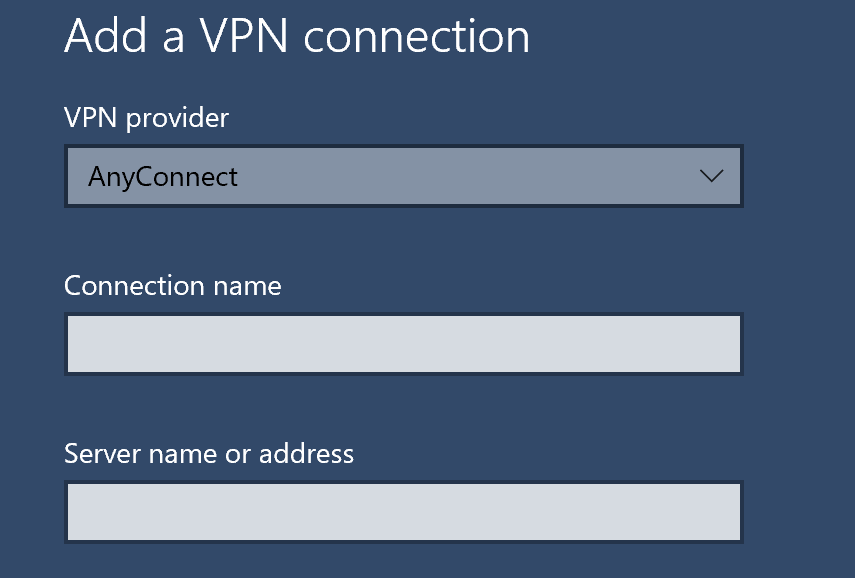
After trying different things it does only work to me if I start WSL before activating AnyConnect VPN.
The guide here has worked actually, it’s the only reliable workaround afaik. That powershell command is same as one proposed here, but it doesn’t work if you run it yourself because the vpn client will reset this whenever it connects. So the event trigger is required to make it work persistently.
Latest update: Try to turn on Allow local access when using VPN but still failed to connect. Download AnyConnect 4.10.00072 (Microsoft Store app) resolved issue for me with no additional configuration too.
Will yo share your AnyConnectPreferences file after the change?
@craigloewen-msft is there a roadmap to having this issue resolved beyond AnyConnect? My organization uses GlobalProtect because of security vulnerabilities in AnyConnect. So for now I have to use WSL1.
Sounds good:
"AnyConnect 4.10.01075 New Features This is a maintenance release that includes the following features and support updates, and that resolves the defects described in AnyConnect 4.10.01075:
Added split DNS for split exclude tunneling (CSCuq89328)—When split DNS for split exclude tunneling is configured, specific DNS queries are sent outside the VPN tunnel, to a public DNS server. All othe DNS queries are tunneled to a VPN DNS server.
Added support for interoperability with VM-based subsystems (CSCvw81982)—Windows Subsystem for Linux 2 (WSL2) had connectivity issues with AnyConnect VPN active on a Windows 10 host. We addressed this issue by enhancing support for Local LAN wildcard split exclude tunneling, specifically by allowing the limiting of the Local LAN split exclude to virtual adapter subnets. Refer to Connectivity Issues With Windows Subsystem for Linux on Windows 10 in the troubleshooting chapter of the AnyConnect Secure Mobility Client Administrator Guide, Release 4.10 for further information."
We are using the workaround of incrementing
InterfaceMetricfor the Cisco AnyConnect interface from1(default) to6000.This has an odd side-effect where some intranet sites (e.g. when opend in browser) are being directed to our external domain. How can this be?
@craigloewen-msft Thanks for letting us know that this is progress. For our organization, I was able to use anyconnect from the Microsoft store. However, it is restricted to 10MB up and download speeds. Is there anything that could be done about that? A newer version perhaps?
After 3 days of scouring the internet for solutions, this is the only thing that worked!! Thank you so much! @sakai135 The connection is maintained between re-connections too.
My environment uses split DNS, few corporate proxies and corporate VPN to which we connect with Cisco Anyconnect. I wanted to transfer from my “normal” VM to WSL2. Got it to work for an hour or two (without VPN nor adjusting stuff like DNS resolvment). Then I installed Docker Desktop and this stomped all the WSL2 networking it seems. Couldn’t resolve anything. VPN on/off, manual DNS and deactivating WSL DNS configuration, Docker on/off, reinstalling the WSL2 distro… Even uninstalled Docker Desktop but the issue still persisted.
Now I removed everything and am back in my VM. Guess WSL2 still needs some time to ripen 🍡 Though I would have loved to make the switch. Integration with Windows 10 is so nice and I would have preferred it to doing everything in a VM with GUI
Edit: Reinstalled Win10 and WSL2 works perfectly together with Cisco Anyconnect
I don’t know why it started to work but now it does. And more so, it works even better than the VMware networking I used before. What I did to make it work were the following steps (if you need details pls say so, I’m on my phone atm):
for me this works great (for now) and for some reason I don’t even have to configure proxy stuff anymore while in VPN and using stuff in WSL2. I don’t know why but it just works.
I really hope this stays like that, I don’t want to go back into my “normal” non WSL VM
@wirtsi Yup. I would add that
socatandnpiperelaycommunicate over some inter-process integration between WSL processes and Windows host processes. I’m not sure if this has changed significantly since, but here is a blog post from 2016 for WSL1. I’m guessing the WSL2 one is something like this combined with Hyper-V sockets.localhostthrough the built-in WSL2 integrations.VPNKIT_HOST_IP(192.168.67.2if you’re using my values) to access ports on the Windows host from WSL2.Blimey, you are right … @sakai135 you are genius, sorry about this.
In case anyone is interested, here’s what the script does (how I understood it)
Now two thing are still open for me:
I confirm I can connect using the Windows Store AnyConnect app
This did not work for me as Cisco Anyconnect was set to auto redo any attempt at changing Metric on routes. My only work around as to disable WSL2 and go back to WSL1 — works fine now.
Thanks for re-posting @httpdss. I hadn’t noticed this suggestion before but had tried most of the other suggestions posted in issues for WSL2. I was using anyconnect 4.9.00086 through my university. However, the version from the windows store (4.7.20031) allows me to use SSH, git, etc. directly from WSL2 (Ubuntu 20.04) !!!
This may only apply to Ubuntu 20.04, but I just managed to get my DNS to work, at least temporarily.
I’m running: Cisco AnyConnect 4.6.04054 Windows Terminal Preview Ubuntu 20.04 for WSL2
Our environment is a split tunnel setup. In ubuntu, I could ping any IP, but not resolve domains.
Using the advice of this thread I went in and looked at my /etc/resolv.conf There, 3 nameservers were defined: 192.168.1.1 (internal DNS of my company 1) (internal DNS of my company 2)
I commented out 192.168.1.1 and suddenly everything worked.
In my case, I’m going to re-order my local DNS so that things still work if I’m not on the VPN, but this does seem promising, and indicates an order of operations issue.
I am sure I am missing something because this seems so simple.
Just tested and can confirm that GlobalProtect also prevents WSL 2 from talking to any external hosts.
i found wsl2 distro created by docker-desktop works fine with vpn.
So I was having exactly this issue and this worked perfectly for me. I also had to change nameserver to our VPN DNS but that was easy. Changing metric was the key element!💡 I should note, we use 2fa so using the MS Store Anyconnect client didn’t work, nor did trying to hack around with OpenConnect. Thanks for the insight!
Same issue here. I tried to add search list in /etc/resolv.conf followed the guide here but still failed.
I’ve tried the method of creating a manual named.conf and it didn’t fix anything. I can ping the 1st dns server from windows but not from ubuntu. Windows DNS servers after vpn connection established.
Ubuntu
It seems to be more of a routing problem than a name resolution. For instance I can ping www.microsoft.com from a cmd prompt but not from ubunutu.
windows
Ubuntu