WSL: Vmmem high CPU usage
Windows Build Number
Microsoft Windows [Version 10.0.21387.1]
WSL Version
- WSL 2
- WSL 1
Kernel Version
5.10.16
Distro Version
Ubuntu 20.04
Other Software
No response
Repro Steps
I’m struggling to actually repro this issue deterministically. But looks like more prominent when waking up from sleep. Whit this issue I’d like to gather feedback on how to collect the most useful information to debug this behavior.
I tried to isolate the failing component (ex. not running Docker Desktop and WSL2 “only”), but I failed miserably.
Usually my workflow:
- VSCode Stable v1.56.2 with WSL Remote v0.56.2 for work (usually Java + SQL)
- VSCode Insiders v1.57.0 with WSL Remote v0.56.2 for personal projects (usually JS related)
- Docker Desktop (Windows) v3.3.3 (64133) running (with mongo or postgres)
In the past I tried to alleviate the issue with a .wslconfig but didn’t worked.
My machine (Lenovo X1 Carbon) has 16GB of RAM and usually Vmmem RAM consumption float around ~4GB.
Excluded those hiccups WSL2 experience is pretty neat and flowlessy.
Expected Behavior
WSL2 stay idle when no user workload are launched.
Actual Behavior
Vmmem “randomly” uses high cpu/power amount (60%-70%) for couple of minutes (2 to 5 min) before settling down. This also happen when on battery without doing anything WSL2 releated (but with Docker Desktop running), killing autonomy.
Diagnostic Logs
I’ll provide an .etl dump as the next hiccup occurs.
About this issue
- Original URL
- State: closed
- Created 5 years ago
- Reactions: 332
- Comments: 654 (26 by maintainers)
Commits related to this issue
- x86/hyperv: Don’t enable TSCInvariant on some older Hyper-V hosts Hyper-V host builds earlier than 22621 (Windows 11 22H2) have a bug in the TSC Invariant feature that may result in the guest seeing ... — committed to sileshn/WSL2-Linux-Kernel by mhklinux 2 years ago
- x86/hyperv: Don’t enable TSCInvariant on some older Hyper-V hosts Hyper-V host builds earlier than 22621 (Windows 11 22H2) have a bug in the TSC Invariant feature that may result in the guest seeing ... — committed to Nevuly/WSL2-Linux-Kernel-Rolling by mhklinux 2 years ago
- x86/hyperv: Don’t enable TSCInvariant on some older Hyper-V hosts Hyper-V host builds earlier than 22621 (Windows 11 22H2) have a bug in the TSC Invariant feature that may result in the guest seeing ... — committed to Nevuly/WSL2-Linux-Kernel-Rolling-LTS by mhklinux 2 years ago
- x86/hyperv: Don’t enable TSCInvariant on some older Hyper-V hosts Hyper-V host builds earlier than 22621 (Windows 11 22H2) have a bug in the TSC Invariant feature that may result in the guest seeing ... — committed to Nevuly/WSL2-Linux-Kernel-Rolling-LTS by mhklinux 2 years ago
- x86/hyperv: Don’t enable TSCInvariant on some older Hyper-V hosts Hyper-V host builds earlier than 22621 (Windows 11 22H2) have a bug in the TSC Invariant feature that may result in the guest seeing ... — committed to Nevuly/WSL2-Linux-Kernel-Rolling-LTS by mhklinux 2 years ago
- x86/hyperv: Don’t enable TSCInvariant on some older Hyper-V hosts Hyper-V host builds earlier than 22621 (Windows 11 22H2) have a bug in the TSC Invariant feature that may result in the guest seeing ... — committed to Nevuly/WSL2-Linux-Kernel-Rolling by mhklinux 2 years ago
- x86/hyperv: Don’t enable TSCInvariant on some older Hyper-V hosts Hyper-V host builds earlier than 22621 (Windows 11 22H2) have a bug in the TSC Invariant feature that may result in the guest seeing ... — committed to Nevuly/WSL2-Linux-Kernel-Rolling by mhklinux 2 years ago
- x86/hyperv: Don’t enable TSCInvariant on some older Hyper-V hosts Hyper-V host builds earlier than 22621 (Windows 11 22H2) have a bug in the TSC Invariant feature that may result in the guest seeing ... — committed to Nevuly/WSL2-Linux-Kernel-Rolling by mhklinux 2 years ago
I also experienced this today and the
Win + Ctrl + Shift + Btrick solved the issue.Worth mentioning that this is now happening on Windows 11:
Let me provide a high-level recap on this long thread. 😃 It has many reports of high CPU usage on the Windows/Hyper-V host, and hangs in the WSL Linux VM. For the most part, the reported symptoms are somewhat generic, which is a starting point, but usually doesn’t help get to the root cause. That said, we have gotten enough diagnostic details to identify one root cause, but there may be other root causes that produce the same generic symptoms. Here are the details of the known root cause:
I worked on this problem a year ago as a Microsoft employee doing Linux kernel work. I’ve since retired from Microsoft, but have kept an interest in this problem, and have been in contact with my former colleagues on the Hyper-V and WSL teams at Microsoft. They are still working out how they want to move forward with a resolution. In the meantime, the WSL user community has built and tested custom WSL Linux kernels that don’t enable the problematic feature described in (3) above. The reports from the WSL community are that these custom kernels solve this specific root cause. Again, see https://github.com/carlfriedrich/wsl-kernel-build/issues/1 for information about getting one of these custom kernels.
If someone is seeing WSL hangs, and high CPU usage on the Windows Hyper-V host, and your environment meets the pre-requisites for this known root cause, you might try one of the custom kernels to see if it fixes your symptoms. If your environment doesn’t meet the pre-requisites, then your problem is likely a different root cause. For example, there’s been some recent discussion on this thread of issues related to VS Code, and that’s almost certainly a different root cause. Unfortunately, I don’t have any expertise to offer on these other potential root causes.
Can confirm,
wsl --shutdown, set monitor projection to single screenwsl, normal htopI tried messing with refresh rate (my first monitor has 144, my second 60), but no luck. In the process, I found that when I tried to change the refresh rate, the screen “refresh”, then the 100% core in htop gone. So I tried to just reset the graphic driver (
Win+Ctrl+Shift+B), and the 100% core is also gone.Although, currently its fresh restart and reproduced reliably, but only 1 core spinning up. In the past I had like 3 core spinning up out of nowhere. I also use Docker for Windows, which for this purpose I turn off first, because I also had bad experience on that docker hogging CPU while no container running
Update Using docker for windows, I get 3 core spinning up when projecting to second screen, and
Win+Ctrl+Shift+Bstill works like a charmWindows 10, build 21390.2025 WSL2, Arch Linux, 2 monitor setup,
This issue has been automatically closed since it has not had any author activity for the past 7 days. If you’re still experiencing this issue please re-open it.
Thank you!
The only way to kill wsl on my machine when it’s stuck on 100% CPU load, is using
hcsdiag. Usehcsdiag listto list all containers & VMs, copy the UID for the WSL container, then kill it usinghcsdiag kill <WSL_UID>The data collected by @onereal7 looks good! It provides a strong indicator of what’s happening, at least to the next level of detail. When Linux loads a value into the synthetic timer in order to get an interrupt at some later point in time, the Hyper-V host is indeed generating the interrupt “too soon”, as seen by the Linux guest. The amount of time in the future that Linux wants the interrupt is a normal value – usually a few milliseconds. But Hyper-V is generating the interrupt essentially immediately.
The reason Hyper-V is generating the interrupt immediately is that Hyper-V and the guest are not in agreement about the “system time” in the VM. (The system time is essentially the number of seconds since the VM booted, not the wall clock time-of-day.) The records in the log output from /sys/kernel/debug/hvtimer/timesync show what Hyper-V thinks the system time of the VM is, and what the VM thinks its system time is (the “host_reftime” and “guest_reftime” values). The host_reftime value comes from a timesync message that the host sends to the guest every 5 seconds, while the guest_reftime value is calculated within the guest. After the WSL VM is initially created, these values differ by a few 10’s of microseconds, which is normal and reflects the inherent processing delays from when Hyper-V generates the message until it is received and processed by the guest. But after the laptop sleeps/hibernates, the difference between the two values grows increasingly large, with the Hyper-V host view of the guest system time running faster and becoming more and more later than the guest’s own view of his system time. The guest loads the synthetic timer based on its view of its system time, while Hyper-V is generating the interrupt based on its view of the guest’s system time. Because these two views differ, and Hyper-V’s view is later than the guest’s view, Hyper-V often generates the interrupt immediately because it thinks the requested time for the interrupt has already passed.
Then one further step. The guest’s view of its system time is generated by reading the hardware Time Stamp Counter (TSC) and arithmetically applying scale and offset values provided by the Hyper-V host. After a sleep/hibernation, the Hyper-V host is responsible for adjusting the scale and offset values so that the guest continues to see the correct system time. The Hyper-V host also uses the TSC to determine the passage of time, so its view of guest system time really should be the same. I don’t know why Hyper-V’s view of the guest system time is advancing faster than the guest’s view of guest system time. But this pretty clearly seems to be an issue in the Hyper-V host that I’ll take up with the Hyper-V team.
Hi folks,
Wanted to add on that we are investigating this, and will post any updates to this thread as they’re available.
Thank you for your patience!
Update, I can reproduce this 100% of the time by turning off my 2nd monitor (one core in Linux gets pegged to 100%, but htop doesn’t show any processes using CPU power).
If I run ‘xeyes’, as soon as xeyes open the mystery CPU usage disappears, so I assume it’s something to do with the new graphics integration, and actually running a program gives it a kick?
If you don’t need gui apps then you can disable wslg while waiting for a fix. I did it a couple days ago and it seems to have stopped the high-cpu-after-sleep issue.
Add the following to
<USERPROFILE>\.wslconfigand restart the machine (or maybewsl --shutdownis good enough).See https://github.com/microsoft/wslg#wslg-system-distro
I’m hitting this too, so if anyone has any suggestions on how to capture what is going on, I am happy to record it.
Same here. The fix I’ve found is switch to my MacBook Pro.
I also see high vmmem cpu usage from time to time (stuck at ~25% CPU). When checking
htopon my only running image, I see that one core is being used 100%, but none of the processes are using any CPU. So not sure what’s happening / what’s the culprit. Docker images not running at the moment.Have the opposite problem with docker, though. Suddenly it will use all available ram even when not running any containers (but the wsl distributions are running)
Edit: A pic of htop when this occurs. Nothing visible using CPU, but it’s using much CPU on multiple cores anyway.
I think this is indeed related to WSLg, which creates a hidden “system distro” instance for each running user distro. That’s why you can’t see anything in htop. When the 100% core usage happens you can run this from the terminal:
wsl.exe --system -d $WSL_DISTRO_NAME topI bet the culprit is the
westonbinary inside the system distro. Recently there was a similar problem that has been fixed in the weston repository.For a workaround without the need of restarting, you can run this
taskkill -IM "wslservice.exe" /Fin powershell.Is shutdown not an option on your notebook(s)?
When
wsl --shutdownstruggle, usetaskkill /f /im wslservice.exeinsteadI had the same problem. but
hcsdiag listandhcsdiag kill <ID>solved CPU usage to go down to normal. I was able to launch WSL-ubuntu20.04 and use it. I don’t see this happens again.I also note that It happens when I do hibernation instead of shutdown. So anyone faces wsl hanging issue along with CPU usage high do use above commands to save your time 😃
My guess is the guys making wsl2 aren’t actually using it
When will this be fixed ? Every time I hibernate my computer and wake up this happens, every time…
Good god. Microsoft, will you tame your bots?
I just want to add my voice to the chorus of misery here.
I am running a Windows Surface Laptop 4 at work after our secops team forced me off of Linux so they could spy on me (joking, not joking).
WSL is the only reason I went with Windows instead of Mac.
This being the case, I am a heavy Linux CLI user and everything has been going swimmingly up until two WSL updates ago. Afterwhich, every time I sleep or hibernate the computer the
vmmemWSLprocess sucks up all the CPU on my system. Basically, I have tried everything out there, and using thetaskkill -IM "wslservice.exe" /Fandwsl --shutdownabove has been the only way to not have to restart my entire system. Before this I have been having to restart. Every. Single. Time.Howbeit, this fix is a still a very limiting option per I usually have long running terminals in states I would rather not have to recreate from scratch (things like running port forwarding and using Skaffold for k8s development).
If this doesn’t get fixed there is no point staying on Windows. I will have to switch over to a Mac at work, which personally I detest, but I detest dealing with this situation even more.
WSL devs! Please save me from this fate!!
Great find! I’ve always experienced it after computer has been sleeping (like when coming back after lunch), but I also can reproduce it by reconnecting a monitor. Which I guess is what happens when the computer starts after sleep.
Running xeyes or any wslg app doesn’t seem to stop it here, though.
This issue has been automatically closed since it has not had any author activity for the past 7 days. If you’re still experiencing this issue please re-open it.
Thank you!
Can confirm that this happens when sleeping on laptop though it can happen spontaneously with long run times and no usage
wsl --shutdownhangsThe command
taskkill -IM "wslservice.exe" /Fis the only way to kill it off.
The WSL Ubuntu terminal is non-responsive when this happens
While this issue is still not fixed completely I’ve created scheduled task that automatically executes
taskkill -IM "wslservice.exe" /Fandwsl --shutdownafter each resume from hibernate. Hope it helps someone.Restart wsl after hibernate.zip (unpack XML and import in Task Scheduler).
Down bot! Bad bot.
Hi folks, I was having issues with
vmmemcausing my laptop fans to kick in after I had installed Microsoft PowerToys when I needed to do some batch image resizing. If I quit “Microsoft PowerToys v0.43.0” from the task tray thenvmmemwent back to normal.I hope this is relevant and helps someone else in a similar predicament.
For those looking for a quick fix, you can do the following:
Task Scheduler.General, tickRun only when user is logged onandRun with highest privileges.Triggers, selectOn an eventfrom the top dropdown. Then tick theCustomradio button, and clickEdit Event Filter...in the right-hand column.XMLtab, tickEdit query manually, and copy+paste the following in to the textarea:OKto save the changes, and then ensure that underAdvanced settingseverything is unticked, except forEnabled, then clickOKagain.Actions, clickNew....Action:dropdown menu, selectStart a program.Program/script:textbox, copy+paste the following:Add arguments (optional)textbox, copy+paste the following:OK.Conditionstab, ensure that everything is unticked.Settingstab, these settings aren’t that important. I personally have it set to:Allow task to be run on demandStop the task if it runs longer than: "3 days"If the running task does not end when requested, force it to stopIf the task is already running, then the following rule applies: "Do not start a new instance"But whatever you want is probably fine.OKto save all of your changes, and finalise the creation of the scheduled task.Now, what does this do?
Step 4 (the XML) essentially tells this task to run whenever your PC wakes from sleep or hibernate, which is when the issue arises.
Steps 8 & 9 tell this task to open a new PowerShell shell, and when it does:
TASKKILL /IM "wslservice.exe" /F, which will aggressively kill the resource leaking WSL kernel.-and)wsl exit, which will start a fresh WSL kernel, and once it’s loaded, then immediately exit the shell, which will effectively close the PowerShell window, whilst leaving the WSL kernel running.This doesn’t cure the problem (the resource leaking kernel), but it does stop the nasty side-effect (the CPU and memory consumption after awaking from sleep or hibernate), which is, let’s face it, how most people find their way to this issue.
PS: If you want to resume Docker for Windows (and don’t fancy using it from WSL directly, which I would recommend if you don’t need the GUI), you can add another command (between steps 9 and 10) to restart the Docker for Windows environment… Although I’m not sure what that would look like, as I don’t use Docker for Windows, but it shouldn’t be too difficult (maybe Docker for Windows runs as a service that can be restarted?).
Bot-closing an issue after 7 days of inactivity also seems way out of touch with software dev lifecycles (or vacations, at that!). Can’t somebody de-escalate those aggressive bot settings?
This will surely be fixed any year now…
I am having the same issue as I am writing this. Now here comes the interesting part. It is even refusing to SHUTDOWN. The command is stuck, and I got it to shut down by manually ending the WSL Preview task from Task Manager. 2 days ago, when I posted my last comment, I reinstalled everything from scratch and it is now again having problems. Also, I think the problem is with PC sleeping or something. It refuses to connect on my PC and does not even shutdown.
The label to this issue says need repro. Maybe what the developers at WSL can do is, make a JS task (make is something like running continuous insert queries to a remote database) and let it keep running. Then let the PC to go to sleep and after 5-6 hrs. turn on the PC. Maybe this will give them the same problem.
Or at least tell us on how to collect the data. We can do it. Just saying that we need reproduction of the said issue doesn’t shun the fact that it is an issue.
Today, after wake up from sleep I managed to repro.
wsl.zip
This is not a MeToo thread. Read the messages above on how to provide meaningful diagnostic data.
This kind of “solution” for me is like: “My car engine has a strange noise…”. “Ok, don’t use your car.”
Guys can we please quit the bs and stop spamming this? It’s just a bot doing bot things and autoclosing stalled issue… there are wsl devs here that are tracking issue and even asked additional info from the affected user…
So just less childish actions and just wait for the thing to be reopened by a dev… @kelleymh can you reopen this or the child will start a war and can’t behave?
To all people who found this high CPU usage can be fixed by disabling GUI application support, we need your help to root cause the issue.
If CPU high usage disappeared by disabling Linux GUI application support, then the high CPU usage is mostly coming from restarting msrdc.exe in background repeatedly and it also incur I/O operations due to logging for error, which can end up high CPU usage. msrdc.exe is Microsoft Remote desktop application used to project Linux GUI application to Windows desktop.
Currently there is a few known issues can lead this situation.
1: If you have Citrix application installed, this applies to any Microsoft remote desktop software usage including WSLg, Citrix has KB published at https://support.citrix.com/article/CTX107825/how-to-disable-citrix-api-hooks-on-a-perapplication-basis.
2: Your organization deployed certain group policies to block remote desktop connection from your local computer. One of the most common policy we are aware of is, RDP signing requirement policy, when it is enabled, msrdc.exe for WSLg failed and enter restarting loop silently. This is because RDP file used with WSLg is not signed by Microsoft or any certificate your local computer trust. (given WSLg is open source project, currently there is difficulties to have Microsoft signed RDP file). We are actively working with related groups within Microsoft to have solution, but not yet at this point.
3: There is another group policy let silently fail remote desktop connection, which we are not aware of. If your local computer is managed by your organization and experiencing this issue, please share the output from
reg QUERY "HKLM\SOFTWARE\Policies\Microsoft\Windows NT\Terminal Services" /S.4: If none of above, there is some unknown things happen in WSLg VM, this case, we will need dumps/logs from /mnt/wslg/dumps or /mnt/wslg/*.log. If you hesitate to share files directly at here. please submit file via Feedback Hub. and let us know the feedback ID. (Note: this folders are clean up at every WSL startup, thus files need to be captured while active WSL instance is experiencing the issue).
If there is any question, feel free to post question here, thanks!
@benhillis Sorry to mention you directly, but this issue has been going on for way too long. Are there any updates please?
I ended up getting the top spec 16" m2 max macbook pro with 96GB of memory. It’s the first apple device I’ve ever owned in my 2 decades in the IT sector, and I have to say I’m loving it!
I installed tabby to get the same right-click copy/paste experience I was used to in windows terminal. My only negative comment is their odd keyboard layout which I’ll get around by getting a wireless keyboard. I don’t think I’ll ever to back to a Windows laptop.
@xak2000 I use
taskkill /IM wslservice.exe /Fand it works! ThanksThanks everyone for sharing logs & screenshots to help diagnose this.
To give an update on this issue, there are multiple problems being discussed here:
High CPU usage caused by wslg / Weston. These issues should be reported here
WSL being ‘stuck’ (where new commands & wsl.exe --shutdown ‘hang’), which is probably related to #8824 , which we are actively investigating. If you have a stable repro of this, please follow these instructions and share the output on #8824 to help us get diagnostic information.
High CPU usage by a
vmemWSLprocess. This process only exists with the store version of wsl. To help diagnose this, look at the output ofwsl.exe -u root --system top. If the process taking the most cpu is weston, wslgd or XWayland, then it’s issue 1). If not, please share the screenshot of top’s output anddmesgon this issue.High CPU usage by a
vmmemprocess. This isn’t necessarily caused by wsl. To verify that this is a WSL issue, first runwsl.exe --shutdown. If the vmmem process disappears shortly, then the issue the related to WSL. Unfortunately, the inbox version of WSL doesn’t support --system, so the best way to move forward would be to update to Store WSL if possible. If not, first disable wslg by adding the following to .wslconfigThen run wsl.exe --shutdown. If the issue doesn’t reproduce after doing this, then it’s 1). If not, please share logs here along with a screen of 'wsl.exe -u root top` (you might need to install top in your distribution).
For 3) and 4) the challenge is to figure out the issue comes from WSL itself or from another program calling into WSL (docker, vscode, …). If the high CPU usage comes from an
initprocess, then it’s a WSL issue for sure. If not then most likely not.Let’s focus this issue and 3) and 4) use #8824 for 2)
Same thing here. Docker version 20.10.17, build 100c701 Ubuntu 20.04.5 LTS Windows 11 [Version 10.0.22000.918] Lenovo ThinkPad E15
After wake up from sleep, I start hearing my fan going off after 1-2 minutes, unusually loudly, whereas it shouldn’t even be noticeable. Task Manager shows ~98% CPU usage by
Vmmem. Evenwsl --shutdownhangs for 2 or more minutes before it restarts. EDIT: It’s always after my laptop was in sleep for a longer period of time (~30 minutes), after which it either hibernates or goes into a deeper sleep of some sort.WslForceRestartis the only thing that works for me. I have it in a powershell profile. Must be run as admin.WslStopandWslRestartare both useless functions. I’m including them here just to point out that they don’t work for me. Andwsl --shutdownhas been useless for … maybe the last year.@onereal7 Thanks for the update, very helpful!
@ everyone: I have set up a repository for automatic WSL kernel builds in order to find the commit which introduces this issue. You are invited to help testing kernel versions. The more we are, the faster we find the commit. Downloading and setting up a custom kernel image takes less than 5 minutes. Please see and subscribe to carlfriedrich/wsl-kernel-build#1 if you like to help. Thanks a lot!
This issue has been automatically closed since it has not had any author activity for the past 7 days. If you’re still experiencing this issue please re-open it.
Thank you!
The issue is nearly 2 years old and is still around. Does the WSL dev team know about it? Does it care?
The latest release on that branch should solve this issue detailed in this thread, yes.
@AtleWebstep There is a community effort on trying to find the kernel commit which introduces this issue. You can follow or help here: https://github.com/carlfriedrich/wsl-kernel-build/issues/1
Add me to the list… i have no open my vm instance in weeks but it use all my cpu, my debian is closed
Come on. Are you kidding me!??
Here I am killing
WSLServicealmost every alternate day and this 29 month old issue is “auto-closed” !??Thanks to everyone for sharing debugging information.
We’ve made some progress on this issue on #8696 but we need more information. Pasting the instructions to gather more debugging information here:
Note: this requires WSL >= 1.1.0
1) Capture an strace
wsl.exe --debug-shelltdnf install nc strace -yip -4 a show eth0(It’s usually of the form 172.X.X.X)ps auxto get the pid of the process taking the most CPU (and share the output of that command on this issue)strace -p <pid> 2>&1 | nc -l -p 1111(replace<pid>with the pid of the process eating all the cpu)(Note: We have to do this because the debug shell doesn’t have access to the Windows drives, so we use the network to extract the strace output)
2) Capture a dump
This time we’ll capture a dump of the process. To do this, can you please:
wsl.exe --shutdowntdnf install gdb nc -yip -4 a show eth0ps auxto get the pid of the processgcore -a <pid>, this will generate a file like<pid>.corebase64 < core.<pid> | nc -l -p 1111(encoding in base64 because it’s binary data)dumpfile on this issue (it will be base64 encoded, but we can easily decode it)Fixed for me: Uncheck Windows subsystem for Linux in OptionalFeatures.exe and reboot
wsl --version WSL version: 1.0.0.0 Kernel version: 5.15.74.2 WSLg version: 1.0.47 MSRDC version: 1.2.3575 Direct3D version: 1.606.4 DXCore version: 10.0.25131.1002-220531-1700.rs-onecore-base2-hyp Windows version: 10.0.22000.1281
WSL sometimes suddenly causes my laptop fan to start. What’s worse, the active window keeps cycling between losing focus and getting focus. Explorer.exe seems to be constantly refreshing, as can be seen from the title bar in the figure below. I had to run
wsl --shutdownto get the system back to normal. After stopping WSL, CPU utilization decreased by 20%This is my log file. wsl.zip
The high CPU usage can be seen from Task Manager
Oh my goodness, Microsoft! Can you not follow through and solve one problem. I assume the automatic closure of this was indication that WSL is broken and Microsoft does not care.
Dear Microsoft,
I’ve been encountering this issue regularly. Why are we at nearly 24 months after this real issue that can be trivially repro’d and impacts multiple users has been reported without so much as an acknowledgement?
I support users that require Linux to do their job. If WSL remains unsuitable my next step will need to be ‘No Microsoft’.
FYI: Updated to Win 10 22H2 latest build, installed all win updates, removed docker-desktop, installed docker directly on WSL distro, upgraded WSL with --pre-release and it still randomly freezes / crashes. Only solution is reboot.
Thanks, following commands can be used to avoid rebooting the entire system.
Also not fixed for me:
What a terrible suggestion! Uninstalling the broken feature is not a fix!
I’m still having this issue on Windows 10, with
guiApplications=falseThe probleem seems worse since the update to 1.0 compared to what I previously had.
On a daily basis I need to shutdown my docker stack and stop all other wsl sessions.
Update on this: We have identified the root cause of #8824 , but it doesn’t explain the symptoms of 3) and 4).
To diagnose those we’d need a feedback hub entry with diagnostic logs.
Instructions:
I’m hitting this several times a day, it just started recently for me. Unlike the other reports:
I’ve tried to attach a debugger to vmmemWSL but some kind of permission error prevents it even with Visual Studio running as admin. I’d love to point perf at it but since WSL is unresponsive in this state I’ve not been able to 😦
Version info:
I have not hit this issue anymore after disabling WSLg following these steps;
For anyone following along, the WSL team is doing an AMA @ 8AM PST today for Microsoft’s Technical Takeoff week. Maybe, just maybe, a good dog-pile might get them to take this seriously.
https://techcommunity.microsoft.com/t5/windows-events/ama-windows-subsystem-for-linux-wsl/ev-p/3971579
@zmajeed I’m back from vacation and have created a custom WSL debug kernel to collect some debug info that is focused on the very high HVS interrupt counts (i.e., the timer interrupt counts). The debug kernel is posted here in a public OneDrive location: https://1drv.ms/u/s!AlVhjROgsGKwguh8rKo0jyPfktWOQQ?e=1OfVVc. You should have access. Filename is WSLdebug.tgz with a download size of about 20 Megabytes that will unpack to an 80 Megabyte “vmlinux” file. Put this “vmlinux” file somewhere on your Windows 10 system and point the “kernel” entry in .wslconfig to it. Then restart WSL. The “uname -r” command should show “5.15.90.1-mhk-WSL2+” The “mhk” is my initials and the trailing “+” indicates modifications to the kernel source code relative to the 5.15.90.1 baseline.
The debug information is available in WSL under /sys/kernel/debug/hvtimer. You’ll need to mount the /sys/kernel/debug pseudo-filesystem. As root do:
mount -t debugfs none /sys/kernel/debug
Then the /sys/kernel/debug/hvtimer pathname should be visible. “hvtimer” is a directory containing three pseudo-files. You can dump the debug info from each of these with a simple “cat” command. For example:
cat /sys/kernel/debug/hvtimer/timesync
The result is fairly verbose, with potentially hundreds of lines of output for the “stimer” and “stimerall” entries. Doing the “cat” command on these entries is non-destructive and has no side effects, so you can dump the output as many times as you want. The debug data is collected in ring buffers that will automatically wrap around, so some data is lost as time goes on, but I don’t expect that to be a problem. The “cat” command against these entries just dumps the current state of the ring buffer.
Once you have the debug kernel running and can access /sys/kernel/debug/hvtimer, collecting the following data would be useful:
Post or send me all the raw output files. Don’t post-process the output – the raw output format is what I need to see. I have tools to help me make sense of the output.
This debug data should make it pretty clear whether there is a Hyper-V host problem, or a Linux guest problem. But it’s possible that once the debug data narrows things down, I might need to iterate once with a different set of kernel debug changes to help further narrow down the problem.
Thanks for being willing to run the experiments!
@hideyukn88 you recently asked for information to root-cause this issue, and now a bot autocloses this issue after 7 days of inactivity?! Do you agree that these settings might be a tad too aggressive?
This happens also to me quite often if I put my computer to the sleep and leave it disconnected from power overnight. This morning, it took bit over 3 hours from the time (8:16) that I started my computer when computer fan started running continuously and I could see vmmem as top CPU consumer in my Task Manager. At this point wsl terminals are still responding and I can for example extract dmesg (dmesg-T_2023-06-07_vmmem_high_cpu.txt). Then, I typically just close all my wsl programs and call in powershell wsl --shutdown. If I would not do this, after some time wsl2 would become unresponsive and I would have to apply hcsdiag kill to recover.
I today noticed that almost at same time when my CPU fan started running, these two events appeared to System Events:
I don’t know if this is just coincidence or related to vmmem high CPU usage.
Another interesting thing is that in my system events last event before this morning is from last evening 22:46 , but dmesg shows that linux would have been doing something also around 2:34:49 in the night.
It would really nice if this bug could be fixed, because it’s annoying to restart all your work in wsl2 when this happens.
Absolutely absurd how much microsoft just does not care about its users at every turn.
As a possible confirmation of this, I had this issue continuously (with vmmem using 50% of CPU without anything running on WSL2). I disabled WSLg in wslconfig and restarted the distributions. The issue (so far) seems to be fixed.
Thanks, finally a solution that doesn’t require local admin or rebooting.
Still an issue with the latest WSL, is anyone working on a fix for this one?
I’m the same person as “kelleymh” who previously commented, but now as “mhklinux”. I have officially retired from Microsoft so I don’t have internal Microsoft connections like I did a month ago. But I’m independently contributing to Linux kernel work, and am interesting in helping to get to the root cause of these WSL issues.
The data you’ve collected shows a problem that’s different from the synthetic timer interrupt storm. From the Linux side, the HYP.0 interrupt rate definitely seems high. The HYP interrupts are almost exclusively associated with VMBus devices such as the synthetic SCSI controller, synthetic network interface, the memory balloon synthetic device, and various others. Each such device is identified by an instance GUID. You can see the list of devices and their drivers with this Linux command: “ls -ls /sys/bus/vmbus/devices/*/driver”. Whenever the Hyper-V host needs to send the guest an interrupt for such a device, the HYP interrupt is sent. In Linux, the HYP interrupt handler de-multiplexes by looking at some additional data structures to determine which VMBus device the interrupt belongs to, and then runs the interrupt handler for that VMBus device.
So my first thought is to determine which VMBus device is receiving the high number of interrupts. The picture is slightly more complex because the interrupts are actually associated with VMBus channels. Most VMBus devices have a single channel, so a channel and a device are equivalent. For these devices, the HYP interrupt always comes to CPU 0. But some VMBus devices (the synthetic SCSI controller and synthetic NIC) have multiple channels that can interrupt multiple CPUs in parallel, only one of which might be CPU 0.
Altogether, the cumulative interrupt count for a VMBus channel is available in /sys/bus/vmbus/devices/*/channels/*/interrupts. The CPU that a channel will interrupt is similarly available at /sys/bus/vmbus/devices/*/channels/*/cpu. So the trick is to write a script that iterates through /sys/bus/vmbus/devices/*/channels/* and gets the value of “interrupts” whenever “cpu” is 0. For each such “interrupt” count we would want to know the instance GUID (i.e., the /sys/bus/vmbus/devices/* value) and the driver (i.e., /sys/bus/vmbus/devices/*/driver). If we monitor these interrupts counts, I would expect that one (or more?) VMBus device is taking an unexpectedly high rate of interrupts, which is in turn producing the high value of HYP.0. Learning which VMBus device is the first step in narrowing down the root cause of this high HYP.0 interrupt rate.
I’ll try to write such a script in the next few days and post it here. But if someone else on this thread gets there first, so much the better. 😃
I can reproduce the interrupt storm on 19041.3324 (win10) with modern standby “Standby (S0 Low Power Idle) Network Connected”, not on devices supporting S3. See
powercfg /ato see available sleep states. Though I cannot reproduce on the windows 11 builds I’ve tried. Those on Windows 11, if you use the script posted by @zmajeed in https://github.com/microsoft/WSL/issues/6982#issuecomment-1656546823 do you see elevated interrupt rates when you’re experiencing high CPU load?Edit: Can reproduce on a clean device: boot->launch wsl->hibernate->resume->sleep->resume->wait
Definitely not solved.
Dont use wsl, switch to something else like virtuabox.
A workaround that seems to be working for me is to disable hibernation.
powercfg.exe /hibernate offIt will also free up some space on your C:
I am unsure what you all are talking about I have run windows 11 for months now and WSL2 runs swimmingly w/wayland and full xfce4 goodness, feel free to join me on libre.chat 😉
Same issue, I cannot use WSL anymore after waking up the computer in the morning.
Description
wsl --shutdown Ubuntu-20.04hangswsl --shutdownhangs,Get-Service LxssManager | Restart-Service # restart servicehangsnet stop LxssManager# hangsVersions & Machine
Using: Microsoft Windows 11 Enterprise, version 10.0.22000 Build 22000. 64-bit
CPU: i7-1185G7 (gen 11) @ 3.00GHz, 2995 Mhz, 4 Core(s), 8 Logical Processor(s). x64-based processor RAM: 48Gigs
When did it start happening
After upgrading to Windows 11. And/Or because of running
wsl --update.What I tried
C:\Users\<myuser>\.wslconfig.with the content:
In Settings > Apps > Apps & Features, I uninstalled “Windows Subsystem for Linux WSLg Preview” installed. But it gets reinstalled on the next reboot! How can I prevent it from re-installing?
Workaround
So far, only rebooting works. But this is unacceptable.
I likewise had enough of this. Went the route of disabling Hyper-V, WSL 2, Docker Desktop and installed a VMware VM on Workstation. All is much better. No more frozen VSCode due to WSL On 2 Feb 2023 at 12:50 AM +1300, Mauricio Massa @.***>, wrote:
No chance of porting the fix to win10?
Hi, same here, after wake up from hybernate, process get’s stuck:

I can’t even enter a command anymore.
wsl --shutdownworks, but it takes “ages” to get applied. (Or restarting machine).Machine: Lenovo ThinkPad, processor Intel Xeon W11955M, ECC Ram.
OS Name Microsoft Windows 11 Enterprise Version 10.0.22000 Build 22000 Version: 21H2
The interesting thing is: Sometimes it works after power up from hybernate, sometimes not. I haven’t experienced that from sleep mode, only after hybernation.
Interesting: Starting a new Linux session gives the error message: The Windows Subsystem for Linux instance has terminated. Press any key to continue…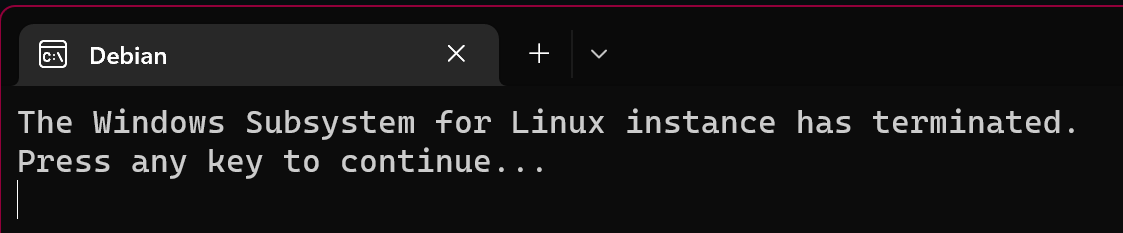
I have also installed Docker Desktop, but autorun is disabled and (currently for this project) not used. (My first suggestion was it has something to do with Docker, but I cannot confirm.)
After
wsl --shutdownthe machine goes back to normal:How can I help for further assistance? What I haven’t managed as described above to start
dmesgon time, sorry.And today I get the offer of Windows 11, 22H2, which I will start and then trying to look into that again.
It must be because of the hybernate mechanism; my desktop computer (running day/night) does not have this issue, even not after days. (Processor is AMD Threadripper, but this should not make any difference, only for the protocol here.)
Hi - another Me too here…
I noticed this in my PC. Everytime i notice high CPU usage, I have noticed this. Just too many wsl processes.
On top of that, disk usage sky rockets to 100MB/s RAM consumption stays at 4.5GB
This generally happens when WSL (Ubuntu22.04)+VSCode+Docker is used together. This doesn’t happen when WSL(Ubuntu22.04)+Pycharm+Docker is used.
My guess is the way VS Code connects with WSL images is the key problem here. Because after some time of idle system (8+hours) VSCode attempts to connect with WSL and upon failing it opens a new socket/connection with WSL and forgets to remove previous connection. Due to this a number of WSL connections are opened. When VScode updates itself with new connection, it queries all the connections there are resulting in increased CPU usage, Disk usage.
Of course I can be wrong here as this is just based on observation of user experience and is personal experience. But this is my understanding of this observation. As people have suggested to kill the WSL and it generally solves the problem, I believe all connections to VScode are killed and a new one is opened that results in smoother output. Same thing (my guess, not observed or tested in any way) happens when system restarts. Connection Pool Resets and things start working smoother.
On unrelated note: Combine this with Google Chrome and an adblocker, you get even higher usage of processor/cores resulting in complete halt of system.
This is my theory.
While writing above, I reloaded VSCode and it spewed this out. I do not know what it means.
My System has13thGen i7, 64GB Ram, 3080Ti Card. So system specs are more than optimal for WSL to run but I am unable to figure it out further.
@youk Ohh I won’t play this game my love… Anyone who have a single knowing on how these things works knows that if an issue is active and a bot comes to close it, simply tag a dev and ask for reopen… Instead we had 4 different user randomly complaining and putting crap on ms for no exact reason. I instead assert the situation and tagged the correct guy who can solve the situation. It’s very simple 😄 (took me litterally 20 second to scroll up, find a dev in the microsoft organization and tag him)
Last message since we had enough spam on this and I think a clean/delete of these useless message is needed (mine included)
It is closed because author did not respond in 7 days. Could someone responsible remove the needs-author-feedback label?
We’d been waiting for goodbot to arrive
I had this issue today where
vmmemwas using a constant 60% CPU.wsl --shutdownwas unresponsive, I couldn’t end thevmmemprocess in the task mananger (‘Access is denied’) andWin+Ctrl+Shift+Bwasn’t working as well.What did the trick for me was to end the
Windows Subsystem for Linuxtask in the task mananger, after which thevmmemprocess closed as well.Hi there,
so I have been inspecting two kernel builds (for x86):
stats so far:
Kernel builds are here: https://drive.google.com/drive/folders/1ayE_VtiucFoJ5GCPNaQXob8gnX5rOEEG?usp=sharing
Usage in .wslconfig:
Would be great if someone tested these also
It’s the middle of 2023 and this is still happening. Windows 10 23H2. Exactly as described in the initial report of the issue on 24th May 2021.
@ghadlich
Typically, a laptop will Hibernate after it’s been in the Sleep state for a few minutes (see your Power And Sleep Settings) unless hibernate has been specifically disabled by
powercfg /hibernate off. Last few days while travelling, I re-enabled hibernate, and the 100% vmmem problem returned every time it came out of hibernate (if vscode with wsl2 was running when it went into hibernate). It never happened when hibernate was off. On this laptop Sleep consumes very little power, but runs out after about 2 days.Bottom line: if you’re using wsl2, disable hibernate; if you’ll have no access to power for a day or more, enable hibernate but don’t use wsl2. It’s a tradeoff.
@alonbl Just because it’s fixed in a newer build of Windows does not help a lot of us and is not considered a plausible solution. A lot of us cannot update to a newer build either because of infosec restrictions (if working within a corporate environment) or in my case, upgrading build will break my docker instance.
This problem appears to have intensified and gotten worse for me. I used to hit this problem occasionally but now I’m running into this problem pretty much consistently; I was able to hit it even after a fresh reboot. I’m using Win10, WSL2 and WSLg is disabled.
I’m forced to use Windows at my job and this problem has made WSL unusable; my workflow is entirely dependent on WSL and this is effectively preventing me from being able to work. If this doesn’t get fixed I might need to switch over to a Mac at work which I really detest. WSL used to be a solid & reliable tool that made using Windows bearable for Unix folks.
@craigloewen-msft @benhillis any chance this issue can be investigated?
This annoying issue has been around since 2021 and still hasn’t been fixed today. Can you please bump up its priority?
Thanks to everyone who submitted logs.
To investigate this further, we need an xperf trace. To do this:
Install the Windows ADK. You only need the ‘Windows Performance Toolkit’ checked:
Once you have reproduced the issue (and can observe 100% CPU usage for vmmem or vmmemWSL), run the following command in an elevated command prompt:
And share trace.etl with your Windows build number and WSL version on this issue.
Same here on Win 11 21H2 with both “stock” WSL as well as the Store Preview version and a running Ubuntu 22.04 LTS instance.
Happens when waking up from hibernation. The only thing I tried so far was
which I read somewhere, but that didn’t help.
wsl --shutdownhas been stuck for ~15 minutes now. All I see is lots of threads eating up lots of cycles.@OneBlue Just to clarify: my issue definitely was neither 1 (it happened too when WSLg was disabled), nor 4 (running a store package of WSL).
It was a combination of 2 + 3: it did happen only after waking up the system from hibernation - but not every time. The WSL distro was completely stuck,
wslcommands hanged and theVmmemWSLprocess loaded the CPU 100 %. When I did enable WSLg to be able to invoke thesystemdistro, it was unresponsive too, so no change for providing atopordmesgoutput. Only remedy was to either restart the system or kill thewslservice.exeproccess. I did send over the logs and a dump of thewslservice.exeprocess to InsiderSupport@microsoft.com before.I have been using WSL since may 2022 with no problems, but I just started having this problem in the last few weeks, with the high cpu usage making the linux apps extremely unresponsive/laggy.
I’ve just observed a similar problem on Windows 10, after installing KB5017308. This is my first time experiencing this kind of problem during the years of WSL usage, so probably related to the update.
For the record, I have just experienced this vmmem high CPU usage, on a Win 10 computer (so, no WSLg) with a default WSL 2 + Ubuntu installation (only used apt update and upgrade, did not install new packages). I think the only non standard thing I did was use ‘export’ and ‘import’ to relocate the installation out of C:, and use WSLtty instead of Windows Terminal
This setup had been running fine during for days, including deep sleep every night. Suddenly my 2 terminals were stuck (could not type anything). I thought WSL had died, but
wsl -l -vreported that it was still running. And then I found in the task manager that I was using 100% CPU, because of vmmem. I typedwsl --shutdownthat usually kills everything very quickly, but it took at least more than 1 mn to complete@benhillis Unfortunately, I couldn’t find anything in
dmesgoutput. In weston.log, just a couple of ordinary messages caused byDisplayLayoutChange(the issue starts at08:20:43.834).I’ve been hitting this issue for many months and can reproduce it all the time on my laptop. Nothing has to be running in the WSL2 distro, it can be freshly booted. Doesn’t matter whether it’s Fedora or Ubuntu. The moment I attach or detach an external display while the distro is running, Vmmem starts to load one CPU core for 100 %, although no load is visible “inside” the distro itself. Please let me know if I can be of any assistance in troubleshooting this. Thank you!
Windows 11 Pro 10.0.22000.282, Ryzen 4650U integrated graphics, both screens 1920x1080, one scaled at 125 %, the other 100 % wsl.etl.zip
wsl --system -d Ubuntu topshows the high cpu usage is caused byweston.and it not even just high cpu usage on my machine. The worst part of it is taking my input focus away to
mstsc.exe. I installed PowerToy but has already killed it. I will try to install the latest commit ofmicrosoft/weston-mirrorotherwise I have to disable WSLg for the normally using of my computer.@lishan89uc have you tried
Win+Ctrl+Shift+BI too can reproduce this 100% by turn on/off my second monitor. Is this issue user “workaround-able” or do we have to wait for Microsoft. If so is there a way to expedite such a serious issue?
Side note: opening xeyes only drop the CPU usage from 25% to 17%. and after I closed xeyes the cpu went back up to 25%. So far I have not found a reliable way to make it run normally again other than to disable wslg with
guiApplications=falseadded to.wslconfiginside the personal folder, do a complete wsl shutdown and restart, or wait it out. If anyone find a better way to keep the functionality (preferably automatable) as a workaround that be great.If it helps, I was already running 1.0.24 (updated yesterday) and still seeing the issue. Disabling WSLg seems to have fixed it. I’ll keep testing.
I was able to fix this on my end by adding
.vscode-serverto the Files: Watcher Exclude.I believe I got the issue resolved on my end. Turned out this was an issue with VSCode actually.
I added exclusions in the File Watcher for .git and node_modules and it turned my CPU load back to normal.
File -> Preferences -> Settings -> (Search Watcher)Add these entries to
Files: Watcher ExcludeMay be an edge case but hope it helps someone out.
For everyone tracking this issue and experiencing the same problems.
I switched to XanMod Kernel - 6 days+ no issues with no hangs and 100% CPU usage.
I have been suffering this same issue in Windows 10 for the past few days … never happened before the last set of windows updates.
Happens couple of hours after waking up from a long sleep (not hibernation)
wsl.exe --shutdownalso just hangstaskkill -IM "wslservice.exe" /Fworks and drops vmmem usage, but then docker is unstablewsl.exe --debug-shelljust hangs tooSame issue reported at: WSL stops responding and vmmem spikes CPU to 100% #9592
It has nothing to do with avoidance?
I suspect this would not be the greatest thing for @craigloewen-msft to talk about on the spot. I have looked into the interrupt storm on Win10; which I can repro. I’ve been sidetracked onto other tasks and will be coming back to this.
If you’re talking about the issues on Win11 I’ve got no clue what’s going on there, can’t repro. @mhklinux will have a better inkling than I.
We’ve aware of a problem where the time-of-day in WSL doesn’t get updated after a laptop resumes from sleep/hibernation. If the laptop has hibernated for an hour, when it wakes up WSL will be 1 hour behind in what it thinks the time-of-day is. The design intent is that upon resume from hibernation, the Hyper-V/guest timesync mechanism should send a message from Hyper-V to the WSL guest informing it of the new time-of-day, and with a flag that says “set your time-of-day to the new value now”. On my own laptop, I can reproduce the problem, and I’ve run a custom Linux kernel to show that Linux in WSL never receives a timesync message with the flag set. So Linux doesn’t update its time-of-day to the current value upon resume from hibernation. The Hyper-V team has looked at their code, and they believe the message is being sent. So we need to debug this together to figure out what’s happening. But we have a repro within Microsoft that we can debug against.
Does this sound like the problem you are seeing? Or do you observe some other pattern in the time-of-day being wrong in WSL?
Like you, I’m also thinking that something to do with adjusting for a time-of-day change after resume from hibernation could cause the Hyper-V host and Linux guest to be out-of-sync regarding the passage of time, and hence cause the timer interrupt storm. But I’ll need the Hyper-V team’s help in connecting all the dots, which is underway, but may take some time to sort out.
Misbehaving bot closed the issue, bad bot!
I’ve also been having this problem with WSL2 regularly (usually once per day) on my laptop, though not on my desktop (both Windows 10). I’m in much the same situation as @2pl above, with same versions (both on desktop and laptop) and WSLg disabled, yet still happening. The Win+Ctrl+Shift+B graphics driver reset does not help the situation for me.
I had thought it was only occurring after waking the laptop from sleep (and was prepared to work around it for now), but today it happened a couple hours after waking from sleep (and I don’t think WSL2 was running when it went to sleep, as I’d been trying to avoid that); so I guess it’s not specifically sleep related.
Any attempt at interacting with WSL hangs. The only thing that works for me short of rebooting the laptop is
taskkill /f /im wslservice.exe, which isn’t much of an improvement.@jibbers42 , this worked for me. Thank you very much, man!
FYI for me, once Vmmem gets into its death spiral at >=80% CPU usage, even
wsl.exe --shutdowndoes not work (it just adds to the CPU usage and it hangs indefinitely). This is a MAJOR issue. It forces me to completely reboot the entire system.fwiw, I don’t have Docker installed and I experience this issue
I’m not sure but it seems to me that disabling docker for windows fixes the issue. It stopped occurring once I turned it off.
I am using windows 10 and also facing the same issue vmmem takes more than 80% CPU, eagerly waiting for the fix.
taskkill -IM "wslservice.exe" /Fis workaround@otium99 oh, I was thinking about:
taskkill -IM "wslservice.exe" /Fin PowerShellJust saying “me too” without providing environmental details is not very useful/helpful. Debugging requires information.
Same issue here. WSL always hangs after waking up from sleeping.
Same issue after waking up from sleep. Win 11 home.
This happens frequently for me (sometimes when changing power profile, like plugging in my laptop to charge).
Running only a single instance of VSCode with WSL2/Kali Linux. 100% CPU until i close VSCode and do a “wsl --shutdown”.
If i don’t close VSCode, WSL will not shutdown and the machine will burn a hole into my desk…
Windows allows a system process to potentially thermally damage a computer. How is this possible.
@OneBlue One note. I tried the previous instructions on Win11 22H1 (before updating to 22H2 I had this issue and wanted to help you investigate it) and each time when issue had reproduced, debug shell also hung: it was impossible to enter any command.
Don’t know if other people who have this issue also observe this behavior, but I think you must be aware, that these instructions not always could be followed.
Meanwhile vmmem / vmmemWSL runnaway is happen so frequently, that I have to restart my computer several times a day. For me this happens on both, Windows 10 22H2 and Windows 11 22H2. It happens also for all my colleages.
This really became such a pain, that we are considering to switch entirely to Linux or Mac.
I would be really glad to hear something from the Microsoft side:
WSL version: 1.0.3.0 Kernel version: 5.15.79.1 WSLg version: 1.0.47 MSRDC version: 1.2.3575 Direct3D version: 1.606.4 DXCore version: 10.0.25131.1002-220531-1700.rs-onecore-base2-hyp Windows version: 10.0.19045.2546
I don’t have or ever had it installed and still experienced this issue.
I upgraded today, when I’m done swearing and fixing my system I’ll check if it at least resolved this issue.
@elkrammer @electrotype Can you confirm that you use Windows 11 22H2 with all latest updates + WSL from the Store?
I’m asking because I also had the same WSL issue when I was on Win11 22H1. I tried to install WSL from the Store instead of inbound version - this didn’t work (100% cpu issue was still occured).
But some time ago in this thread there was information that latest windows update fixes it (but only for 22H2, read this comment and below). So, I installed 22H2 (over 22H1 without wiping data) and WSL from the Store. After this the problem never occured again for me. Sleep/Hibernate works fine, WSL doesn’t consume 100% CPU after unsleep/unhibernate. It was over a month ago. Previosuly the problem occured like once per 2-3 days.
My current WSL version:
But most important, I suppose, that Windows is 22H2 now. 22H1 of exactly the same version still had the issue.
@lekoOwO I had the same problem before updating to 22H2. The alternative to rebooting is to kill
wslservice.exeprocess. This will automatically restart the WSL. After this docker will notice WSL is restarted and also asks to restart itself: Agree with that.No really a solution, but at least not needed to do a full restart.
P.S. I use “Process Hacker” to kill
wslservice.exe, but “Process Explorer” should work too. Windows’ default Task manager is not very convenient for this, though… It doesn’t even allow to filter process by name.Thanks all for confirming the fix!
When in most cases
wsl --shutdownhangs indefinately, is there a way to terminate wsl safely without rebooting the whole machine? Perhaps restarting something in this debug shell?Thanks @galiovsky, we have 13 lenovo thinkpads of engineers in our group windows 11 latest, all experience the issue WSL stops responding + vmmem high CPU without ability to kill anything with KB5017328 reproduced several times in day, reverting KB5017328 does not reproduce this, re-installing KB5017328 reproduces this again, re-removing KB5017328 enables people to work. We reverted KB5017328 to keep on working, disabling Windows updates (unfortunately, there is no way for an Azure organization to blacklist KB). So I am sure that KB5017328 is a root cause of the issue we experiencing, it is clearly a regression.
Same here:
wsl with only 1 distro Ubuntu-22.04
It happens when I close laptop and open it again in the morning just drains whole battery while in normal cases it should be enough for 6 hours
Restart helps
Hi,
Does anyone in Microsoft is aware of the issue? Do you need more information? Is there an expected fix soon?
The label is
need-reprowhat do you need, just ask.As we cannot black list windows update fix in Azure active directory tools, our entire R&D has rolledback KB5017328 and paused windows updates to be able to work. Yet another enterprise feature that is missing in Microsoft platform, bug happen… the inability of us to black list the cause is as important as having it fixed.
Regards,
I am the same. Windows 11 10.0.22000.978 WSL kernel: 5.10.102.1
Happens reliably after hibernation.
wsl --shutdowntakes >6 minutes to complete but that stops the CPU hogging.I’m also fighting with infinite mstsc.exe restarting & grabbing focus loop on occasion - https://github.com/microsoft/wslg/issues/655 - could they be related?
Another thing I notice is that
vmmemwon’t actually go away until I issue anotherwsl --shutdownafter quitting PowerToys.Steps:
wsl --shutdownvmmemis still running as a process and taking about 5% CPUvmmemis still running, however CPU usage is 0%wsl --shutdownvmmemis no longer present in the Task ManagerI occasionally get this issue as well and it usually gets fixed when I shut down the WSL completely. This time I tried pressing the Win+Ctrl+Shift+B combo and that seems to have fixed the CPU usage in this instance.
Yes, if someone from wsl team could tell us how to give them better diagnostics that would be nice. As we’ve said, nothing shows up as using resources in the wsl images themselves. But we can see a high cpu core usage in htop, or vmmem cpu usage in task manager. But don’t know how to see what is causing it.
We know of one root cause. There are possibly other root causes. See my posting on August 17, 2024 for a high-level recap. This is a linkhttps://github.com/microsoft/WSL/issues/6982#issuecomment-2294892954 to my posting, though you may still need to scroll down to get to the August 17, 2024 date.
Unfortunately, my contacts at Microsoft have not taken any action on the issue, and I have not pestered them again recently. But there is a workaround Linux kernel available as described in my posting.
Michael Kelley
Same issue here
Changing
systemd=trueback tosystemd=falsein /etc/wsl.conf and restarting wsl fixed both my DNS and 100% CPU usage problem 😃wsl --version WSL version: 2.0.14.0 Kernel version: 5.15.133.1-1 WSLg version: 1.0.59 MSRDC version: 1.2.4677 Direct3D version: 1.611.1-81528511 DXCore version: 10.0.25131.1002-220531-1700.rs-onecore-base2-hyp Windows version: 10.0.22621.3447
This comment is pure gold, thank you.
I can confirm after a few weeks of using v5.4.72 kernel, all issues related the the memory leaks, vmmem high resource usage and hibernate etc are gone. I have turned hibernate back on, and everything working as it should.
@pbodnar when investigating this issue we do look through the thread, so luckily those comments aren’t lost on us and we love that the community here helps upload them to troubleshoot and debug this!
And agreed on the frustration, so as a gentle reminder please if you’re commenting on this issue try to keep it as relevant to the issue as possible, and please keep the Code of conduct for this repo in mind when commenting. Thank you again for all of your passion on this!
So in other words you avoided the bug with WSL & hibernation by not hibernating.
Trying out disabling fast startup on my Windows 10 laptop- thanks @jcmalone98 - startup doesn’t feel any slower than before - also found this post https://enterprisesecurity.hp.com/s/article/Disabling-Windows-10-Fast-Startup - just so happens HP Wolf Security is running on my laptop - here’s powershell commands to view and change fast startup settings via Windows registry
Show fast startup setting
Disable fast startup - as admin
This is exactly the kind of support I expect from microshaft.
Dear all, I am still waiting for a solution. Why is this closed? ("Auto"magically close is not the appropriate answer.) A solution is still not provided, having the computer closed and opened (with hybernate) many times a day makes a total burden, as I first have to close all software running, close the corresponding docker containers, and do that vice versa for the next meeting/presentation.
I am voting for re-opening this issue. Who could do that?
@zmajeed, here is another datapoint:
I was trying to reproduce the problem since last Friday. Computer was plugged in and I put it to sleep (by closing the led) several times. Everything worked well for few days. After that I unplugged computer and kept in unplugged for a while. After resuming I noticed that it took longer time to resume - as if it would be waking up from Hybenration.
When compelted, CPU has spiked and all WSL windows become unresponsive.
Log file attached. log20230925_2.zip
Notice , that last entry contains a lot of
Infs.Aslo, my event log for that day contains the following that might be relevant for this case (all times in CET)
So it looks like it’s related to hybernation. Let me know if you need more info…
Attaching my log’s and console output. Used @kelleymh kernel and @zmajeed scripts. Inbetween the terminal crashed so started once again (that’s why here are two console txt’s) logs.zip
Thanks, at least a workaround without restarting the machine for now!
I wanted to add this works even when you don’t have a
Windows Subsystem for Linuxtask: Start a new WSL instance (e.g. by entering “wsl” in start menu), now you got a target to kill in task manager (or with taskkill).Yes, it should just be putting the new kernel image somewhere in the file system and setting the path in .wslconfig to point to it.
I’m on vacation all next week and back at work on Tuesday, Sept. 12th. I probably won’t be get a custom kernel built and tested before I’m out, so it’s something I’ll get to when I’m back.
Here’s a .gz file with the C source code. ts.c.gz
Testing/assumptions got down to this commit: https://git.kernel.org/pub/scm/linux/kernel/git/stable/linux.git/commit/?id=4df4cb9e99f83b70d54bc0e25081ac23cceafcbc However still too little times tested yet to be sure. Could anyone also check that?
Thanks to @jak-sdk as your https://github.com/microsoft/WSL/issues/6982#issuecomment-1600496303 comment let me attract attention to the code which was apparently changed in nearby commits I was looking at.
Currently testing some commit which previously hang’ed, but now with 4df4cb9e99f83b70d54bc0e25081ac23cceafcbc commit’s changes reverted. So far so good but too early to say.
@pbodnar,
I am reproducing this issue and not limiting memory nor cpu.
Few notes on your summary from my side: 4. For me it is almost always after resume from hibernation. However, not sure how for others but for me it does not hang instantly but I notice a sudden change to start gradual increase of CPU usage for vmmem process. If it starts increasing then I know it will hang eventually (could be in 20 - 60 minutes). 5. could be for the most, but I do not limit nor memory nor cpu.
My addition to the list: as noted on other thread https://github.com/microsoft/WSL/issues/8696#issuecomment-1398082190 WSL temporarily unhangs after repeated hibernating / resuming but hangs again after a while.
OK, so based on the comments so far, here is a short summary to the “common denominator” of the currently experienced issue, feel free to correct me.
The issue is NOT reproducible with Linux Kernel v5.4.240 and older.
The issue is unrelated to a concrete CPU - it happens on all - Intel, AMD (Ryzen) or ARM.
It doesn’t matter if one runs a GUI app from the WSL, or not.
The issue seems to arise while the hosting computer is idle (not clear whether also hibernating or sleep need to come before the issue).
TBD: Many people, including me, clearly reproduce this issue while having WSL memory limited via
.wslconfig, e.g. in my case:Is there someone who was able to reproduce the issue without the WSL memory limiting? I’ve tried, but failed so far after a day or two of waiting for the issue. @hideyukn88, you yourself tried with or without this setting?
(Note that I also had to disable the
RunFullMemoryDiagnosticjob on nearly every single Windows PC so far, including this one, because Windows always fail badly to complete this job, but I guess it would be a big coincidence if it would really relate to this issue. Putting it here just for sure.)I don’t think so. I have installed the 22H2 update and still have the same issue.
I guess this is an laughable example of what a simple minded bot can do. Maybe some people at MS will have a look at the
vmmemissue after improving their bot, including not closing the issue two timesMeanwhile, I wonder who can re-open this issue. We can only add new comments (fortunately)
Way back in this thread, I posted how to kill WSL without restarting: https://github.com/microsoft/WSL/issues/6982#issuecomment-1253870599
This gist is that you have to kill (not stop) the LxssManager:
I don’t use modern standby (only hibernation) and this isn’t occurring for me any more on Windows 11 (version: 10.0.22621.1848). Atrocious that there’s no acknowledgement on the state of this issue from Microsoft, given its severity and the number of people still running into it.
This happens to me daily, for me it seems to be excessive interrupts from Hyper-V?
Perf:
And to compare to normal behaviour:
@mgjam did you type the command in an elevated/admin PowerShell ?
Even taskkill -IM “wslservice.exe” /F does not work for me, I get Following message back
ERROR: The process “wslservice.exe” with PID 20356 could not be terminated. Reason: Access is denied.
is there any other working solution to problem?
@rit001 After this experience I think that is a better situation: high spec PC at home running ubuntu, plus Windows (or Mac) laptop. I use vscode a lot, which can run on remote via ssh just fine.
@lewisdonofrio I’m glad it’s running well for you. Most things are running well for me; I’m not joining those threads. I think this problem is related to how the laptop wakes from sleep. I guess WSL2 just ain’t woke.
I’ve tried everything listed above to no avail, it’s making my laptop unusable…
I’ve been using the 1.1.3 prerelease for quite some time now. The CPU usage issue is significantly less, basically to what it was with 0.7 (<25% instead of >75%). It happens almost every day. Sometimes it happens quite soon after returning from hibernate, and sometimes it takes more than an hour before I notice the the problem.
One new weird thing I noticed. Shutting down Docker Desktop no longer results in the docker-desktop WSL distro to stop. It keeps running until I execute
wsl --shutdown. In the debug shell I do not see any process really consuming CPU at this point.I have Windows 11 22H2 installed (Intel Core i7 12700H, 32GB) and have a similar problem: When docker desktop is closed, vmmem is still running with increasing CPU usage. This only can be stopped with restarting the device.
It may be mitigated in individual cases by disabling wslg, ending certain processes etc, but there’s still not a general solution. I could reproduce the issues with just a bare Ubuntu 22.04 instance (before upgrading to Win 11 22H2, but there’s still no confirmation this is the final solution, and it’s not a solution if you can’t upgrade of course).
@OneBlue How does one get WSL >= 1.1.0? Like many commenters here, my WSL is 1.0.3:
No updates are available via:
Windows Store, winget, Windows Update all seem to be up to date. Currently wsl has no
--debug-shelloption:Is there another way to update?
I had to get rid off Virtual Machine Platform feature from windows 11, but that also wiped out my wsl machine. How come Microsoft didn’t fix it in 2 years…
@xak2000 I installed Win11 22H2 over a month ago and have not seen the issue since. Before that it was every time coming back from hibernation.
wsl --version WSL version: 1.0.3.0 Kernel version: 5.15.79.1 WSLg version: 1.0.47 MSRDC version: 1.2.3575 Direct3D version: 1.606.4 DXCore version: 10.0.25131.1002-220531-1700.rs-onecore-base2-hyp Windows version: 10.0.22621.1105
Thx! this works
私も同じ症状に悩んでいました。 I was suffering from the same symptoms.
OptionalFeatures.exe で “Windows subsystem for Linux” を一旦アンインストールして、インストールし直すと、改善されたかもしれません。Uninstalling the “Windows subsystem for Linux” with OptionalFeatures.exe and reinstalling it may have helped.何度かスリープを繰り返すと、再発しました。 After several sleep cycles, it recurred.
私も下の方法で誤魔化します。 I too will use the method below to deceive.
@xak2000, ah now I realized I’m confused with the issue filed at WSLg side, and I replied with https://github.com/microsoft/wslg/issues/819#issuecomment-1248564823 which some confirmed the fix by applying the latest Windows update, such as https://github.com/microsoft/wslg/issues/819#issuecomment-1339680876. Given I don’t know if this is tracking same issue, thus I reopen it, sorry for the noise, thanks!
@hideyukn88 Sorry, where did you mention it above? I can’t find it. And what Windows OS update exactly should fix this (to check if it’s installed already)?
Started WSL with WSL Debug Shell enabled, put laptop in hibernate and resumed the system … all terminals are completely frozen, including the WSL Debug Shell.
Feedback (with diagnostics): https://aka.ms/AAirj4t
Process explorer reports the following threads are causing the high CPU usage:
WSL version: 1.0.0.0 Kernel version: 5.15.74.2 WSLg version: 1.0.47 MSRDC version: 1.2.3575 Direct3D version: 1.606.4 DXCore version: 10.0.25131.1002-220531-1700.rs-onecore-base2-hyp Windows version: 10.0.22000.1219
At this point not sure what else can be captured, since all terminal windows are unresponsive. wsl --shutdown won’t do anything, the only way to revocer from this seems to be by killing the wslservice.exe process.
I had to build it myself.
Then copy the vmlinux file you just built, out of the WSL env to C:\Users\foo (replace foo with your username)
Next, create a config file (if you don’t have one) called C:\Users\foo\.wslconfig
In this .wslconfig file, you can tell WSL to use your custom kernel:
(note the double backslashes!)
Then wsl --shutdown. Start it back up and check your kernel version with uname -r.
Thanks everyone for the logs. With this we’ve been able to confirm that the CPU usage comes from the Linux side and not the Windows side.
To investigate further, we’d need logs from the Linux side. Unfortunately, this is only possible with the store version of WSL.
To get this information:
%USERPROFILE%\.wslconfig:Then run:
wsl.exe --shutdown, and restart wsl via:wsl.exe(leave wsl.exe open).Another terminal should have appeared: that’s the debug shell. Leave it open as well
Reproduce the issue (see vmmemWSL having a high CPU usage)
Inside the debug shell, run:
ps auxanddmesgShare the output of both commands on this issue
This should help us understand which processes inside WSL are consuming CPU.
Hey @nickperry and others struggling with this issue. Until this is fixed, I found a way to shutdown WSL without restarting Windows. See tip number 2 in this comment in a related issue.
Note, you must of course add the ID of the WSL container / VM to your
hcsdiag killcommand.@OneBlue at #8824 there is no mention that this is a regression since KB5017328 as confirmed in this thread, nor that it relates to hibernate wakeup. Please not that without KB5017328 the problem does not reproduce and with KB5017328 the complete freeze of WSL does not allow invoking any WSL command.
@Haraldi-Coding First of all if you want the latest WSL in Windows 11 you can get it from https://aka.ms/wslstorepage They fixed lots of issues and the process that appears in TaskManager is now called
VmmemWSL.Similar problem here, but I’m on Windows 10 (10.0.19044.2006). Kernel: 5.10.102.1-microsoft-standard-WSL2
The problem started about 2 weeks ago and happens daily around the same time. vmmem starts using one core constantly. When I shutdown docker for desktop it gets even worse and more cores will be consumed by vmmem.
Restarting individual docker containers when this problem happens seems to make things even worse. At some point I recorded a sysload in top of 80+and 100% CPU usage in windows. I needed to restart Windows as even
wsl --terminatewould not work.Only if I gracefully stop all WSL distros and wait a while for vmmem to exit my system returns to a normal state. Starting docker for desktop, etc after vmmem terminated will resume normal operation for about a day.
So effectively I have to restart WSL daily. It feels I’ve gone back in time and I’m on Windows 98 again.
I want to mention two things:
The WSL kernel release linux-msft-wsl-6.6.75.1 claims to have resolved the high CPU usage of the WSL. From my test with the 6.6.7.51 I cannot confirm that the issue is resolved.
My environment:
The scsi: storvsc: Ratelimit warning logs to prevent VM denial of service patch works fine, it stops the logs from exploding, but the x86/hyperv: Don’t enable TSCInvariant on some older Hyper-V hosts does not seam to have the expected effect on my system.
For my setup to work without high CPU usage, I have to use the (very) old Merge tag ‘rolling-lts/wsl/5.10.102.1’ into linux-msft-wsl-5.10.y kernel.
I wrote a short batch file to automate the
hcsdiag listandhcsdiag killworkflow - see https://gist.github.com/axj304/42a3c3b787c5f05655c84876c05b3c95 . Notably it can be run either if you are an administrator, or if you are a member of the “Hyper-V Administrators” user group on your PC, providing an option if you are a non-admin on a work PC so long as you can convince an admin to add you to that group.Not as good of a fix as the custom Linux kernel, but it makes it quick to recover when Vmmem hangs.
My computer has been freezing, with VMmem always using a lot of memory and the fan going to max rotation. I decided to uninstall WSL, and now everything is going well.
Same here. I think you can use
Developer: Open Logs Foldercommand.I also added this exclude pattern but my
VmmemWSLprocess is still going crazy when working in Node.js projects. It happens quite regularly when I run scripts from mypackage.jsonfile.@glazzari, do you maybe know how I can get VS Code debugging logs?
Docker even if the desktop version is off in Windows, seems to be running in WSL and resulting in high CPU usage (Vmmem process) in Windows (while not reflected in Ubuntu). You will see docker listed after “wsl --list --running” in PowerShell.
Ex: PS C:\Windows\system32> wsl --list --running Windows Subsystem for Linux Distributions: Ubuntu (Default) docker-desktop-data docker-desktop
I’ve run: wsl --shutdown docker-desktop
After: PS C:\Windows\system32> wsl --list --running Windows Subsystem for Linux Distributions: Ubuntu (Default)
The Vmmem process on my Windows machine dropped to 0 - 3% CPU usage.
I know this is not a fix and just a workaround, I just thought to share it.
https://github.com/microsoft/WSL/issues/6982#issuecomment-1474994319
worked for me
@MrSnoozles I see, thanks for your feedback. If it happens again, can you please report it at carlfriedrich/wsl-kernel-build#1 ? That reduces noise here and makes it easier for me to track it.
@carlfriedrich Pretty sure it happened with Kernel 5.4.0, but will try to verify it when it happens again.
I had a typo in the .wslconfig at first (3 backslashes instead of 2). When trying to open a WSL terminal I got a message that the kernel file can not be found. I fixed the typo, then the message disappeared and the terminal started. That’s why I’m pretty sure it happened with kernel 5.4.0.
@EzrielS You can find a build of 5.4.0, which also seems to work, here: https://github.com/carlfriedrich/wsl-kernel-build/releases/tag/v5.4
If you like to help finding the kernel commit that introduces the issue, feel free to join us at carlfriedrich/wsl-kernel-build#1.
Yeah it’s not consistent at all. I just spent about a month without it happening and on Friday it happened twice.
I spoke too soon, it’s just happened 😦
Based on their “response” to your question, I think we can safely say Microsoft is now practicing active avoidance of resolving this issue.
My team has been running into this issue for a while. We’re using Rancher desktop and we frequently see Vmmem start steadily consuming more and more CPU until it gets to 100%. Once Vmmem consumes 100% it makes our Rancher instance unresponsive. We recently changed a few settings in the “Define power buttons settings”. Control panel -> System and Security ->Power Options -> Change what the power buttons do. This may not be available on all devices depending on what you’re working with but we unchecked “Turn on fast startup” and “Sleep”. We’re still working to determining which one fixes the Vmmem issue but that seems to fix the problem for us. We were able to consistently reproduce our issue by simply shutting down and starting back up. So it seems like the problem has something to do with a Rancher Desktop getting shutdown ungracefully. But after this change we haven’t seen Vmmem spin out of control and Rancher Desktop seems to be staying up consistently. Hope this helps. I’ll reply back if I find that it doesn’t actually fix the issue. But so far so good.
Just making a quick note here, as a non-technical person. Whenever this happens (which is essentially every weekday morning) I just restart Docker Desktop to clear the issue. Obviously I wish this was not necessary, but it does work, for whatever reason.
Still an issue for me on latest Win11 preview.
Is this fixed in Windows 11?
I downgraded to 10 because it was impossible to ungroup things in the taskbar. I think that is in place now, so might consider upgrading again if it fixes the issues I have with Vmmem CPU.
@laszlovandenhoek Yes, the telemetry data you collected shows the same underlying problem as the telemetry collected by @zmajeed. The Hyper-V host view of the guest VM’s partition reference time is later than the guest’s own view of its partition reference time. So the synthetic timer values the guest is submitting are causing Hyper-V to generate a synthetic timer interrupt immediately. This results in a synthetic timer interrupt storm in the guest.
Thanks @onereal7! Can’t wait to hear @kelleymh analysis
I see 3 hvtimer debug dumps from the last run in console02.txt from your logs (I need to place the timestamp before the iteration number for easier sorting of the logfiles)
The fourth hvsaction2 log is from an earlier run when the rate first crossed 10,000/sec
You can see the system lag from the interval_sec value for each iteration of the monitor script - the script frequency is 10 secs - but by the time of iteration 492 the interval is 57.8 secs
Also when I run hvsaction2.sh on my normal system I see this for stimer stats for each cpu
whereas from your logs
Clearly, high counts show the system degrading - let’s see if this is enough to tell if the cause is in Windows or WSL
Both CPU and memory usage are limited via
.wslconfigbut this still happens from time to time.Nothing is running on Docker.
.wslconfig
My version of WSL:
@zmajeed I’d like to dig deeper in the HVS (Hyper-V Synthetic Timer – stimer0) interrupt rate in the WSL VM. Getting 10,000 or more interrupts per second is a definite indicator of a problem, and will chew up increasing amounts of CPU time as the rate goes to 100,000 or larger. It’s hard to know if the root cause is on the Linux side or the underlying hypervisor/vmmem side.
Linux basically wants to generate a timer interrupt X amount of time in the future. To do this, Linux kernel code reads the current time, adds X, and programs the sum into the Hyper-V synthetic timer register. The hypervisor/vmmem side reads the synthetic timer register, and then generates an interrupt back to Linux when enough time has passed. These are possible failure modes:
A) Something in Linux is causing X to be very small or negative, so that the hypervisor side is generating the interrupt almost immediately. B) Linux has a valid X, but it gets a bogus value when reading the current time. Hence the current time plus X is bogus, again causing an interrupt almost immediately. C) Timekeeping on the hypervisor/vmmem side is messed up, and it is generating the timer interrupt in the guest much too soon.
To help narrow down which of the three is happening, here are some things to check:
Basic info: What is the output from “cat /sys/devices/system/clocksource/clocksource0/current_clocksource”? Also “cat /sys/devices/system/clocksource/clocksource0/available_clocksource”? I’m expecting “current_clocksource” to be “tsc”, and “available_clocksource” to be “tsc hyperv_clocksource_tsc_page”, but wanted to verify. These values don’t change (but see below), so just checking once is sufficient.
When the problem occurs (i.e., the HVS interrupt rate exceeds 10,000/second), get the output of “cat /proc/timer_list”. This will likely produce a few hundred lines of output, so you might need to send me the output via email (mikelley@microsoft.com).
After having collected the /proc/timer_list data, make the following change to “current_clocksource”:
This should change current_clocksource from “tsc” to “hyperv_clocksource_tsc_page” (assuming it was “tsc” to start with). Verify the change by reading back the value of “current_clocksource”. After making the change, track the HVS interrupt rate for a minute or two. Does the interrupt rate decline in a substantial way, or stay the same, or continue on an increasing trend?
After changing “current_clocksource”, get the output of “cat /proc/timer_list” again and send it to me.
I have a C program (about 330 lines of code) that runs in Linux to collect additional clock and timer information. I could post the source here, or email the source code and binary to you as a .tar file. Let me know what’s easier logistically. The program should be run after the current_clocksource has been changed to “hyperv_clocksource_tsc_page” (it will segfault if the current_clocksource is still “tsc”). The program is named “ts” and it should be run with this command line: # ./ts 5 50 It outputs a line every 5 seconds. When the HVS interrupt rate is high, and the clocksource has been changed, run the program for a minute or so, then hit Cntrl-C to kill it. The output might give me some clues as to the problem.
Very sadly, 6th hibernate+resume hang’ed… It seems that it resisted without hanging much longer but still hang’ed…
Wrote a script to monitor
/proc/interrupts- https://github.com/zmajeed/simpleprog/blob/main/wsl_stats/wsl_interrupt_stats.sh - here’s sample output from a normal WSL with sedate vmmem@zmajeed
Hey, it looks like you’ve got similar behaviour to me, but I put it down to stimer0
perf output here: https://github.com/microsoft/WSL/issues/6982#issuecomment-1600496303
Also how do we know it was between 5.4 and 5.5? Looking at the MS WSL2 Kernel repo they went from 5.4.91 to 5.10.16.3.
Some people reported 5.4.72 to work, although others said it didn’t. It might be worth checking out if the problem started between 5.4.72 and 5.4.91 as there are fewer commits. Only 2000+ 😕 https://github.com/microsoft/WSL2-Linux-Kernel/compare/linux-msft-5.4.72...linux-msft-5.4.91
Kernels can be downloaded here: https://www.catalog.update.microsoft.com/Search.aspx?q=wsl
Speaking of bisection: in case anybody has overlooked it, @onereal7 already bisected the code to the specific kernel commit that introduced the issue for them in #8696. See the original post here.
There’s also a comment from @burk3 here that describes how to build and use a custom WSL kernel. Kernel version 5.4.72 works, while Kernel version >5.5 does not. Maybe someone else can bisect the commits in between these versions as well to see which commit introduces the problem in their environment.
Is it fair to say at this point the approach of hoping the cause will reveal itself by some sort of bisection or intersection of configurations is causing more confusion and adding complexity to the issue? This may be a wild guess but with so many different people reporting this issue - and a lot of them seem to be corporate users who use WSL for regular work - there could be 5-10x others that face or will face this issue and either don’t realize it or are not frustrated enough to report it And here’s my data points to add to the noise - I’m using a run of the mill 11th gen Intel Core i7-11840H - not ARM - running Windows 10 - the cpu flareup happens pretty consistently given enough time - as far as I can tell happens after sleep and not after sleep - my laptop does not hibernate - I don’t have anything weird in .wslconfig or wsl.conf apart from memory and cpu limits - btw guiApplications=false does not help If you point me to tools that work with a completely unresponsive WSL I’d be happy to try them - if WSL were open source I’d simply attach a debugger
It happened soon after I posted this - I tried
wpras suggested aboveI found this error mentioned in https://devblogs.microsoft.com/performance-diagnostics/wpr-start-and-stop-commands - it says to install Windows Insider version 19650 but I’m not a member and cannot access it - so that does not work either
For me this happens on ARM - consistently. Not on Intel.
@hideyukn88
I woke up my laptop form sleep mode and soon after I noticed that CPU is around 100% (with vmmemWSL contribution almost all of CPU usage)
wsl --statusprogram worked normaly (did not hang). Created core dump of wslservice anyway.Please noote that a bunch of WSL related processed run at this time (but I did not explicitly invoked any commands in linux since the laptop was reatarted)
I’ve uploaded files to same location as the last time (https://drive.google.com/drive/folders/1fisxbd0wAWsCvjXjOGSPeGwVNHyoJQIx?usp=sharing) They are stored in 20230722.zip
@matra774,
This is interesting to know that
wsl --statusdoesn’t work either as it only queries its state, not changing the state. If possible, would you please do below to collect dump file.1: Run
wsl --statusfrom Windows Terminal or cmd.exe, and confirm it hang. 2: Open task manager, go to “Details” tab and find “wslservice.exe”. 3: Right click on “wslservice.exe” and select “Create memory dump file”. 4: Please share the file.thanks!
Not sure this is a joke, because after more than 2 years and over 400 comments, I think this should be sufficiently documented, but when this happens, wsl, as stated multiple times here, is completely unresponsive, so nothing can be run and no logs are generated and all cores it has access to are loaded at 100%.
Killing the vmmem process using powershell (
kill x, not task manager, task manager does not work usually) may resolve the issue temporarily, but may also cause a bluescreen.For me this happens consistently with WSL2 on my ARM64-machine and never on my Intel-machine
I am on a clean formatted W11 Pro machine and just hit this issue today. ‘VmmemWSL.exe’ using close to 100% CPU after leaving podman running with a postgres container idling overnight. No sleep / hibernation on my PC.
WSL2 Ubuntu 22.04 Kernel version 5.10.102.1
@hideyukn88 I have similar issue on Windows 10 with WSL2.
I have GUI disabled with guiApplications=false in my .wslconfig
WSL1 is not directly impacted as far as i can see, but given vmmem is taking ALL available CPU when the issue hits, the laptop quickly becomes unresponsive and a reboot is required.
Have seen someone suggesting resetting the graphic driver with Win+Ctrl+Shift+B in another thread, will give it a try next time.
This used to work for me but doesn’t anymore after an update. The hcsdiag method works though.
I appreciate your feedback, thank you. Did you provide any alternative solution? Any at all? I do not think so.
Nevertheless, my solution may be helpful to someone After all Having a solution that can help someone is better than none Unless you have a better one You get the idea, lol?
Smashing one’s PC also “fixes” the issue. The issue stopped occurring once I took out the CPU from the socket.
Why would someone who installed Docker for Windows want to disable it? People want to use it, not disable it.
I only use WSL2 (1.2.5.0) for occasional Docker. Most time it’s idle. After waking up from hibernate
vmmemis using 100% of each one of the 32 cores. Impressive.The documentation referred to appears to be incorrect. I’m able to disable
guiApplicationsin Windows 10I am wondering if this CPU loop could not be related to this old WSL time sync problem, out of a Windows scheduled task solution, here is an interesting comment about activating systemd which apparently solves the time sync. No need to say time desync has multiple repercussions, particularly on cache / watching files, TLS, etc… Also intuition says Windows hibernation is - agressive - does not inform WSL system, and wait things to pause smoothly… Will try this for few days and give feedback Update: seems no need to add the
ConditionVirtualization=!containerconfigGood chat
On Thu, 20 Apr 2023, 23:02 Abdullah, @.***> wrote:
Tried this today and got BSOD’ed. It seems like there is no way around to some of us besides restarting. 😦
I got the same problem where VmmemWSL is using 50% of my CPU. I did
wsl --shutdownand the command hangs (or at lease not return for 10+min)It would be nice if Microsoft actually responded to this issue. I can’t believe it’s been going on for years
One way to get around is to disable guiApplication option in .wslconfig and then install a xserver app like gwsl, it’s on Microsoft store, I used it and it works fine for most part. Haven’t see much CPU spikes.
I am also experiencing this issue regularly on a windows 10 laptop with WSL2 running Ubuntu 20.04. I regularly hibernate the computer, and use VSCode remote development. I probably experience runaway Vmmem CPU usage once every three days.
Cannot use Suspend here - laptop wakes up immediately (another windows feature…) - so disabling hibernate isn’t an option.
Thank you! That “solved” the issue for me. It’s annoying not to be able to use Hibernation, but at least this issue doesn’t occur anymore
Works for me @otium99 But on your screenshot it looks like there’s no process to kill - I have the same when I run command once again, after first end with success
@stivo85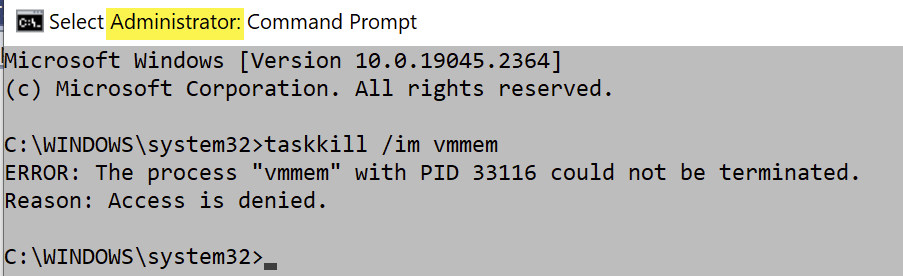
Of course, I don’t use Docker Desktop, neither installed directly in WSL. And the problem occurs sometimes
Yes, I have moved from Docker Desktop to the docker installed inside wsl (hence no docker-desktop and docker-desktop-data distros, just an ubuntu distro). Still the same issue. Even not running VSCode.
@benhillis anything we can do to help move this forward? It make WSL useless if it stays like that.
@alonbl I don’t think it’s fixed in Windows 11 22H2. I still have the issue with the following:
On my end, there also seems to be a link to WSLg. As soon as I open some graphical programs in my distro, I hear my laptop fans go crazy.
Any chance of it getting fixed in any Windows 10 upcoming release?
I upgraded to 1.1.3-pre on Windows 10 and the problem still persists… 😦
Upgraded to 1.1.3.0 pre-release. So far:
Tested my hypothesis
toptopis still runningfor /L %I in (1,1,256) do @wsl echo %Ifor /L %I in (1,1,256) do @wsl echo %Ia couple of more times, it did not have much effect. But vmmem was slowly starting to consume more and more CPU, this might be due WSL commands executed by docker desktop.The
topin the default (ubuntu) distro was still running, showing nothing of interest. Also rantopin thedocker-desktopdistro,/usr/local/bin/dockerdwas generally the biggest CPU user.So it looks like the problem is related to docker desktop for windows being active when vmmem was part of the hibernated procsses in Windows.
Quitting docker desktop returned my CPU to idle. The initial wsl process with
topwas still running showing basically no active processes. (docker-desktop distro was no longer running) Started docker desktop again after this, and the vmmem CPU usage stayed at 100% and all WSL become unresponsive.So whatever happens to WSL due to docker desktop, it screws up the vmmem process completely. The only recourse is to shutdown wsl before it reaches 100% CPU usage.
Executing this
ps axu | grep init | wc -lin the docker-desktop wsl distro shows the number keeps increasing. More and more[init]processes are spawned and they never disappear. About 1 every seconds added.Note that docker-desktop uses a custom build linux image. No package manager available,
strace,nc,gdbare not installed.To summarize:
topwsl -d docker-desktopps axu | grep init | wc -l@brookst: You can get WSL 1.1.2 with:
wsl --update --pre-releaseI had previously downgraded to WSL 0.70 and WSLg 1.0.45, which helped this issue from occurring 3x a day to maybe once every other day. This was still driving me crazy, and I had seen in this thread other people who updated to 22H2 had successfully resolved their problem. I had to join the Windows Insiders Program and set it to Beta in order to get Microsoft to allow me to upgrade to from 22H1 to 22H2.
I have now been running Windows 11 22H2 (22621.1245) for three days now, and (knock on wood) I have not had any post-wakeup compute issues.
@elkrammer I will say, I have noticed that along with the 22H2 upgrade I also got these updates come through: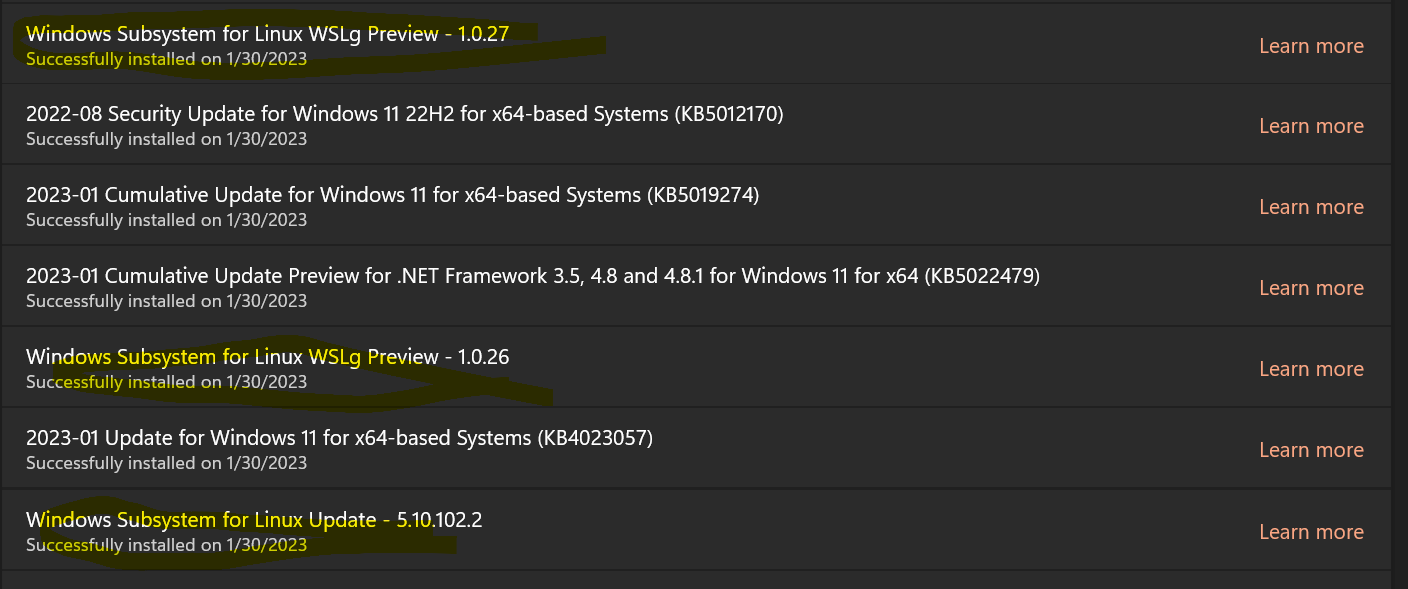
My assumption here is that one of those is probably the specific reason for my issue being gone now.
I couldn’t take it anymore so yesterday I decided to upgrade to Win11 after seeing a few folks on this thread having success with it. Unfortunately Windows 11 did not fix this problem for me - I’ve just reproduced the problem. I would agree with @xak2000 - when the problem occurs the entire computer becomes unresponsive - it’s going to be very hard to go through all those steps during that state.
Windows 11 22H2 (Build 22621.1105)
Yes; the issue still exists. I, too thought the issue stemmed from Docker Desktop, but after removing it, the issue remained. I went ahead and removed WSL, which of course terminated vmmem and gave my CPU a break.
Confirming that this problem has not reappeared for me after upgrading to Windows 11 22H2 as well.
Problem didn’t reappear for me either since upgrading to Windows 11 22H2.
@electrotype Actullay pretty useful information IMHO, as it confirms that you didn’t use Win11 22H2. @elkrammer Same. You are not running Win11 22H2.
I’m not saying that it’s normal that only Win11 22H2 doesn’t have this bug. Of course not. I agree that it should be fixed in any supported Windows version.
I’m just trying to confirm that Win11 22H2 really fixes this bug. In my case it’s true. It would be good to know if someone has similar experience. If we will confirm this, at least this could be a solution for someone. And also we will able to ask maintainers for more specific actions (to backport the fix to earlier windows versions) instead of “please fix it somehow”. 😃
Out of curiosity, does everyone having the issue have Windows Features: Hyper-V
installed?
It seems like “Virtual Machine Platform” provides the Hyper-V infrastructure need for WSL2, and not the Hyper-V feature. It makes me think there might be some conflicts. There are various issues that mention lockups with Hyper-V feature installed and removing it fixed the issue.
@elkrammer I’m in the exact same situation. But I couldn’t take it anymore.
I’m now using a Linux vm in VMWare player instead. It has its own issues but WSL2 is simply unusable.
@benhillis : I reproed again, resume from hibernate => all host cores at 100%. Hibernate again+ resume => still at 100% . Hibernate once more, resume => cpus idle. And the attached dmesg which this time does contain something that may be relevant. Note, I did not undock usb3-dock so that was not relevant, seems hibernate+resume can both cause and heal it.
dmesg.txt
Same as other people here switched to windows a couple of weeks ago since I was mainly using windows for gaming and got tired of rebooting. Also windows has better off the shelf power management and unreal engine is more stable. I thought it was too good to be true as I even noticed better idle power management but today I am having this issue of vmmem slowly creeping up until it takes over a core atleast when idle.
OS Name Microsoft Windows 11 Pro Version 10.0.22621 Build 22621 Installed Physical Memory (RAM) 128 GB
WSL version: 1.0.3.0 Kernel version: 5.15.79.1 WSLg version: 1.0.47 MSRDC version: 1.2.3575 Direct3D version: 1.606.4 DXCore version: 10.0.25131.1002-220531-1700.rs-onecore-base2-hyp Windows version: 10.0.22621.963 Linux 5.15.83.1-microsoft-standard-WSL2
Is this related to some sort of memory security and if so is it possible to turn it off?
What is annoying is that isn’t just the cpu, it’s CPU + RAM so other applications are super unresponsive e.g. browser hanging and for a moment getting that washed out window with the “this application is hanging” message. I though it was the usual windows I/O NTFS slowness even though I have a very decent 4tb 7GB/s nvme drive and disabled NTFS last access to avoid excessive inode updates.
I can reproduce this almost instantly, fire up Clion configured to use 32GB ram and a few minutes in there it is, the cpu/memory bandwidth hog along with the fans blowing. I’m glad it is winter and I have noise cancelling headphones.
Update: In my brief testing seems like whenever there is batch of filesystem operations vmmemwsl goes crazy. For instance reconfiguring cmake or rebuilding a c++ project. It seems (speculation) that windows is indexing stuff in wsl filesystem and that isn’t playing well so try disabling the “windows search” service. Can do it in admin cmd:
If this is the case doesn’t a multi billion dollar company with hundreds of thousands of employees have stress/integration tests with profiling? sheesh
Also looking at task manager vmmemwsl always seems to have disk I/O activity, why?
Another weird thing, in task manager when going to the process details right clicking on vmmemWSL process and picking “properties” it opens a “Documents properties” dialog whith OneDrive’s location ?! must be a bug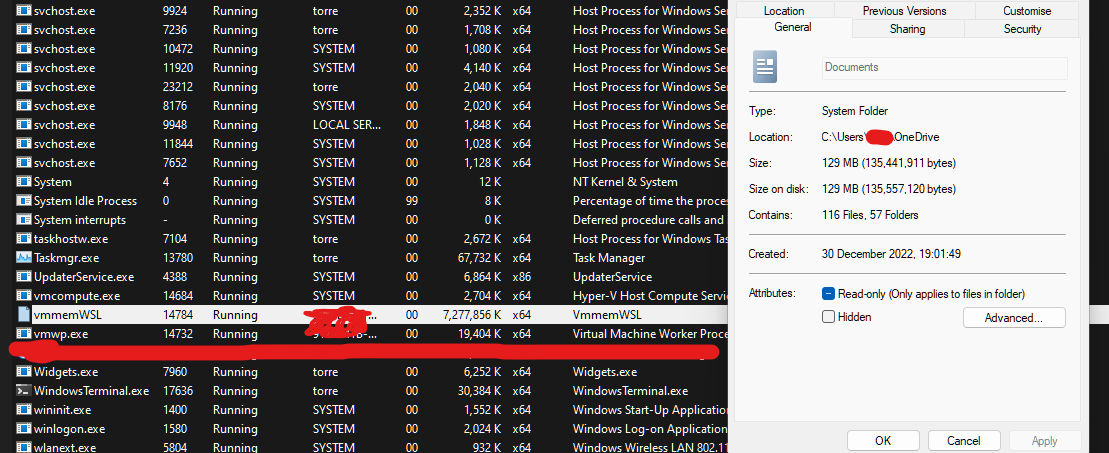
For some reason I had Desktop and Documents inside the OneDrive fodler (althtough i’ve uninstalled OneDrive) after deleting the OneDrive folder clicking on properties of the VmmemWSL process doesn’t open anything now.
In any case for now the process CPU usage when idle seem stable (in this short time of testing) below 1%
Can anybody confirm that “Uninstalling the “Windows subsystem for Linux” with OptionalFeatures.exe” will not remove my existing distribution installations.
After recent Windows 11 update:
wsl --shutdownand restarting wsl makes those command executing like in milliseconds.As I mentioned above, the fix is released as Windows OS update, not WSL/WSLg update, thanks!
@hideyukn88, who confirmed it?
For me the Issue still exist, and shouldn’t be closed.
Since yesterday I have updated WSL version (1.0) with kernel 5.15.74.2 and now it’s worst than was before update (there was kernel 5.10?).
Earlier I could execute
wsl.exe --shutdownand after short while I could start WSL again and use it. Now I am waiting for shutdown since 30min, and I think I have to make my PC restart…I have tried this and after reboot I couldn’t even start my Debian and have to check it again
This is affecting me on Windows 10, so no wslg (I use X2Go for graphics). It seemed that the 22H2 update provided resolution (no runaway CPU usage of vmmem for a few days with multiple hibernate cycles), but now I’ve experienced the problem twice over the last couple of days.
Here is the output of ps aux on my side after applying the ‘debugShell’ parameter. I’ve mentioned all processes, which were consuming > 0.1% of CPU:
Hope it helps to solve the issue.
P.S. Updating kernel to 5.15.68.1 didn’t help me. P.P.S In my case issue starts only when I connect to WSL2 instance via RDP. Most probably, that is causing the start of the wslg, which actually consumes the CPU.
@OneBlue trace.etl
Windows build: 19045.2130
Kernel version: 5.10.102.1
https://aka.ms/AAim0ts
Yesterday I ran
wsl --updatewhich installed an update, then I rebooted. Today I’m not seeing the same high cpu anymore and I haven’t been able to reproduce yet (while it occurred every time after hibernating). Perhaps a related change?Edit: Added versions below
I’m starting to experience the same issue last couple of days
Most recent updates are KB5017859 and KB5017328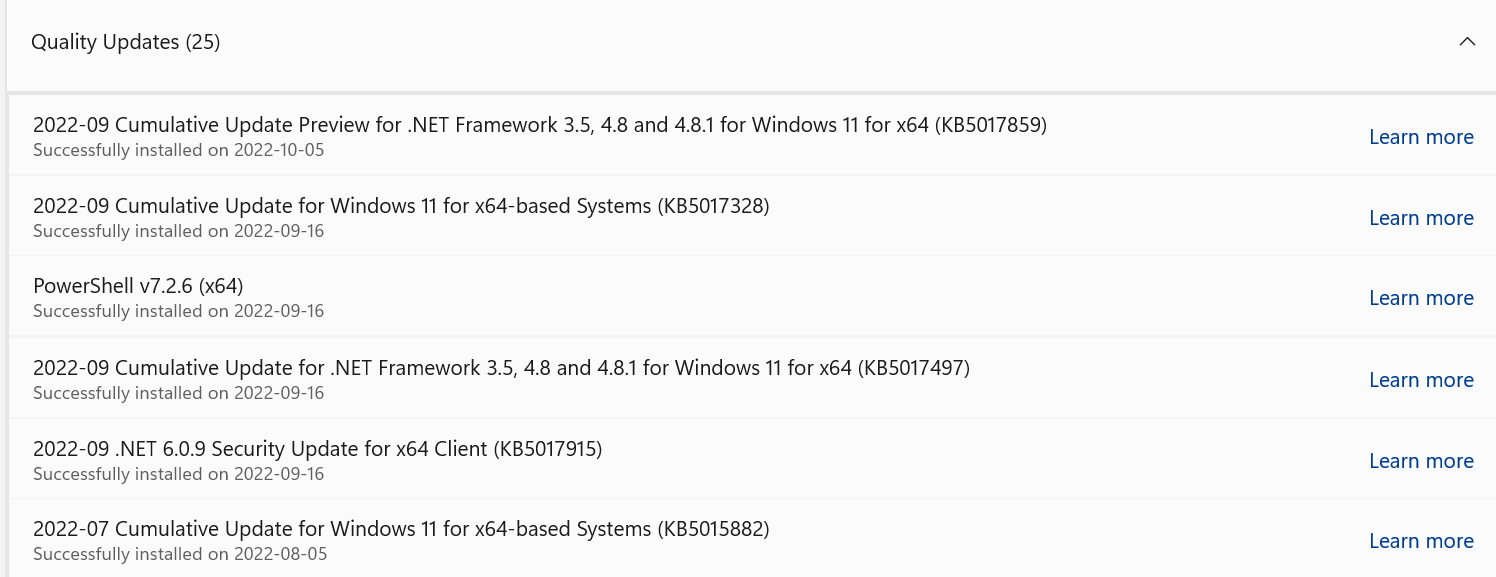
almost same issue. can be solved by wsl --shutdown. re-happen 100% when my laptop wakeup from sleep.
using i7-12700H win11 21H2/22000.1098 Linux bu-pc 5.10.102.1-microsoft-standard-WSL2 #1 SMP Wed Mar 2 00:30:59 UTC 2022 x86_64 x86_64 x86_64 GNU/Linux
by the way, my 2nd monitor is always connected and wslg not disabled.
@alonbl I for instance have been running Windows build 22000.978 (“KB5017328”) on purpose while updating other stuff (VS Code, WSL pre-releases). I haven’t had the issue (for me that means WSL being stuck + VmmemWSL high CPU usage on wake up from hibernation) occur in the last week or so at all. Before it used to happen once every few wakeups. Hence, I remain skeptical of “KB5017328” being the root cause, but YMMV I guess…
@onomatopellan Thank you so much for pointing this out! I am so sorry that it looks like that was missing the latest version.
The above link to the Microsoft Store shows a new version, and after
wsl --updateI got the latest one: PS C:\Users\xxx> wsl --update Installing: Windows Subsystem for Linux Windows Subsystem for Linux has been installed.BTW, for all others. To find your “version” of WSL, I have found this article: How to check which build of WSL2 am I running:
(gcm wsl).Versionresults in the build number: Major Minor Build Revision10 0 22621 1
In the settings I get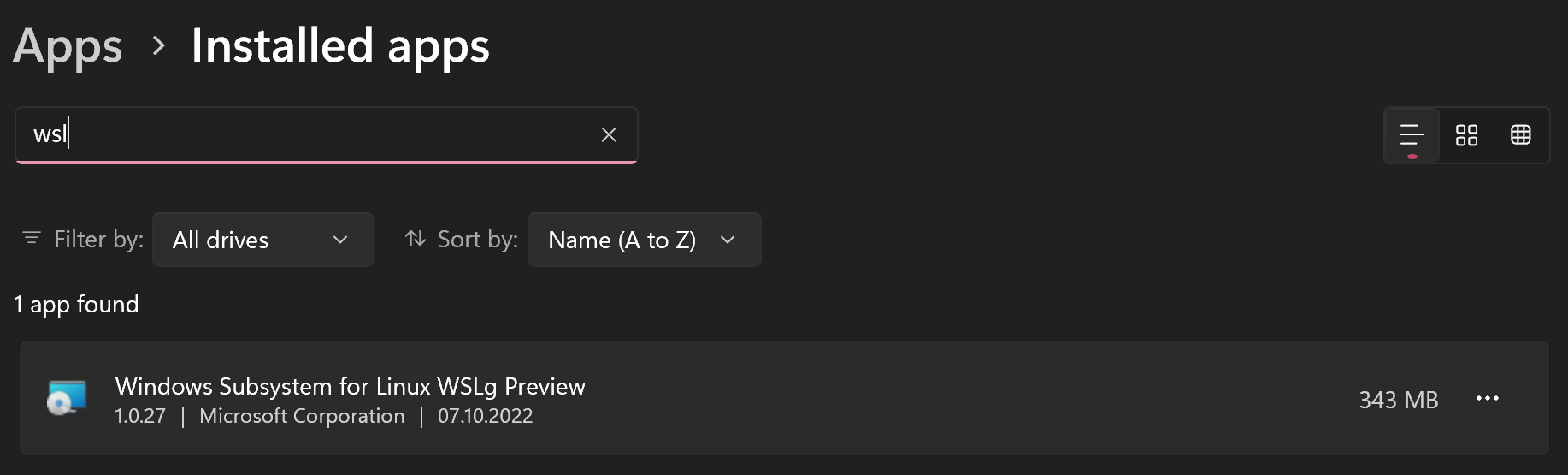
For the
wslfetchresult in Ubuntu you have the build number (see above) and the kernel version, which you can get byuname -r: 5.15.57.1-microsoft-standard-WSL2The build and the kernel version is the same as you will get in Ubuntu with the command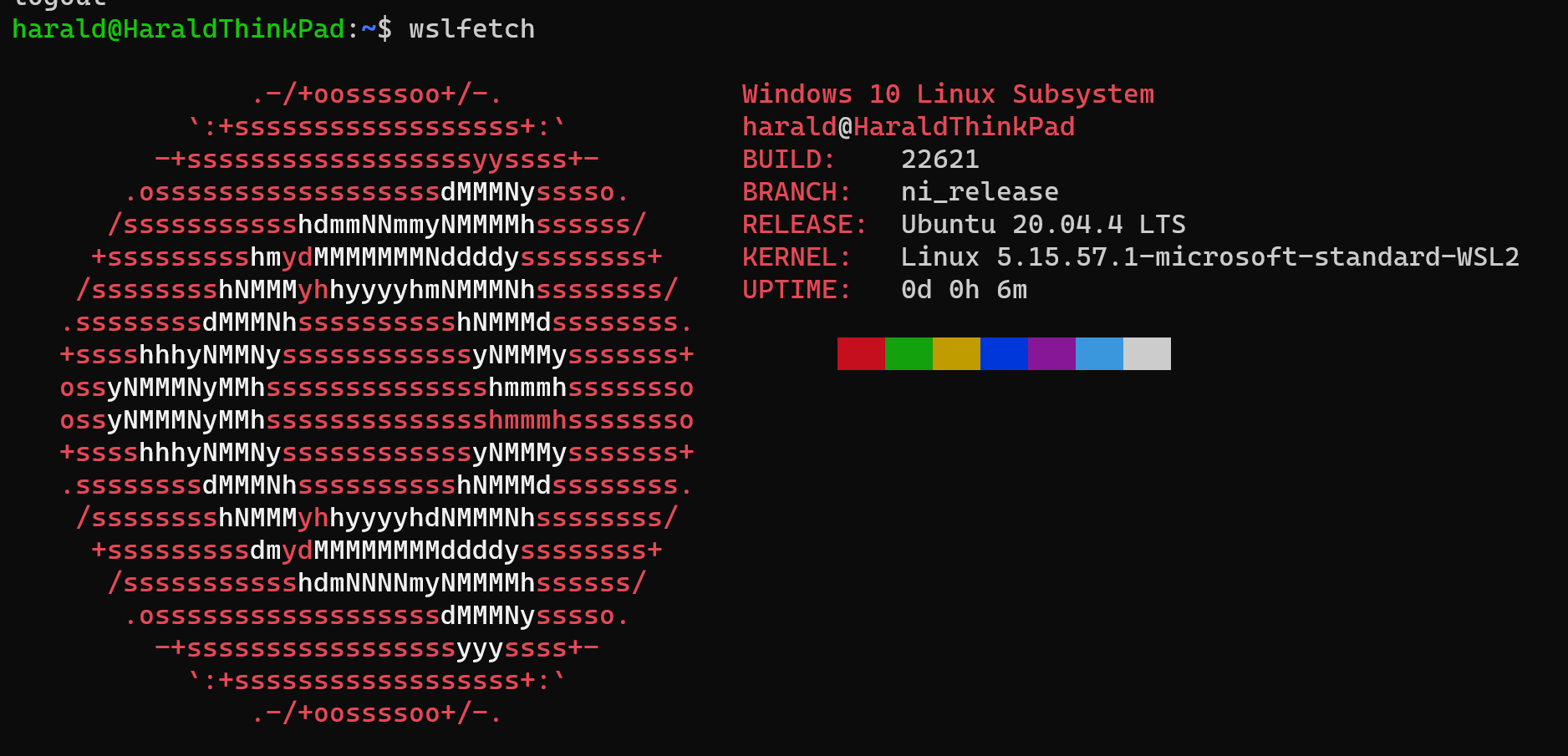
wslfetch:Hope this helps to have the discussion on the latest version of WSL.
@onomatopellan, thank you so much, and I am very sorry that I haven’t checked that first!
I get this only after KB5017328, KB5017497 I do not have KB5016691 installed (in update history)n or if I do it was working fine.
Now reverted KB5017328 so far so good.
I can confirm! I was just not patient enough to wait the 6 minutes, so I tried shutting Windows down. Even worse, the CPU hogging continues after shutdown and starting Windows again (probably related to fast boot). Only restarting seems to fix it. Also, trying to kill vmmem using the task manager does not work as even with administrator privileges, task manager gives “access denied” as an error.
@benhillis it would be good to know that the developers are onto this because both this and #8696 are old posts but both flooded with new responses.
@OneBlue Just happened to me on
0.67.6.0, after waking up from hibernation. VmmemWSL consumed 100 % of CPU,wslcommands and the distro were both unresponsive. I have WSLg disabled (guiApplications=False).Not sure if it helps but I’m send WSL logs and a dump of
wslservice.exefrom the frozen state over to InsiderSupport@microsoft.com.After I had killed
wslservice.exe, I could start the WSL distro anew.This may be just a coincidence – makes even less sense with me having WSLg disabled – but both times this had happened to me was when my display configuration changed during the hibernating/waking up (plugging in/out and/or switching on/off the external display just when the laptop was hibernating and/or waking up).
This is still occurring after waking from sleep. Windows Terminal isn’t open after the wake up and new WSL sessions cannot be started:
wsl --shutdownsometimes works after some thinking time, but otherwise the LXSSManager svchost.exe needs to be killed, e.g.:The only relevant System logs are from Hyper-V-VmSwitch noting that ports are being disconnected, destroyed, recreated and reconnected to the VMs after leaving standby. I think this is normal behaviour, i.e. does occur when WSL successfully resumes from standby.
I suddenly started experiencing this last week as well (Windows 11 on i7 12700h). Requires complete shutdown of WSL2 and restart 😦
Stopping the
LxssManagerService seemed to fix the CPU load, although it failed to stop the service.I’m not using Docker, just plain WSL2 on a new Win11 install.
I’m adding to this thread to say I am having this issue before, and after having WSLg installed.
@ghylander When that happens open cmd and run
wsl.exe -l -vto see which WSL2 distro is running. Sometimes you don’t even need to launch a shell to see WSL2 running. Just having a linux folder pinned in File Explorer can also launch a WSL2 instance.If there are no distro running then open Powershell and run
hcsdiag.exe listto see which process is running Vmmem.@kuzen your issue is tracked in https://github.com/microsoft/wslg/issues/443
@ziruizhuang Disable WSLg if you don’t need it. If you do need it, check
/mnt/wslg/versions.txt. If the versions are lower than https://github.com/microsoft/wslg/issues/528#issuecomment-948920724, try updating to https://github.com/microsoft/WSL/releases/download/0.48.2/Microsoft.WSL_0.48.2.0_x64_ARM64.msixbundle.Hey everyone, try out the WSL Preview version (available from Microsoft Store or from this repository), it seems to have fixed the issue for me!
I had this issue with Docker Desktop + phpStorm IDE and project inside WSL (Ubuntu 20.04 from store). It happened sometimes once a day, sometimes more often. It wasn’t big deal, because it’s easy to kill such process. The bigger issue was missing git connection - phpStorms sometimes “lost” information about modified files and I had to close and reopen IDE. I think it may be related, because that 100% CPU usage sometimes occurred after some checkout/pull/push/other git operation and remained until I kill process.
Resolved that by running phpStorm from WSL - tried W11 and WSLg, but it has some issues with windows focus and also overall I was not happy with W11. Right now use W10 and phpStorm inside WSL + X410 for X Server and after almost two weeks:
I think it’s something related to communication between host and WSL filesystem / processes
I don’t think PowerToys is relevant. I’ve hit this issue before but I don’t have PowerToys installed. The weston theory is correct IMO.
The day after, also waking up from night sleep.
Like @Matsemann
htopdo not show anything relevant.wsl2.zip