WSL: Very slow network speed on WSL2
Windows build number: 10.0.19041.84
Dist: Ubuntu 18.04 LTS
I just installed WSL2 on my home computer for the first time and something i notice that i don’t see on my work computer is that WSL2 has dramatically lower network speed (wget or git clone tested). Speeds on WSL seem to be about 10-20 kb/s wheras windows download speed seem to be correlating to my ISP spec of 100/10 Mbps or above.
About this issue
- Original URL
- State: open
- Created 7 years ago
- Reactions: 232
- Comments: 405 (10 by maintainers)
Links to this issue
- wordpress - Why is a web server 2-3x slower in WSL than in VMware? (same Docker stack) - Stack Overflow
- ubuntu - Why is WSL extremely slow when compared with native Windows NPM/Yarn processing? - Stack Overflow
- Slow file transfers between Windows 10 and ZFS array over 10Gbps connection
- Slow Upload Speeds on WSL2 After Cumulative Update KB5025239
Just for people still looking for a complete solution
Create this file in
C:\Users\YOURUSER\.wslconfigAnd run
wsl --shutdownin your terminalThats it, when you re-start your WSL distro, it should have the same speed as your Windows host
Read more about this here: https://learn.microsoft.com/en-us/windows/wsl/wsl-config#wslconfig
After follow this blog My network/file access improve more than 5 times speed.
Give this a gander
worked on windows 11
This worked for me. Given that the link that the author of the forum post is now down and I’ve spent all day trying to get this to work, here are the steps to getting this to work for you. 🤞
This method fixed ~10kbps download speeds which made WSL 2 unusable. I now have ~15mbps which is still slower than normal, but workable.
Note: This is for WSL 2. WSL 1 should not have these issues afaik.
Open Ubuntu (or your other distro)
Open Network Connections in your settings (“View network connections” in Windows search)
You should see
Right-click and open Properties
In the Properties pane, click Configure…
In the Configure pane, go to the “Advanced” Tab
Click on “Large Send Offload Version 2” and update the value to “Disabled”
If you see two “Large Send Offload Version” options, disable both.
Additionally, it is recommended that you install any projects, packages, etc. to your Linux file system.
cd ~explorer.exe .. This should open File Explorer insideNetwork > wsl$ > Ubuntu (or other) > home > userYou’re now in your Linux file system which is distinct from your Windows file system. The docs recommend staying within the Linux file system as its far faster. This is an understatement. It’s a massive performance improvement.
From here, I’d recommend creating a directory like
reposand installing your Git repos there to reduce future confusion.Good luck!
Oddly, I’m getting decent results from the
speedtest-cli, but things such asapt updateare extremely slow, that is, less than a MB/s, where I’m used to seeing 30-40MB/s on my standard Ubuntu systems…Speedtest results…
apt updateresultsOkies, here’s speedtest on windows, in the browser:
…and here’s speedtest from wsl2:
Same here : Windows and WSL :
WSL 2 :
Ok, so this is what worked for me after tons of restarts,
wsl --shutdowncommands, etc.I couldn’t find the
Hyper-V Virtual Ethernet Adapterin my Network settings (Control Panel), so I went ahead and in the PowerShell I didwhich correctly showed the virtual adapter
So, I found this article: https://mcpmag.com/articles/2018/06/07/powershell-with-network-adapter.aspx, and did some digging. Using
Get-NetIPConfigurationcommand I can find out the name of the interface, its index, etc.From here I did
Get-NetAdapter -InterfaceIndex 44 | Get-NetAdapterAdvancedPropertywhich showed meFor the next part you should run the PowerShell as an administrator. Typing:
and
Disabled the two parameters, and when I restarted the wsl, and ran the speedtest the speeds were finally normal
Previously I had like 1 Mbit/s download and 0.54 Mbit/s upload.
If anybody else gets stuck, hope this helps 🙂
Microsoft, how is this still an issue, stop working on chatgpt in windows and please pay attention to the parts of your OS that actually matter to people. It’s insane you have issues like this going on and it’s present with every clean install of windows I’ve had. It blows my mind.
Thanks for sharing this tips. I disabled Large Send Offload both v4 and v6 on the network adapter “vEthernet (WSL)” . This resolve the slowness access on my WSL development environemnt at localhost 👍
Hello friends, I’m not good at English, But me too I faced the same issue and I tried so many time and finally I got one solution and here’s the url: https://www.hitxp.com/articles/software/ubuntu-fix-slow-wireless-internet-connection-speed-upgrading-11-04-natty-narwhal/. With sample pic
I found this post https://social.technet.microsoft.com/Forums/windowsserver/en-US/e2ff174e-0e66-4004-beb9-cfccfe7fd4d4/hyperv-virtual-network-setting-slow-internet?forum=winserverhyperv
It suggested disabling large send offload in the vEthernet network adapter created for WSL. Seems to have resolved any major slowdowns I’m running into.
Changing to mac fixed my issue 😃
^ is required, but not enough for me.
config: Windows 11 with USB Wi-Fi network dongle (Ethernet disabled).
What actually increased speed:
This works for me, too. To be specific:
ipconfigto find the interface name of my WIFI adapter. “Wi-Fi 2” in my case.netsh int ipv4 set interface "Wi-Fi 2" forwarding=enable. The response isOK..The download speed immediately improves in my WSL2 Ubuntu 22. I think the issue is probably with my using Wi-Fi, which is not properly forwarded to the container.
this fixed it for me: https://answers.microsoft.com/en-us/windows/forum/all/low-internet-speed-in-wsl-2/21524829-18be-4611-bb5f-cabccd2cae31
1-Press the Windows Key and type “Control Panel” and hit enter 2- Click “Network and Internet” 3- Click “View network status and tasks” 4- Click “Change adapter settings” 5- Find the “vEthernet (WSL)” adapter and click properties 6- Click “configure” and open the advanced tab Select “Large Send Offload Version 2 (IPv4)” and change the drop-down to disabled. To the same for “Large Send Offload Version 2 (IPv6)”. Once this is done click “OK” and you are all done. You may experience a slight downtime in connection while this is saved.
Tangentially related: it was taking my WSL really long to reach any DNS server, so I changed /etc/resolv.conf’s value to 8.8.8.8 which massively sped up how long it took to find links. Hope this helps some of you.
Specifics of my case is slow upload speed on Win11/WSL2 ~3-4Mbps vs. download of ~500Mpbs. Enabling Netword Direct Memory Access on vEthernet (WSL) virtual adapter fixed this issue and brought upload speed to ~500Mpbs. To check current value run: Get-NetAdapterAdvancedProperty -name “vEthernet (WSL)” -includehidden -DisplayName “Network Direct (RDMA)” To enable: Set-NetAdapterAdvancedProperty -name “vEthernet (WSL)” -includehidden -DisplayName “Network Direct (RDMA)” -DisplayValue “Enabled”
Same here. Getting about 7Mbit/s on WSL2 and 30+ in Windows.
Disabling Defender also made no difference for me either.
That really hit the spot. Well done!
Hi folks, we have put out a new update that aims to address networking issues in WSL. In your
.wslconfigfile you can setexperimental.networkingMode=mirrored, as well as some other key settings that should improve your network compatibility! Please try them out and let us know what you think.More info on this release and the changes can be found here in the blog post.
Excellent tips! This was what I trying to look for when restarting the machine using PS script to auto-configure and bring up the interface!
Use powershell
Disable-NetAdapterLso -Name "vEthernet (WSL)"I noticed that whatever I disable or enable, I got the speed increased from 4mb to 200mb. I believe that LSO isn’t the issue, it is something that happens when the config change.
If you’re experiencing slow download speeds in WSL2, you can add custom DNS servers to the
/etc/resolv.conffile while preserving the existinglocalhostentry. Follow the steps below:Step 1: Disable Automatic
resolv.confGeneration/etc/resolv.conf:Step 2: Edit the Existing
resolv.confFile to Add Custom NameserversOpen the existing
resolv.conffile for editing:Add your preferred DNS servers below the existing
localhostentry. For example, to add Google’s DNS servers, you would include:This keeps the
localhostentry intact while adding additional nameservers.Save and exit the editor.
Step 3: Restart WSL2
Outcome:
After following these steps, your WSL2 instance will use the specified custom DNS servers in addition to the default
localhostentry. This should help resolve slow download speed issues without removing the existingresolv.conffile or thelocalhostentry.This is a joke.
This worked for me:
Everything I’ve found tells me this is a bug with WSL2 using a Wi-Fi adapter. I’ve not had a problem with wired ethernet. The only thing that fixed the Wi-Fi for me was sharing the internet connection. However, it does not persist.
For those of you that found a fix using ‘Internet Connection Sharing’ but it does not persist across reboots, you can automate the fix when you spin up your WSL distro by adding the line below to your ~/.bashrc. Be sure to replace "Wi-Fi’ with the name of your adapter (execute
Get-NetAdapterin powershell).This worked for me: https://answers.microsoft.com/en-us/windows/forum/all/low-internet-speed-in-wsl-2/21524829-18be-4611-bb5f-cabccd2cae31
@jjensen
I am giving up on WSL 2. Microsoft doesn’t give a shit. It has been 2 years struggling with this. I’m done. Fuck WSL.
For my case only this worked:
In WSL:
After that, on PowerShell
For Windows 11, I saw a notable improvement after a reset. This is what I ran, on Powershell as an admin:
Are you able to see it on Device Manager?
this worked for me:
works after reboot aswell, since its permanent changes
Fixed it for me (Intel I219-V adapter with Intel drivers installed):
Allow internet connection sharing on network adapter. Worked for me in a sec.
Hi, same here. My download was drastrically reduced of 200Mbit/s to 2 Mbit/s. Is there a solution?
netsh int ipv4 set interface “Wi-Fi” forwarding=enable
worked for me
This worked for me
My current workaround is to disable and re-enable “Allow other network users to connect through this computer’s Internet connection” in the “Properties/Sharing” tab of my WLAN connection.
We need Microsoft to fix this.
this worked for me on Windows 11 and WSL2 (tl;dr from previous postings)
in Powershell run:
Set-NetAdapterAdvancedProperty -InterfaceDescription 'Hyper-V Virtual Ethernet Adapter' -DisplayName 'Large Send Offload Version 2 (IPv4)' -DisplayValue 'Disabled'Set-NetAdapterAdvancedProperty -InterfaceDescription 'Hyper-V Virtual Ethernet Adapter' -DisplayName 'Large Send Offload Version 2 (IPv6)' -DisplayValue 'Disabled'works without a restart of wsl for me
@justdanyul I experienced the same issue when the host pc was connected to internet with a marvel 10Gbit ethernet adapter. After I switched it to wireless, things were back to normal. Sounds like some compatibility issue between WSL2 and Marvel.
Edit: I solved it by updating the Marvell ethernet driver to 3.1.6.0. Just got it from the manufacturer’s website.
@RosanneZe I’ve had the same problem. The way I address it is by running the following command from the admin Powershell prompt:
Disable-NetAdapterLso -Name "vEthernet (WSL)"That works for me.Same here. Especially upload speed was drastically reduced - 36.61 -> 3.85 Mbit/s
Any official updates here? This issue has been open for 2 1/2 years and having to run exotic PowerShell commands as administrator to turn off Network adapter settings isn’t a good solution.
Here’s a script I use to automatically disable LSO on the WSL adapter and start the Windows Terminal afterwards.
set virtualization on from bios settings
Hello microsoft!!! do something or tell as how to speed it up 😦
I think it’s useful to let people know that this doesn’t happen to everyone, I’m getting my full speed here in WSL 2 on Windows 10 2004 (non Insider)
it fixed the super slow speed on Firefox on WSL2 for me! I’m using an external Wi-Fi adapter
What is this magic? It fixed the awfully slow WSL 2 network connection.
I was getting 0 download and upload speed but still network connectivity. Tried all of the above. Not fixed. Ended up with temporary name resolution failure error when trying to run speedtest-cli.
Fixed the name resolution AND speed issue by following the top answer for this question https://askubuntu.com/questions/1192347/temporary-failure-in-name-resolution-on-ws`l
Inside WSL2, create or append file: /etc/wsl.conf
Put the following lines in the file in order to ensure the your DNS changes do not get blown away
In a cmd window (!!), run wsl --shutdown
Start WSL2
Run the following inside WSL2 (line with search is optional)
Haha nice one. At one point, Microsoft’s mission was to “erase Linux from the face of the Earth”, so having intermittently and slow network in WSL is probably a feature rather than a bug.
This solved for me. I was downloading something with wget while i executed those command and it moved from 16KB/s to 24MB/s
WARNING ⚠️
the DNS modification above may mess up your IP routing if you use a specialized VPN to access private cloud resources. Remove the
/etc/wsl.conffile to restore the defaults.Works like a charm
Hi all, I got the latest Windows 10 ver 2004 update. Switching from WSL1 to WSL2. I have the similar slow issue like you all had. But not particularly on the internet, it’s more on Windows to Ubuntu via localhost access
Windows Version: 2004 Build: 19041.264 Ubuntu: 18.04.4
I run php development in WSL with Ubuntu 18.04.4, I have apache2, php7.2 and MariaDB running very well on WSL1
During development, I usually tunnel to my server to load ElasticSearch/Postgresql data, the tunnel is listen on localhost with respective port numbers.
I do not have connection problem when running in WSL1, the speed is tremendous fast. It’s fast like the data is loading on my machine itself.
But when I switch to WSL2, I notice the connection is extremely slow. The initial loading took like 5-7 secs. Then the page would rendered. The hostname is mapped to 127.0.0.1, I’ve tried mapped on WSL2 Ubuntu private IP, the results are the same - Slow.
I’ve capture the video and sharing with you all.
Here is the video running on WSL1
https://www.youtube.com/watch?v=tNFtUUd2sG4
What I did was wsl --set-version Ubuntu 2, to upgrade the current Ubuntu distro to WSL2. Here is the video of the same development site running on WSL 2 (Please look at left bottom status bar)
https://www.youtube.com/watch?v=JFYgzMHf2RU
I’ve tried the comments on this thread, no luck getting it load fast like WSL 1. Hopefully this can be fixed,
I’ve switched back to WSL1 and the speed is back to normal. You may refer to the video below, the result is instance.
https://www.youtube.com/watch?v=9Q5Ors94lJM
Had this problem on my machine. I have an Aquantia (now called Marvell AQtion) 10Gbps NIC. Solution for me was to disable the Recv Segment Coalescing. This can be done by going into Device Manager -> Network Adapters, double click the Marvell AQtion 10Gbit Network Adapter, go to Advanced tab, scroll down to Recv Segment Coalescing (IPv4) and Recv Segment Coalescing (IPv6), disable both of them, and click OK. Network speed in WSL2 increased from ~1Mbps to >300 Mbps
If you’re seeing this issue, and you’re in a state where networking is really slow could you please help us by taking logs and attaching them here?
Networking log instructions are here
Thanks for the feedback here, I’ll take it back to the drawing board and see how we can diagnose those problem.
This helps me fixed the problem. +1
Has anyone figured out why this is happening? It seems like some people are having success with the workarounds, but I’ve yet to see a compelling explanation of what exactly is causing these problems to begin with. Would be great if we could get someone at @microsoft to explain what the issue is
fix for me was. order important
Does anyone else know where to find vEthernet under windows 11? I can’t find it anywhere so can’t apply the same fix to turn off Large File Offload.
https://townsyio.medium.com/wsl2-how-to-fix-download-speed-3edb0c348e29
it works for me
My wifi network is entirely IPv6. By disabling IPv6 on my WIFI adapter and my WSL ethernet adapter and then rebooting, I was able to see much faster network speeds.
You can disable IPv6 on your adapters by going to Settings > Network & Internet > Status > “Advanced Network Settings: Change adapter options”. Then, for both your
vEthernet (WSL)and your regular Wifi adapter, right click them, click “Properties”, and then deactivate “Internet Protocol Version 6 (TCP /IPv6)”. After that, I saw speeds matching my native system.I’m seeing 249.94mbps down / 15.42mpbs up on Windows, which is pretty much what I expect from my ISP. On WSL2,
sppedtest-clishows 4.69mbps down / 3.29mbps up.But
aptandgitperformance in WSL2 is so much worse. I’m getting download speeds of 4–16 kbps on both.~I don’t recall measuring network speed on WSL1, but such terrible performance would have been quickly noticed.~ Edit: Just installed a WSL1
Ubuntu 20.04 LTSand I got 193.61 mbps down / 16.94 mbps up.I’m on
Windows 10 Enterprise version 2004 (build 19041.264)andUbuntu 18.04 LTSthat I recently upgraded to WSL2.https://townsyio.medium.com/wsl2-how-to-fix-download-speed-3edb0c348e29
disabling
Large Send Offload Version 2 (IPv4)andLarge Send Offload Version 2 (IPv6)fixed the issue for meI had the same very frustrating problem but i think i got a work around. I used https://github.com/ChrisTitusTech/winutil to reset Winsock (Reset Networking). It is under
Config > Reset Network. I am not 100% sure if it was this alone because i also completly removed WSL and Hypervisor from features list and reinstalled it also with this tool. But after this clean up and reinstall and a good old’ reboot, everything worked magically. I also didwsl --updateimmediatly after reboot.Maybe it helps someone!
Wow! On the same OS installation/hardware, but freshly installed Ubuntu. Thank you!
PS OS Version: 10.0.22621 N/A Build 22621
Same here. Somehow this build is messing with the DNS config. I solved the no connectivity problem after the suggested commands with two steps:
Update the /etc/resolv.conf to use Google DNS.
printf "nameserver 8.8.8.8\nnameserver 8.8.4.4" | sudo tee /etc/resolv.conf > /dev/nullAdd these lines to /etc/wsl.conf to stop automatic generation of resolv.conf by WSL.
@jlknauer @flca267
I also encountered the same issue. I researched and found the following response on the Microsoft Community. It worked for me and the problem was resolved:
1-Press the Windows Key and type “Control Panel” and hit enter 2- Click “Network and Internet” 3- Click “View network status and tasks” 4- Click “Change adapter settings” 5- Find the “vEthernet (WSL)” adapter and click properties 6- Click “configure” and open the advanced tab 7- Select “Large Send Offload Version 2 (IPv4)” and change the drop-down to disabled. To the same for “Large Send Offload Version 2 (IPv6)”. 8- Once this is done click “OK” and you are all done. You may experience a slight downtime in connection while this is saved.
After performing these steps, I disabled and immediately re-enabled the vEthernet (WSL) device, and my internet speed issue in WSL was resolved.
Source: https://answers.microsoft.com/en-us/windows/forum/all/low-internet-speed-in-wsl-2/21524829-18be-4611-bb5f-cabccd2cae31
I was not seen vEthernet (WSL) adapter in my control panel in windows too. I open my wsl and run
ipconfig.exe /all. Adapter Ethernet vEthernet (WSL) was being here. Then I was run this commands in powerShell with admin permission. Now i have my natural speed in wsl. Thank you! PS. I use Windows 11Disabling “Large Send Offload v2” for IPv4 and IPv6 instantly fixed my slow network speed completely
Find the “Network and Sharing center”, “Change adapter settings”, go to the properties of your “vEthernet (WSL)”, “Configure…” and select “Disable” from the dropdown for both options
https://townsyio.medium.com/wsl2-how-to-fix-download-speed-3edb0c348e29
For people like me and the guy from this thread, who has a NIC (in our case 10G), answer from this guy solved it for me, at least. Which is to disable IPV6, after almost 2years of suffering I finally did it! All downloads now at over 150MB/s which is 100% similar in windows.
Hi folks! We’ve made some general improvements here that might affect this problem. Could you help us determine if you’re still seeing the issue? Could you please use the latest version of WSL from the Microsoft Store: https://aka.ms/wslstorepage and then see if you still have this issue?
Using the Store version here is my speed comparison, so I’m unable to reproduce the issue.
If folks are still seeing this issue on the latest then I’ll help dig in to try and root cause it.
sudo rm /etc/resolv.conf// Removes current system DNS config filesudo bash -c 'echo "nameserver 8.8.8.8" > /etc/resolv.conf'// Runs bash command based off the following string, which creates a new DNS config file and points it towards a different server (Pointing to Google’s public DNS in this case)sudo bash -c 'echo "[network]" > /etc/wsl.conf'// Repeats previous command, but inserts new ‘network’ parameter into the wsl.conf filesudo bash -c 'echo "generateResolvConf = false" >> /etc/wsl.conf'// Appends the wsl.conf file to include the off value on the WSL resolv.conf file generation configuration under the previously made ‘network’ parametersudo chattr +i /etc/resolv.conf// Makes the initially created resolv.conf file immutable so as to not be erased again/somehow overwritten by WSL@emilnymann This is my understanding of it, but don’t take my word for it. Who would have thought it was bad DNS servers? So the old sysadmin haiku proverb goes:
My ISP delivers 200 Mbit both ways, and Windows gets 200 both ways at speedtest.net
WSL2 got 1-2 Mbit both ways with my wifi adapter as the connection point. The wifi has better than 400 Mbit localy.
Switching to the wired connection for WSL2, shared with the host, I get 200 Mbit both ways with WSL.
Seems, as others have suggested, that WSL2 and Wifi don’t agree on the terms of their relationship.
In Windows 11 it’s very hard to find those settings in GUI. However, this works:
Get LSO settings:
Disable LSO (requires admin privileges):
This worked for me, thanks! In my case I was connected via cable so the adapter name was “Ethernet”.
About this issue, I faced it as well when using the mirrored mode, but not when using NAT.
So why in my case? I disabled the automatic update of resolv.conf because wanted to set my own dns servers (on NAT mode), and also to solve VPN issues.
Then mirrored mode came into place, and damn, was weird, but after while it made, mirrored is supposed to share the same IP/interface, meaning also same DNS, but I was using a static config and preventing WSL from automatically updating it.
I’ve tested setting my nameserver to my local router, and worked like a charm and as expected. Then reset the resolv.conf file, allowed the automatic updating, and it also worked.
So to wrap up, to add to the checklist, verify if:
Hope it helps other lost souls out there
Worked here after reboot. Let’s see how much time it keeps working as every single workaround I tried here works by a couple of months then it just doesn’t work anymore then I have to go back here to see if someone find another way… again…
How I can acess WSL ethernet adapter? It just doesnt show here on Windows 11 Pro
This one worked for me.
Edit: It doesn’t work anymore. It seems the only thing whick worked is to disable the network adapter in windows and enable it again.
Use this:
I actually get the following on w11:
No MSFT_NetAdapterLsoSettingData objects found with property ‘Name’ equal to ‘vEthernet (WSL)’. Verify the value of the property and retry. At line:1 char:1
I wonder if i need to run it in a specific dir 😕
I was experiencing this problem on Windows 10 WSL2 and tried this solution, however it did not work. Please notice how the commands described above rely on the description of the network adapter to select the target adapter, this is bad. Especially with a generic description such as the one used by WSL adapter, which is the default description for ALL HYPER-V BASED ADAPTERS, therefore if you have multiple Hyper-V adapters on your system (this was the case with me), the command above will target the first one it finds, which may or may not be the right WSL adapter, and therefore if it finds the wrong one, the commands are useless and seem to not work.
After doing some research I found #8171, where one comment led me to this Medium article, which describes the equivalent of doing what those commands do but manually through Control Panel, and that worked! But the idea of having to manually redo those steps in Control Panel every computer restart (some people have been saying it also resets on
wsl --shutdown, but I haven’t experienced this?) was no good.Thankfully a comment in the Medium article gave the final piece of the puzzle, the two commands above, merged into one, and filtering by adapter name:
Set-NetAdapterLso -Name "vEthernet (WSL)" -IPv4Enabled $False -IPv6Enabled $False. I have verified it works the same as doing it manually on Control Panel. I can now use @imrodrigoalves’ automation gist, replacing the original command with this new one to automate the process.TL;DR
Better, more reliable, single-command version of the two workaround commands shared throughout this issue’s comments. Especially useful if the original commands did not work for you, this one might work!
MUST run on PowerShell as Admin. Tested and works on both Windows 10 and 11.
Edit: Something else to note is, you must have ran WSL at least once in your current session, so that the WSL network adapter actually has been created (this is why these settings reset every restart!), otherwise it won’t exist yet and the command will fail. The fastest way I’ve found to trigger the creation of the WSL adapter is to run
wsl exit, which can also be used programmatically on startup scripts.@craigloewen-msft “general improvements” so I guess you didn’t target “specific improvements”
My issue is how random the speed was. Sometimes lightning fast then days and days of terrible speeds. So your screen shot of “high speed” could be just one of them times when it decides that “we’re fast today”
This actually fixed the issue for me. Thank you so much for posting this comment! 🎊
I’m not planning to give up WSL immediately, but I can’t help but agree with @andremarcondesteixeira . Most of the solutions proposed in this thread read like “have you tried turning it off and on again?”-style tech support, and not genuine resolution to a very fundamental issue. It seems people are having success with many of these attempts, but they are nonetheless shots in the dark, and we have no word from @microsoft itself on what is actually causing the issue, and what plans they have for preventing users from experiencing it in the future. I believe Microsoft has a great operating system in Windows 11, and I would like to commit to making it my daily driver for development, given its professional sheen and Linux compatibility. But issues like this one and #4784 break the platform so fundamentally that I cannot dive in all the way. And more concerning, @microsoft’s lack of meaningful response to these issues bodes very poorly their support of developers in the future. Please, Microsoft, take the extra step and reproduce and fix these issues. Dozens of people in this thread alone want something very important-- their internet-- fixed, and all we see is silence.
This works for me. Bumped my speed right up.
But I do not see any vEthernet adapter in Network adapters. Can someone tell me why? Initially I tried using
Disable-NetAdapterLso -Name "vEthernet (WSL)"but it said it couldn’t find any LSO setting data for the adapter named this. When I runipconfigI can see “vEthernet (WSL)”, however.by running
Disable-NetAdapterLso -Name "vEthernet (WSL)"on powershell with admin privileges, i immediately saw an increase from 58KB/s to 20MB/s 😃 w11 hereThis worked for me!
Might it be related to this as well? https://github.com/microsoft/WSL/issues/7254
The disable “Large Send Offload Version 2” totally did the trick for me! My download speed went from 0.5 Mbit/s to 163 Mbit/s as measured by speedtest-cli.
@takizo Mine was already set to that without any modifications. I have 0.82Mbit/s when running speedtest for download, and weirdly 21.57 Mbit/s for upload. It’s unuseable.
It gets better… my speedtest today (Ethernet): WSL2: Download: 45.98 Mbit/s Upload: 3.39 Mbit/s
Windows: Download: 46.5 Mbit/s Upload: 17.8 Mbit/s
I also had similar issues recently. For me, only the upload speed was very slow. I tried all the followings with no luck:
Then I finally managed to make it work thanks to https://github.com/microsoft/vscode-remote-release/issues/10717#issuecomment-2755054049 with the following config:
.wslconfig
Raised the speed from 1mbps to 80mbps, and random timeouts to DNS are gone.
Holy $#*! I’ve wrestled with this issue for so long and could never get any improvement. Just updated this on mine and my WSL2 speedtest went from 0.1Mbps to 15Mbps, with ping under 50ms. The biggest issue for me has been the latency. Doing anything from WSL2 had a consistent latency of like 10–60 seconds, and my local dev projects would be impossible to use correctly since basically any API calls timed out 100% of the time.
I had updated host to use 1.1.1.1 but saw no difference. Didn’t think about updating the DNS for Ubuntu itself, as I subconsciously presumed it would use the host’s config for some reason. Thank you thank you thank you.
PSA: Just editing /etc/resolv.conf won’t last since it usually gets overwritten on reboot, so you’ll need to look into the proper way to permanently set your DNS depending on what distro and network manager and all that jazz.
This also fixed slow WSL2 downloads for me.
I previously have the experimental
mirrorednetworking mode on as well, but it still require to have the Real-time protection disabled to be fast. Appends this intoC:\Users\YOURNAME\.wslconfigTemporary disable
Windows Defender > Virus & threat protection > Manage settings > Real-time protectionworks for me. The speed goes up rights away.More permanent solution would be setting up Dev Drive and have WSL2 on Dev Drive (I don’t know how to do that at the moment), probably need to wait for https://github.com/microsoft/devhome/issues/748
This worked for me
It works very good for me too, thank you. I’m very happy 😄
I just want to note that enabling IP forwarding on your device can introduce potential security risks, including making your device a pass-through for possibly malicious traffic. It’s important to proceed with a clear understanding of these risks and to take appropriate security measures.
Worked for me as well. Notice for future people edit it with nano under
sudo nano /etc/resolv.confalso here line you need to addnameserver 8.8.8.8and comment other one with namespaceI came across this same issue today, for some reason in my case it was only the download speed that was affected, I tried Craig’s fix but got the same error’s as you Den, tried a bunch of other stuff without success too, but then I found this guide https://townsyio.medium.com/wsl2-how-to-fix-download-speed-3edb0c348e29 followed it and now my internet speed is basically the same on windows and WSL
Totally worked for me, too. Can’t believe it.
Have you tried this solution? it instantly fixed it for me. I just did a clean install, and I was still encountering this issue, after running that from an elevated PowerShell, it was fixed.
did anyone find a solid answer? i’m having this same problem and I literally tried every single commented method but the speed is still extremely low
I too can confirm that turning off “Large Send Offload” in the virtual network adapter for WSL2 worked for me. I DO NOT have an Asus NIC, or anything Asus. I have a LEnovo Legion and I am using a Netgear wireless adapter.
For my current configuration:
This worked for me:
speedtestin your bash terminal.No need to reboot after. Didn’t have to do any of the other advice above. Still an issue with slow downloads after reboot if setting is ON before reboot.
You are my hero! This did it for me, I had a 5GB network adapter. The moment I disabled IPv6 my speeds instantly went to 100 on a download
better to append
-IncludeHiddenif you don’t see the interface on Control Planethis work for me, thank’s.
I’d recommend to include the flag
-IncludeHiddenin theSet-NetAdapterAdvancedPropertycommands, since the interface is likely hidden for some users (most, maybe?). That command only works on my Windows 11 with that flag included.I’ve found this post and really worked for me. Just give it a chance.
https://townsyio.medium.com/wsl2-how-to-fix-download-speed-3edb0c348e29
Before you do anything else, double-check whether you’re using a Marvell network adapter. If so, make sure you grab and install the latest drivers (
3.1.6.0as of this comment) from their website. If that is not the case or doesn’t work, you can start exploring some of the other solutions here.After literal days of trying to monitor/debug and track this down, initially suspecting it was a nodejs issue because speedtests even inside WSL2 seemed fine, and then trying just about everything else - making sure I wasn’t on a mounted filesystem, changing
/etc/resolv.confDNS settings, tweaking the vEthernet adapter config, and every other suggestion in various issues/threads - I finally found my solution.I remembered that I’d recently switched from wifi to my onboard 5g ethernet, so I came back here and expanded all nearly-two-hundred comments here and poured through them again… then I found the notes about Marvell device drivers.
Windows11
Even if you can not see the adapter vEthernet (WSL) you can still run in powershell:
If you do that you need also to run the following commands to write and preserve resolv.conf:
In WSL:
After that, on PowerShell
Or you can simply reinstall the wsl feature. For me both options worked. But only the dns change didn’t worked for me.
Work for me in Win 11, thanks bro @MrCordeiro
I don’t think its specific to a single manufacturer or driver. This is widespread across WiFi, ethernet, many adapters.
I had this problem a few months ago and I created a gist with the steps that fixed it for me!
https://gist.github.com/Kavignon/18f897f622112b38261406846b3113a6
thanks @Shahaed ! yet better (for me at least) with cloudflare dns resolvers:
I have the same issue. On WSL my download speed was about 2 Mbit/s and should be about 100. I use WiFi. This worked for me: Control Panel > Network and Sharing Center >Right-click on vEthernet (WSL) > Properties > Configure > Advanced Options > Set “Large Send Offload Version 2” (both ipv4 and ipv6) to “Disabled”. Now my download speed is about 50 Mbit / s, which is still bad but tolerable. Also, seems like I need to change adapter settings after each reboot. Hope this issue will be fixed soon.
As above, the fix for me was to use my Intel NIC instead of the Marvell AWC111C 5Gb interface. Didn’t have to change anything else. Speeds went from 5kb/s to 100Mb/s+. Additionally,
speedtest-clishowed fast speeds regardless so I felt like I was going crazy. Real use cases were painfully slow like conda and npm.I also have the windows developer preview on WSL2 Ubuntu 20
This article fixed my issue - https://townsyio.medium.com/wsl2-how-to-fix-download-speed-3edb0c348e29
Hey everyone, I was having the same issue and found this article. My download from speedtest-cli went from 4.5 Mbit/s to 184 Mbit/s (I have gigabit wifi). Give this a try and see if it works.
Things I discovered (and my speed is now great)
Change of Ethernet Port
I moved from my
Marvell AQtion 10Gbitnetwork adapter to myIntel I211 GigabitNetwork adapter.For me, this was either the fact that I used a different Ethernet driver. I mean, it seems hugely unlikely that it is the hardware itself. And it was on the Windows side - not the WSL2 side. I believe this because I started up a couple WSL2 instances and each one had the same problem.
I’m crazy - but it works great
So, I installed Windows 11 beta since it got released in the preview channel. Super happy with it so far. I have the luxury because I also have my Macbook which is my main work computer anyway. It’s not nearly as fast as my PC workstation, but it’s portable. So far so good.
On a lark, I also dropped in an instance of Ubuntu Windows Community Edition (Preview). It’s not easy to find in the store because you need to link directly to it. You can read about it HERE
Community preview had even better network performance. Also, it just connected with my X-Server without any need to set anything up. There is an option for “Legacy GUI Integration” But I didn’t use it.
Obviously, don’t run beta if you don’t have alternative ways to work or you don’t mind working around some issue. What is upcoming does seem like a nice step up overall in all accounts.
Current Status
I have finally run in WSL : do-release-upgrade
It seems to have fixed the issue.
I have this problem too, but it’s strange that sometimes this problem resolves on its own!
Edit: After several reboots and adding the related folders as exceptions in Windows Defender as @jituanlin 's referred blog pointed out, and then tried removing the exceptions because I wanted to check which folder exception actually helped (so eventually theoretically equivalent to reboots-only, but who knows?), now in
WSL Ubuntu Ver. 2I havedown = ~80 Mbit/s & up = ~4 Mbit/s. The upload is still about only 1/10 of the actual limit, but the download is up-to-standard now.Also, the command
speedtestis ~15 Mbit/s faster (download) thanspeedtest-clifor me.Old comment:
Windowsnetwork faster thanWSL Ubuntu Ver. 1which faster thanWSL Ubuntu Ver. 2here:Cheers
I just had a crazy hunt with that issue on my Setup. It started with some developers on the team having very slow download speeds while pushing Git changes and downloading docker Container. We using Windows 10 and 11. Loading a 10 GB test file was in windows around 12 MB while the same link in WSL was around 200KB
I switch from WiFi to LAN, different networks in the Company Infrastructure and even Phone hotspots. Nothing helped until I used a USB C Ethernet Adapter. Then suddenly it was full speed. Switching to a USB A Ethernet one. Slow again.
Looking the driver version I saw that USB C was using Realtek USB FE Family Controller (Version 10.??) while all other (except Wifi) where using Realtek USB GbE Family Controller (Version 1159)
Some research showed: 10.?? format is the Windows 10 driver 11?? (without the dot) is the Windows 11 driver
FE was using Windows 10 and GBE Windows 11 driver
Updating both to 1157 did nothing Downgrading both to 10.63 worked.
You can download them from the Realtek site.
But the Wifi is still slow. Downgrading the driver did not help here. I guess is a issue between windows driver and WSL
then reinstall the distro, it is blzaing fast! Hope this helps
I found a different solution - decided to change distro and installed Debian instead of Ubuntu 😆 Worked like a charm!
In addition to @AlejandroAkbal 's answer, as far as i understood, running wsl without
networkingMode=mirroredoption (i. e. default) means your WSL will be behind NAT.This worked for me! Thanks
Are there any extra steps to access port forwarded address? prior to implementing
networkingMode=mirroredI had no issue accessing port forwards from browser.[wsl2] localhostForwarding=true [experimental] networkingMode=mirroredand @amzon-ex
These features are currently available only on Windows 11 insider versions. They are available on Win11 release preview, and canary channels (However not the dev channel!). We are in the process of backporting these features and they will be available on Win11 22H2 soon.
So if you’re seeing the “Not supported” message it’s related to your Windows version number. Please upgrade to either Windows 11 Insiders preview channel (recommended), or the canary channel, or wait for a few weeks until this hits Win11 22H2. Thanks! 😃
IMO Windows Defender is enough unless you’ve paid for Kaspersky, Malwarebytes or something else that isn’t McAfee
I believe it should be:
Just had the same output. WSL 2.0.4. After editing the message in the wsl console dissapeared.
What about Windows 10?
This problem has been mysteriously fixed for me. I am thinking it was possibly the latest quality update, KB5028185, Windows 11 22H2, Build 22621.1992.
I experienced this issue on both of my devices:
Both devices use a Qualcomm NFA725A 6E WiFi (Device Manager shows as WCN685x), but use different driver versions. Also tested both devices with the ThinkPad 40AY USB-C dock that has a Realtek USB GbE NIC, didn’t make a difference.
It’s not just the apt package manager. I also installed Docker Engine, after enabling systemd, and I am experiencing incredibly slow speeds pulling a container image from Docker Hub.
I am using a 5Ghz TP-Link Wi-Fi adapter, going to a TP-Link EAP225 Access Point, across a high-speed Starlink satellite connection. I should be getting 100-250Mbps, just like I do on my host OS.
I don’t have any WSL2 Adapter showing in my control panel
Same for windows11 ws2 ubuntu, I used iperf3 within ubuntu and get <2 Mbps, while 1000Mbs in windows host.
My conf:
before and after: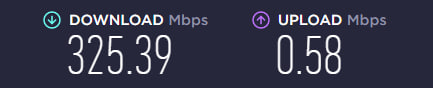

Disabling the same options for the VM’s (windows sercer) helped me to increase upload speed in the VM. Maybe there is an option to do the same stuff somewhere in the WSL’s adapter settings?
This is driving me crazy. For the past two days I have been getting horrible download speeds in WSL. Yesterday I messed around with a bunch of settings (full disclosure: I really don’t understand the impact of these changes but my thinking is… “let’s see what happens”). I disabled the bindings on the hidden WSL adapter shown below but didn’t see any effect.
ms_l2bridge MS_NdisLwf ms_lldp ms_msclient ms_server ms_lltdiospee ms_rspndr
After disabling each of these bindings I would 1) restart the adapter and 2) restart WSL. None of these changes had any effect on download speeds in WSL.
I also did a network reset in Windows and rebooted… again, nothing.
I called it quits for the day, giving up, in frustration. Then, this morning, I did a speedtest inside WSL and my full network speeds were back again. Unfortunately, I made so many changes that I am unable to identify what it was that fixed things.
This kinda fixed it for me, still not getting full speed, but made it like 10x better. https://townsyio.medium.com/wsl2-how-to-fix-download-speed-3edb0c348e29
Really kicking myself right now for not tracking my steps for reproduction, but for what it’s worth:
I’ve exhausted all recommended options (disabling NetAdapterLso for vEthernet, running on Wi-Fi and/or Ethernet network, etc.) but upload speed it not budging.
So issue has now been reproduced for:
Thanks to @j-urbina, I can finally build the project without any network issues. It’s frustrating to know that this fix solved the issue instead of all those unnecessary workarounds. Refer https://github.com/microsoft/WSL/issues/4901#issuecomment-1281492312
Just disable the IPv6 in the WSL2 network adapter settings. I am using this fix for the last 20 days and it worked without any issues.
Any fix for win11
I am experiencing this issue on my brand new PC build and windows installation. My old PC didnt have this issue.
Only getting 0.5-2mbps in WSL when in reality should be more like 50…
Tried all the solutions in this thread and saw no improvement.
Just tried the latest version of WSL from the Microsoft Store and still not working
This thread is 2 and half years old. I don’t think Microsoft will fix it. I still get emails from a Microsoft thread from 2016 where Outlook only sometimes shows the replied-to icon for emails you’ve replied too. They still have not fixed that and I no longer use Outlook.
I moved to dual boot Ubuntu and now develop in Ubuntu as the speeds with WSL are, as you say, impossible.
Running this and than
Disable-NetAdapterLso -Name "vEthernet (WSL)"on PowerShell on Windows 11 I achieved a speed of Download: 167.63 Mbit/s, Upload: 29.97 Mbit/sin regards to this comment @amzon-ex
adding the -IncludeHidden tag should work for you
Disable-NetAdapterLso -IncludeHidden -Name "vEthernet (WSL)"you can take a look at all the hidden networks using
Get-NetAdapter -Name * -IncludeHiddenMy download speed is still incredibly low (8.26 Mbit/s).
A network reset and instructions posted by @cristian-avramita above worked for me temporarily, but not after another restart
This has been occurring for me consistently. There is no “fix” that works for me. It’s just slow. It’s extremely annoying that Microsoft refuses to address the problem and solve it. I’m running the Windows 11 Developer Preview, and there’s no fix in sight.
left side : real speed right side : while update kali
this is very frustating
I had to re-apply this fix (disabling Large Send Offload) after updating from Windows 10 to Windows 11. In Windows 11, the vEthernet (WSL) adapter actually doesn’t show up in the Configuration panel’s Network Connections anymore, so the only option is to do it via elevated Powershell which works fine (
Disable-NetAdapterLso -Name "vEthernet (WSL)").UPDATE: actually I still had some issues, so I ended up hitting the “Network reset” button in the Windows 11 Advanced network settings configuration interface. That seems to have fixed it. Testing with speedtest-cli, I now get consistent ~800 Mbit/s in Ubuntu WSL2 and ~500 up / 250 down Mbit/s from inside Ubuntu in Docker for Desktop containers (not sure what accounts for that difference). Although it definitely also changed the setup, because if I try the above Powershell command now, it kills all network traffic from WSL2 hosts and from what I found only a restart will fix that.
This worked for me
Amazing. I can confirm this solved the problem at my end as well, I was getting the NIC drivers from ASUS and apperently they were lagging in versions.
Thanks!
2021 and none of the suggested solutions worked for me on Win11. Since I don’t have the vEthernet (WSL) device via the control panel route, I tried
Disable-NetAdapterLso -Name "vEthernet (WSL)"as adviced. No effect unfortuantely.Interestingly enough, im on marvel onboard 10gbe, with no intel alternative. But the other poster menting this makes me wonder if its related to how hyper-v handels marvel nics?
Anyways, I currently get
I’m on alderlake, and I was expecting some early adopter issues. but, I’m suprised they where on windows. I dual boot and the Linux install “just works”^tm.
I only took your second step and it works perfectly for me
I’ve ran
netsh int tcp set global autotuninglevel=normalin an Admin PowerShell and the rebooted the PC. Not sure what that did but the WSL internet is fast.here’s how my resolv.conf looks now
I’m having a similar issue. In this case it is with
npm installgiving me an average download speed of 16Kbps.speedtest-cli, even while I am downloading NPM packages at 16k, reports 840Mbits (or greater).I have followed the instructions on disabling the Large Send Offload. I’ve turned off auto DNS resolution and dropped in Googles 8.8.8.8. I’ve even installed a fresh WSL2 VM, just to see. I’ve disabled Windows Firewall and Virus protection.
I have a node project. On my Macbook, it took 1m 56s to install the deps… over Wifi where my PC is on Ethernet. It is a mono-repo, so a lot of dependencies in there. The WSL2 install started 24 minutes ago and is still going. Task manager shows it jumping from 0 to 16Kbps to even sometimes 24Kbps. The insane thing the send rate jumps up as high as 1Mbps and averages around 600Kbps.
There is no doubt that something is slowing the incoming stream. When speedtest runs so fast, I then wonder if it is some sort of defender thing looking at every file coming in. NPM install is a ton of small files. Or maybe something about the filesystem?
By the way. I’m running npm installed in Linux and only using the Linux filesystem for everything. I can’t seem to figure it out.
Update: I ran PNPM, just to try another package manager. For a block of time, I saw around 80Kbps to 400Kbps download speed. Quite a bit better. Then at some phase where it was downloading something, it switched back to that slower throttled rate.
Any update on this? I notice this mainly happen when you have a bridge to a WIFI card, it does not happen to me using ethernet bridge
Hey, I’m wondering if there’s a script that deactivates LSO on windows launch (without starting the powershell terminal or anything) and where should it be placed.
Also, I wonder why Microsoft doesn’t look at this issue?
I fixed mine by doing
and then going to
/etc/apt/sources/listand replacing thehttps://tohttps://so if it said something likechange it to
(Although i didnt get my regular 10 mbps download speed on wsl it improved significantly. Hope it helps others too 💯 )
For me with Windows on ARM and WSL2, the vEthernet (WSL) did not work. What worked was instead of using localhost I used the local IP address. 172.29.xx.xxx in the browser.
Same Problem here. Any fix for home edition as Hyper-V is not present for Win 10 home
Confirmed working
I’ve tried made changes on nsswitch and even change resolve.conf to 1.1.1.1 and 8.8.8.8. It doesn’t help either.
Same here, Windows is about 60Mbps vs WSL2 14kbps !!!
I’m hitting this issue, as well. Very frustrating.