WSL: Unable to accessing Windows applications from WSL
Please fill out the below information:
-
Your Windows build number: Microsoft Windows [Version 10.0.19041.1]
-
What you’re doing and what’s happening:
-
follow this document start a node app on Windows (Powershell 7.0.0-rc.1);
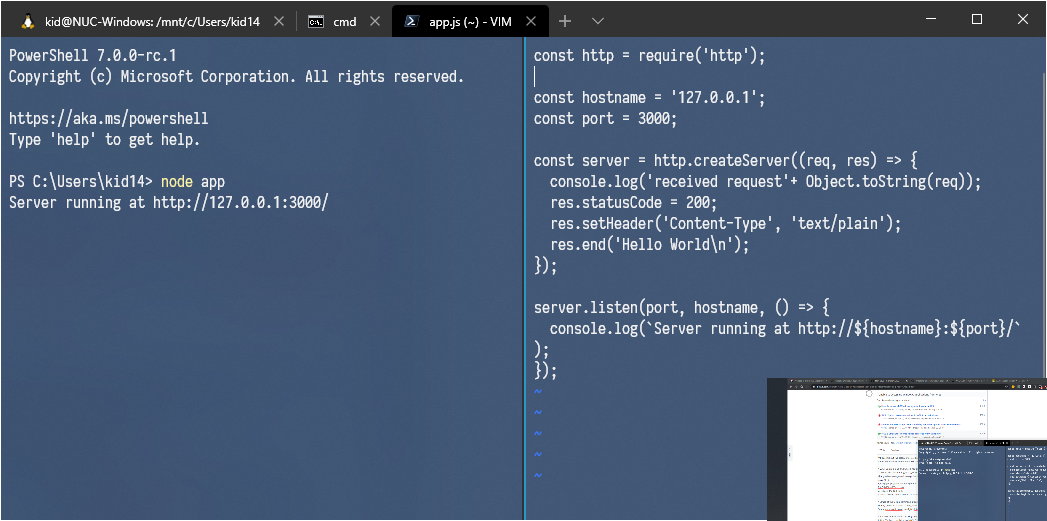
-
request the app from WSL;
  NAME      STATE           VERSION
* Ubuntu    Running         2

- What’s wrong / what should be happening instead: Unable access Windows applications from WSL.
About this issue
- Original URL
- State: closed
- Created 7 years ago
- Comments: 28 (2 by maintainers)
Links to this issue
Commits related to this issue
- Remove unnecessary line https://github.com/microsoft/WSL/issues/4793#issuecomment-837183494 — committed to lackovic/notes by lackovic 6 years ago
Hi,
A quick & dirty workaround
Install VcXsrv, then run XLaunch:
Specify your display port:
Select “Start no client”:
Don’t forget to check “Disable access control” (the “-ac” switch, listen on all interfaces):
Finish the configuration and verify that VcXsrv is actually listening on all interfaces (
hostname:0.0):Find your host LAN IP address (your real Ethernet/Wifi IP, ex. 192.168.1.3)
On your wsl distro shell, modify the $DISPLAY env:
Then, you can start any GUI app:
At the time of writing, for any wsl > host connection, you have to listen on the host side for all interfaces (eg. 0.0.0.0) and specify the host LAN IP address on the wsl distro side:
If you really want to use the
/etc/resolv.confhost IP address (the one from the Hyper-V virtual ethernet adapter), you have to play with the public profile of Windows Defender Firewall. At your own risk. Dealing with private profile rules makes me much more comfortable.I come up with an script after checking discussions, which makes things easier without adding Firewall rules and not exposing public IP.
[Updated Feb.21] For enterprise firewall, try also adding this
powershell -Command "Set-NetFirewallProfile -DisabledInterfaceAliases \"vEthernet (WSL)\""To make it works:
That’s all to make WSL2 works automatically. The idea is to get the private LAN IP of WSL interface on Windows, and use Environment variable to pass to WSL. WSL then update this LAN IP to DISPLAY for X-Server connection.
I’m glad if that helped you 😉
Alternatively, you can mess around with the Windows Firewall and disable the WSL interface protection (while letting the Firewall turned on for the other interfaces) every time you start your computer (for example, via a powershell script in a scheduled task). This way, you can use the host Hyper-V IP (the one from
/etc/resolv.conf). And as a bonus, you can add linux-side services automatic startup in your script.Other options:
For what it’s worth, I put some documentation together on how to get the firewall playing nicely with X11 here:
https://github.com/cascadium/wsl-windows-toolbar-launcher#firewall-rules
My main problem was I didn’t realize that that security prompt actually adds a Block rule when you uncheck that box as opposed to simply deciding not to add an Allow rule. So I needed to both disable that rule, and add my own to allow the path through.
The IP i use in my
.bashrcis from:No. This guidance (tragically) made it into several widely distributed guides for X11 on WSL, and is incorrect.
After I removed it I got the following errors every time I ran a Windows application through XLauch (VcXsrv):
Setting
Wgl="False"in my XLaunch configuration has fixed the issue.In my case I had to checked the “Disable access control” box while lauching the display to avoid the following error “Authorization required, but no authorization protocol specified Error: Can’t open display: 10.0.0.99:0.0”.
Use the following command instead:
export DISPLAY=${DISPLAY:-$(grep -Po '(?<=nameserver ).*' /etc/resolv.conf):0}This works for me.
But I had to execute
wsl --shutdownin PowerShell to restart wsl2This issue should not be closed, the solution provided by @fredericseiler only works when the service on host machine is listening on 0.0.0.0. But in my case, there is a proxy service listening on localhost, and the service is initiated by another software which is not configurable. To access any internal resources from my company, I have to visit through this proxy. Before, in wsl1, the proxy is usable by setting --proxy=http://127.0.0.1:12639. However, since wsl2 does not have built-in support for this and the solution mentioned above cannot deal with this either, I really hope the microsoft team can put some serious effort on this and give us a clean solution. Just try to be consistent with the wsl1.