WSL: P9 Explorer Integration not working
Please use the following bug reporting template to help produce issues which are actionable and reproducible, including all command-line steps necessary to induce the failure condition. Please fill out all the fields! Issues with missing or incomplete issue templates will be closed.
If you have a feature request, please post to the UserVoice.
If this is a console issue (a problem with layout, rendering, colors, etc.), please post to the console issue tracker.
Important: Do not open GitHub issues for Windows crashes (BSODs) or security issues. Please direct all Windows crashes and security issues to secure@microsoft.com. Ideally, please configure your machine to capture minidumps, repro the issue, and send the minidump from "C:\Windows\minidump".
Please fill out the below information:
-
Your Windows build number: (Type
verat a Windows Command Prompt) 10.0.18362.86 -
What you’re doing and what’s happening: (Copy&paste the full set of specific command-line steps necessary to reproduce the behavior, and their output. Include screen shots if that helps demonstrate the problem.)
Based on the recent WSL blogs, I expect to see WSL as a network drive in Explorer or to be able to open my active WSL directory by typing Explorer.exe .
When I enter the Explorer command from anywhere in the Linux filesystem, it opens my Windows Documents folder in Explorer
When I try to manually navigate to the path suggested by the blog posts, I get a 0x80004005
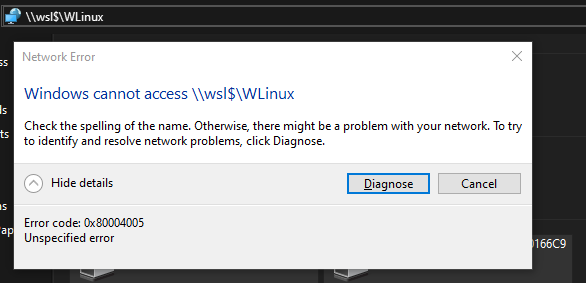
However, I can navigate to that directory from Powershell.

If it’s relevant, here is a snapshop of my network devices. I’ve got some VPN stuff and Hyper-V V Switches, including for Docker for Windows.
About this issue
- Original URL
- State: closed
- Created 8 years ago
- Reactions: 10
- Comments: 67 (7 by maintainers)
@shinji257 Thanks, that’s very interesting.
It appears that P9NP is missing from the comma-separated list under HKEY_LOCAL_MACHINE\SYSTEM\CurrentControlSet\Control\NetworkProvider\Order and HwOrder. It’s present in ProviderOrder, but that doesn’t do anything by itself if the value is not in the comma-separated list. This will cause Explorer and any other application that uses the network provider DLL to not consider our provider at all.
You should be able to work around this by just adding P9NP as the first entry in the comma-separated list under both keys (in your case, this would be “P9NP,RDPNP,LanmanWorkstation,webclient”). You might need to restart for that change to take effect.
This suggests there’s some bug in the upgrade logic for this particular registry key. We’ll investigate further and I’ll keep you updated.
My registry list already has P9NP in it, but I still encountered the bug.
I finally found a fix that worked for me. As mentioned by @SvenGroot here,
I appended the following entries to my
/etc/wsl.confThanks to everyone for contributing to resolving this bug!
Anybody who’s still in this state, can you please give me the output of the following commands:
That would be very helpful in diagnosing this issue.
For those who are interested, here’s the reason why it works in cmd or PowerShell, but not in explorer.exe. \\wsl$ is essentially treated by the system as a network file system (even though it isn’t really), which consist of two components: a redirector driver, and a network provider DLL. The former handles actual file system requests, while the latter provides information about connections and paths to the system. This DLL also implements things like “share” enumeration (distribution enumeration in WSL’s case), and “map drive” functionality.
The network provider DLL is not used when applications just try to create a file using a \\wsl$\distro path, which is what cmd and PowerShell do. Explorer on the other hand always tries to get information about a UNC path from the network provider DLL, and won’t issue a file system call unless that’s successful. So in the situation described in this thread, the redirector driver is fine, but the DLL is not working as intended for some reason.
Thank you. I’ve checked and verified that was indeed all that was needed to workaround for this issue and it updated both Order and HwOrder at the same time when I did that.
EDIT: Restarting the system, relogging, or even reloading explorer.exe was not needed. The effect was immediate.
Turning off and on WSL worked for me. I didn’t need to delete the instance.
I additionaly had to remove the cbfs entry (“cbfsconnect2017” or “cbfs6”) from HKEY_LOCAL_MACHINE\SYSTEM\CurrentControlSet\Control\NetworkProvider\Order and HwOrder to make it work.
Similar issue here.
Microsoft Windows [Version 10.0.18362.175]
So it appears the order is correct. The other two queries are the same as @danluca . With Windows Explorer, going to \wsl$, I can see my distro correctly (Ubuntu-16.04). It is currently running bash. Trying to access \wsl$\Ubuntu-16.04 in Windows Explorer gives “Attempt to access invalid address”.
With cmd:
With Powershell:
Similar to other users, after upgrading to Windows 1903, I deleted my old distros, and installed a fresh one; installed a bunch of tools inside it, then I did an export of it. I remember at that point I was able to access the Linux files because I copied a file in it. Shutdown my computer, next day install a bunch of Windows updates, reboot computer… That’s when I tried to use my new distro and noticed I could no longer access the Linux files with the 9P integration. I rebooted the computer again, but it did not fix the issue.
Any idea how to diagnose this? I had a look at the Windows Event Logs, but could not see anything related to WSL.
I have RaiDrive installed which loads in cbfs6 and causes a similar issue. It ends up setting itself up with a ProviderOrder entry set at 0xfa (250) just like cbfsconnect2017. When I moved P9NP going through the control panel though it changed P9NP to have a value of 0x7d (125) and I think these are metric/priority values for the items here? I think this is what matters. I checked my HwOrder and Order keys and the ProviderOrder values there have cbfs6 listed first again but no broken Linux area in Explorer.
I had P9NP however I had to remove cbfsconnect2017 in HKEY_LOCAL_MACHINE\SYSTEM\CurrentControlSet\Control\NetworkProvider\Order and HKEY_LOCAL_MACHINE\SYSTEM\CurrentControlSet\Control\NetworkProvider\HwOrder
I’m on the build 19624 but mysystem doesn’t have the p9np dll
dir %windir%\System32\p9np.dll dir : Cannot find path ‘D:\Users\jdamiano\Desktop\LEGATO\FDT2%windir%\System32\p9np.dll’ because it does not exist. At line:1 char:1
Why it it missing on my system ?
I’ve updated to 1903 18362.30 as of yesterday and I’m noticing this issue as well. What I’ve noticed is this.
dir //wsl$/Ubuntuworksexplorer.exe .inside a /mnt point works fine. Explorer.exe comes up to the expected path locationexplorer.exe .anywhere in the linux rootfs (outside of /mnt points) ends up at the user Documents folder instead of the expected translation to a point inside the P9 path.//wsl$/Ubuntudirectly inside File ExplorerAll tests done while Ubuntu is running. Did a clean install of the Ubuntu “app”.
i tried all your resolutions, nothing helped then my buddy told me to try chmod 777 -R on a user that gave me this error
It is mentioned in #7845, but I wonder if anyone has Box Drive installed. Having Box Drive installed was responsible for undoing my fix via registry or the
ncpa.cplmethod mentioned. Uninstalling Box Drive made my fix stick.If you see
cbfsconnect2017, Box is responsible.I have reinstalled Box, and I just use the workaround of entering
\\wsl.localhostor\\wsl$into the address bar directly instead of trying to use the link in the sidebar.I have tried both methods, but after a while, it becomes inaccessible again. I just set it up today through ncpa.cpl, so I will comment again when it stops working next time.
So I’ve been fighting an issue where I get this message when attempting to access the tree for the first time. I can go to the share location directly then it is fine but if I reboot or explorer restarts then I have to do that again to access it normally. I finally got a fix. For reference here is the error.
The fix is to make sure the Plan 9 Network Provider is first in the list. Don’t hop into the registry to do this though. You want to do it properly.
Open
ncpa.cpland make sure way to this screen (On the menu bar go toAdvancedthenAdvanced Settings)Move Plan 9 Network Provider to the top of the list. You can leave the other entries present and they will still work. Reboot and you should find that the linux tree works immediately without issue. Mounting network drives or Raidrive will not break this.
Same here… since last Win10 Patch Day it is working now, but i have absolut no clue why… But it must came with a seperate smaller side patch since i’m running 21H2 and not 22H2…
Recently I dug into this again after someone mentioned cbfs being the root cause for them. Today I noticed cbfs6 was listed in my ProviderOrder. Removing it allows the Linux item to function properly however now RaiDrive can’t render cloud “drive” information in explorer properly anymore. Just shows Disconnected status. With that said the drives themselves are still accessible anyways.
Just reporting that I had the exact same issue today with Windows [Version 10.0.22000.194]. The P9NP was missing in the registry:
I just did as @SvenGroot suggested here: added P9NP as the first entry in both keys and performed a boot. Then it started working as expected (including the new Linux icon that seems a alias to it).
Thanks for the workaround but something in the upgrade logic is still broken 😦
If any other info / log could help to track down the root cause, just let me know and I could share.
This is the only fix that worked for me … Cheers for posting . Simple and easy fix .
I have this issue, but my reg keys are fine as far as I can tell:
PS C:\WINDOWS\system32> reg query HKLM\SYSTEM\CurrentControlSet\Control\NetworkProvider /s
HKEY_LOCAL_MACHINE\SYSTEM\CurrentControlSet\Control\NetworkProvider\HwOrder ProviderOrder REG_SZ P9NP,RDPNP,LanmanWorkstation,webclient
HKEY_LOCAL_MACHINE\SYSTEM\CurrentControlSet\Control\NetworkProvider\Order ProviderOrder REG_SZ P9NP,RDPNP,LanmanWorkstation,webclient
HKEY_LOCAL_MACHINE\SYSTEM\CurrentControlSet\Control\NetworkProvider\ProviderOrder LanmanWorkstation REG_DWORD 0x7d0 RDPNP REG_DWORD 0x3e8 webclient REG_DWORD 0xbb8 P9NP REG_DWORD 0x1f4
PS C:\WINDOWS\system32> reg query HKLM\SYSTEM\CurrentControlSet\Services\p9np /s
HKEY_LOCAL_MACHINE\SYSTEM\CurrentControlSet\Services\p9np Description REG_EXPAND_SZ @%systemroot%\system32\p9np.dll,-101 DisplayName REG_EXPAND_SZ @%systemroot%\system32\p9np.dll,-100
HKEY_LOCAL_MACHINE\SYSTEM\CurrentControlSet\Services\p9np\NetworkProvider DeviceName REG_SZ \Device\P9Rdr DisplayName REG_EXPAND_SZ @%systemroot%\system32\p9np.dll,-100 Name REG_SZ Plan 9 Network Provider ProviderPath REG_EXPAND_SZ %SystemRoot%\System32\p9np.dll TriggerStartCompleteNotification REG_BINARY 7510BCA3541EC641 TriggerStartNotification REG_BINARY 7508BCA3541EC641 TriggerStartPrefix REG_SZ wsl$
PS C:\WINDOWS\system32> reg query HKLM\SYSTEM\CurrentControlSet\Services\p9rdr /s
HKEY_LOCAL_MACHINE\SYSTEM\CurrentControlSet\Services\p9rdr DependOnService REG_MULTI_SZ RDBSS Description REG_SZ @%SystemRoot%\System32\drivers\p9rdr.sys,-101 DisplayName REG_SZ @%SystemRoot%\System32\drivers\p9rdr.sys,-100 ErrorControl REG_DWORD 0x1 ImagePath REG_EXPAND_SZ System32\drivers\p9rdr.sys Start REG_DWORD 0x3 Type REG_DWORD 0x1
Not sure if anyone is still monitoring this issue, but wanted to document that there is still some issue here. I haven’t found a solution.
I’m having a similar issue. My Ubuntu WSL2 instance doesn’t show up with an icon or way to quick access in file explorer, however I am able to access it manually by opening \wsl$\Ubuntu in explorer.
In Ubuntu:
$ cd ~ $ explorer.exe #opens explorer to quick access
Just opens Explorer in Windows to the Quick Access folder. I updated this computer to W10 2004, then set up WSL2, It did not have WSL or VM Platform installed previously, still doesn’t have Hypervisor installed.
Per the request by SvenGroot May 24, 2019:
C:\Users\rwerning>dir %windir%\System32\p9np.dll Volume in drive C is Local Disk Volume Serial Number is 9803-CC04
Directory of C:\WINDOWS\System32
12/07/2019 06:19 AM 107,048 p9np.dll 1 File(s) 107,048 bytes 0 Dir(s) 388,012,908,544 bytes free
C:\Users\rwerning>reg query HKLM\SYSTEM\CurrentControlSet\Control\NetworkProvider /s
HKEY_LOCAL_MACHINE\SYSTEM\CurrentControlSet\Control\NetworkProvider\HwOrder ProviderOrder REG_SZ P9NP,RDPNP,LanmanWorkstation,webclient
HKEY_LOCAL_MACHINE\SYSTEM\CurrentControlSet\Control\NetworkProvider\Order ProviderOrder REG_SZ P9NP,RDPNP,LanmanWorkstation,webclient
HKEY_LOCAL_MACHINE\SYSTEM\CurrentControlSet\Control\NetworkProvider\ProviderOrder LanmanWorkstation REG_DWORD 0x7d0 RDPNP REG_DWORD 0x3e8 webclient REG_DWORD 0xbb8 P9NP REG_DWORD 0x1f4
C:\Users\rwerning>reg query HKLM\SYSTEM\CurrentControlSet\Services\p9np /s
HKEY_LOCAL_MACHINE\SYSTEM\CurrentControlSet\Services\p9np Description REG_EXPAND_SZ @%systemroot%\system32\p9np.dll,-101 DisplayName REG_EXPAND_SZ @%systemroot%\system32\p9np.dll,-100
HKEY_LOCAL_MACHINE\SYSTEM\CurrentControlSet\Services\p9np\NetworkProvider DeviceName REG_SZ \Device\P9Rdr DisplayName REG_EXPAND_SZ @%systemroot%\system32\p9np.dll,-100 Name REG_SZ Plan 9 Network Provider ProviderPath REG_EXPAND_SZ %SystemRoot%\System32\p9np.dll TriggerStartCompleteNotification REG_BINARY 7510BCA3541EC641 TriggerStartNotification REG_BINARY 7508BCA3541EC641 TriggerStartPrefix REG_SZ wsl$
C:\Users\rwerning>reg query HKLM\SYSTEM\CurrentControlSet\Services\p9rdr /s
HKEY_LOCAL_MACHINE\SYSTEM\CurrentControlSet\Services\p9rdr DependOnService REG_MULTI_SZ RDBSS Description REG_SZ @%SystemRoot%\System32\drivers\p9rdr.sys,-101 DisplayName REG_SZ @%SystemRoot%\System32\drivers\p9rdr.sys,-100 ErrorControl REG_DWORD 0x1 ImagePath REG_EXPAND_SZ System32\drivers\p9rdr.sys Start REG_DWORD 0x3 Type REG_DWORD 0x1
Thanks, the registry fix worked for me.
However, I still can’t access anything under home, i.e. \wsl$\Ubuntu\home is empty Why is that?
==> OK, just realized why It’s been a while since I switched to WSL, I forgot that my home dir was a link to C:\tools\cygwin\home\windo
Have a similar issue but on the worse side - just updated to Windows 1903, had the legacy lxrun distro installed (Bash on Windows). Have wiped it out and started fresh, enabled WSL feature and installed Ubuntu distro from MS store.
The distro launches fine, but none of the “\wsl$” integration works for me - neither command prompt, nor explorer. Looking at the output to the command checks posted by shinji257 - my output looks correct, the P9NP is in the right places:
Any ideas what to look for next?