WSL: Error code: Wsl/Service/CreateInstance/CreateVm/ConfigureNetworking/0x80041002
Version
Microsoft Windows [Version 10.0.22623.746]
WSL Version
- WSL 2
- WSL 1
Kernel Version
5.15.68.1
Distro Version
Ubuntu 20.04, Ubuntu 22.04 - all distributions
Other Software
Docker version 20.10.17, build 100c701 (also affected) VMWare Workstation 16 Pro [16.2.4 build-20089737] (installed alongside WSL)
Repro Steps
- Issue encountered when starting any WSL terminal session.
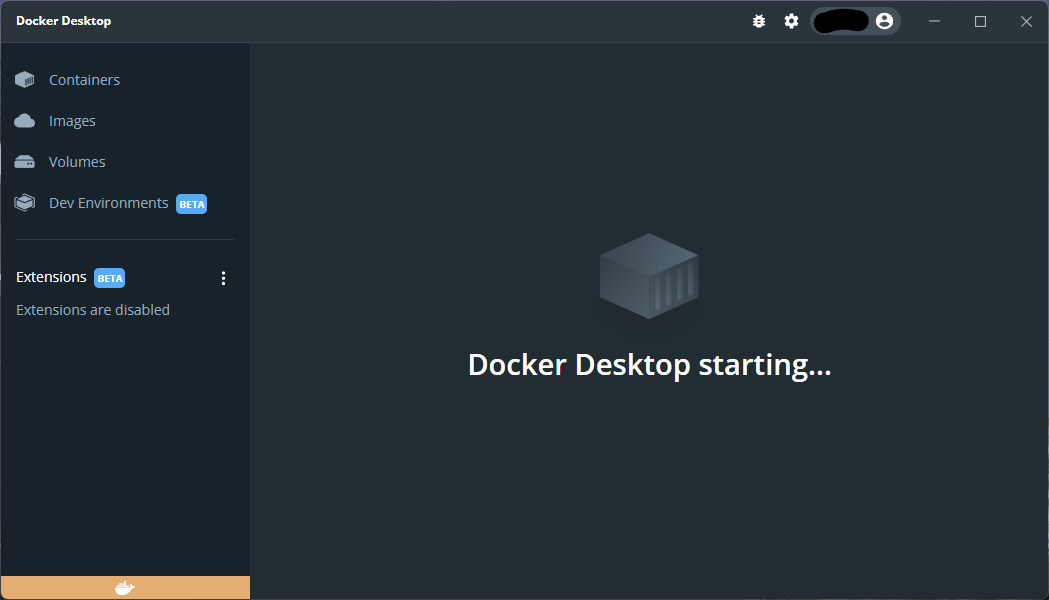
- Docker Desktop does not fully start up and displays “Docker Desktop starting …”
- Hyper-V
Expected Behavior
- WSL terminal session initiation.
- Docker Desktop start up sequence completes.
Actual Behavior
Have tried removing each of the following components, rebooting in between each time and reinstalling in various different sequences:
Windows components via “Apps > Optional Features > More Windows Features”:
- Windows Subsystem for Linux
- Windows Hypervisor Platform
- Virtual Machine Platform
- Hyper-V Hypervisor
- Hyper-V Services
Have tested after completely uninstalling / removing applications via “Apps > Installed Apps”:
- Docker Desktop
- VMWare Workstation
And tested after reinstalling each independently. The reinstall of VMWare subsequently broke its virtual network adapter installation (manually removed the device after uninstalling the application).
Have tried each of the various suggested resolutions from:
Only course of action left to try is a complete reinstallation of Windows 11… am just waiting for the backups to complete before attempting… fingers crossed!
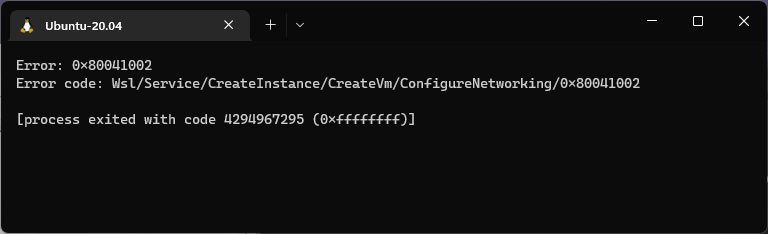
Error: 0x80041002
Error code: Wsl/Service/CreateInstance/CreateVm/ConfigureNetworking/0x80041002

[process exited with code 4294967295 (0xffffffff)]
**Error message reported when starting any WSL terminal session, for any installed distribution: **
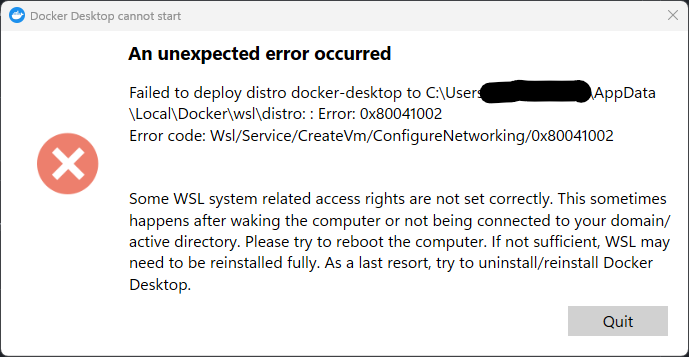
Docker Desktop:
Hyper-V Virtual Switch Extension Adapter:
Device ROOT\VMS_VSMP\0000 had a problem starting.

Driver Name: wvms_mp_windows.inf
Class Guid: {4d36e972-e325-11ce-bfc1-08002be10318}
Service: VMSMP
Lower Filters:
Upper Filters:
Problem: 0x0
Problem Status: 0xC00000E5


VMWare Virtual Ethernet Adapter:
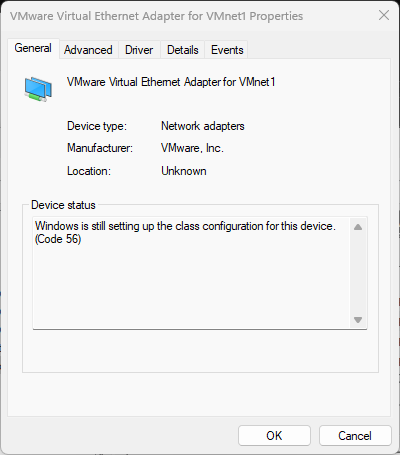
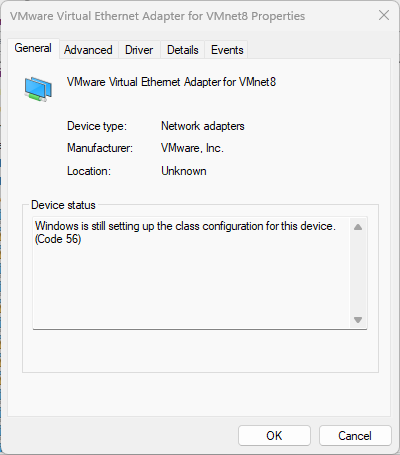
Diagnostic Logs
About this issue
- Original URL
- State: open
- Created 4 years ago
- Comments: 26
Got the same issue and it was because of Acrylic DNS, disabling it or configuring it properly would solve this.
Turn Windows features on or offwsl --install Ubuntu --web-downloadThis installed the
Ethernet adapter vEthernet (WSL)virtual ethernet adapter that I was missing.I faced a similar problem.
I am still using Windows 10 for company reasons. So it is not supported with Bridge mode. I modified the .wslconfig as below, and can boot Ubuntu. Before
After
I use WSL2 directly, not use Docker Desktop. Therefore, you may not use same way. But I hope to help this you.
Those who still have an issue try but it is not because of network issues (firewall, hosts, etc) then try to reboot if not possible then try to shutdown wsl via this command
wsl --shutdownif this is stuck too then try to use this
taskkill /F /im wslservice.exeThen start wsl again using this command
wslIf the issue persists please collect diagnostics and submit an issue (https://docs.docker.com/desktop/troubleshoot/overview/#diagnose-from-the-terminal).
Resetting all network settings and performing troubleshooting tasks such as uninstalling/reinstalling WSL and Docker can be time-consuming. However, it is crucial to identify the root cause of the problem by reflecting on the actions taken that may have caused it. Whether you choose to share your findings with the community or keep them to yourself, remember that the community support is invaluable.
thanks fixed it for me! after having trouble for months, this simple thing fixed it. For anyone not being able to find the conf file.
https://learn.microsoft.com/en-us/windows/wsl/wsl-config
the latest update of Windows is suck, tried to rollback then it works now.
This helped me. Distro booted right up after killing my VPN and restarting wsl.
Thanks.
It works for me!!! ty