WSL: Can not connect to internet in WSL 2
This happen on almost all official WSL distros (suse, debian, ubuntu) . I have not tried kali yet but i think the result will be the same.
This is the report on ubuntu:
-
Windows build number: 10.0.18932.1000
-
What you’re doing and what’s happening:
- try to run
sudo apt-get update
- try to run
-
What’s wrong / what should be happening instead:
- Error message:
Err:1 http://archive.ubuntu.com/ubuntu bionic InRelease Temporary failure resolving ‘archive.ubuntu.com’ Err:2 http://security.ubuntu.com/ubuntu bionic-security InRelease Temporary failure resolving ‘security.ubuntu.com’ Err:3 http://archive.ubuntu.com/ubuntu bionic-updates InRelease Temporary failure resolving ‘archive.ubuntu.com’ Err:4 http://archive.ubuntu.com/ubuntu bionic-backports InRelease Temporary failure resolving ‘archive.ubuntu.com’ Reading package lists… Done
- This seem like a dns issue, this is the content of my resolv.conf:
# This file was automatically generated by WSL. To stop automatic generation of this file, add the following entry to /etc/wsl.conf: # [network] # generateResolvConf = false nameserver 172.22.64.1
- Run ipconfig from cmd and overwrite resolv.conf with the dns I get from ipconfig. Run
apt-get updateagain. Host name can be resolved now, but get another error:
Err:1 http://security.ubuntu.com/ubuntu bionic-security InRelease Cannot initiate the connection to security.ubuntu.com:80 (2001:67c:1560:8001::11). - connect (101: Network is unreachable) Cannot initiate the connection to security.ubuntu.com:80 (2001:67c:1562::19). - connect (101: Network is unreachable) Cannot initiate the connection to security.ubuntu.com:80 (2001:67c:1360:8001::17). - connect (101: Network is unreachable) Cannot initiate the connection to security.ubuntu.com:80 (2001:67c:1360:8001::21). - connect (101: Network is unreachable) Cannot initiate the connection to security.ubuntu.com:80 (2001:67c:1560:8001::14). - connect (101: Network is unreachable) Could not connect to security.ubuntu.com:80 (91.189.88.149), connection timed out Could not connect to security.ubuntu.com:80 (91.189.91.26), connection timed out Could not connect to security.ubuntu.com:80 (91.189.88.31), connection timed out Could not connect to security.ubuntu.com:80 (91.189.88.162), connection timed out Could not connect to security.ubuntu.com:80 (91.189.88.24), connection timed out Could not connect to security.ubuntu.com:80 (91.189.91.23), connection timed out …
-
Try disable firewall, still the same error. I only use window defender, no other antivirus.
-
I convert my distro back to WSL 1 and every network command work fine. The content of resolv.conf in WSL 1 is surprisingly the same as when I overwrite the one in WSL 2
-
Expected: commands that require internet work as WSL 1
-
Strace of the failing command, if applicable:
can’t, strace has not been installed yet beacause no internet.(I run strace on debian and got the command not found error, so I think ubuntu doesn’t have them pre installed too). The log is quite long (3k+ lines) so I put them in a file: apt-strace.log
About this issue
- Original URL
- State: closed
- Created 7 years ago
- Reactions: 96
- Comments: 195 (4 by maintainers)
I had the same issue too.
network unreachable, and nothing can connect.The following resolved my issues:
(For me, ipconfig shows the WSL virtual eth address as 192.168.64.1.
Explanation:
I noticed that my
$ ip addrdidn’t quite match my\>ipconfig:versus
Virtual ethernet has subnet mask
255.255.240.0.So the first line changes it to the correct subnet mask.
For the second line, when I ran ip route, I saw:
Which basically means that only the 192.168.64.0/20 range is routable. Hence why
network unreachablefor a lot of the commands. So the second one simply adds 192.168.64.1 as the default gateway for all routes:Where the
192.168.64.1matches the output of the windowsipconfigcommand for the WSL ipv4 address.I don’t know if this is the 100% correct approach, but it certainly fixes this issue for me.
I think the problem is because I had another virtual machine in Hyper-V (Docker For Windows), and there was another network adapter with the name br-25ddfb4f166c and eth0 with the wrong ip. I uninstalled Docker For Windows and restarted the LxssManager (net stop LxssManager, net start LxssManager) service, and now the adapter is working normally. It may be some conflict with adapters from other virtual machines.
My file was corrupted but fixing it, didnt get my internet connectivity back. Before WSL crashed a few times when deleting huge folders (node_modules). Maybe thats what corrupted that file.
What helped was the following: On cmd execute:
in WSL:
found in #3438
Steps From @samscott89
sudo ifconfig eth0 netmask 'Subnet Mask'5 Goto cmd and copy ’ IPv4 Address’sudo ip route add default via ' IPv4 Address'none of this helped but answer on stackoverflow helped
https://stackoverflow.com/a/64057835/1319799
Thanks this works for me too. I’m facing connection issue after downloading github desktop for windows.
Went through a bunch of solutions. Nothing worked. Found out the problem was my %temp% folder (C:\Users\username\AppData\Local\Temp) was compressed. I uncompressed it and that fixed it immediately.
How is this issue “closed” when it’s clearly still a problem for lots of people and there is no definitive fix?
In my case it was a DNS resolving issue. I edited my
/etc/resolv.conffile deleted all existing lines and added only this one:@samscott89 the ip address match with the ip in ipconfig but I still cannot ping or use curl. Hope MS address this issue asap because it is a blocker issue that prevent many user from trying and testing WSL 2
You are right, looks like this is a dupe of https://github.com/Microsoft/WSL/issues/3438
Try this:
Where
192.168.112.1and255.255.240.0are the IP and netmask you got on the WSL interface (runipconfigon windows and look for the WSL entry).Including
nameserver 192.168.1.1in my/etc/resolv.confseemed to do the work.The following fixed my problem:
Upon examining the contents of /etc/resolv.conf, I discovered the file seemed to have been overwritten or corrupted. It contained nothing but a single line of
#@#@#@#@#@#@#@#@#@#@#@#@#@#@#@#@#@#@#@#@#@#@#@#@#@#@#@#@#...Using sudo, I overwrote the contents of the file with the following:
# This file was automatically generated by WSL. To stop automatic generation of this file, remove this line.nameserver 169.237.250.250nameserver 169.237.1.250Saved, restarted WSL, and it worked like a charm.
I met same issue on 19041.329 with ubuntu 20.04.
got workaround from #5437 :
edit
%userprofile%\.wslconfig(create if not already exist) and add below option:@df3l0p I’ve experienced exactly the same behaviour. Networking didn’t work only in WSL 2, after downgrading Ubuntu to WSL 1 the connectivity issue didn’t persist. As @michidk suggested above - I have overwritten the DNS settings with a public DNS server by running
which fixed the issue.
I’ve just upgraded Windows to version 2004 (OS Build 19041.264) today to test out the new WSL 2.
EDIT: the issue comes back after restart. To fix it permanently: https://gist.github.com/coltenkrauter/608cfe02319ce60facd76373249b8ca6
Note: originally
/etc/resolv.confwas a symbolic link to/run/resolv/resolv.conf. Creating aresolv.conffile in/run/resolvdidn’t fix this issue as it got deleted after invokingwsl --shutdownand restarting Ubuntu. I had tosudo rm /etc/resolv.confand recreate the file as the gist says.Same case for me. A Workaround that works for the moment…
The problem happened again. Restarting LxssManager does not resolve.
+1 for @erickucl solution.
I just had this problem today. I’m commenting to underline that this is still an ongoing issue.
Windows build: 18363.1139 Docker For windows: v19.03.13 (with WSL2 based engine)
Additional note: I’m using vscode with both WSL2 and docker. (maybe there’s a link ?)
For anyone still struggling I have found that allowing incoming traffic on the public profile in the firewall instantly makes DNS resolution work in WSL without having to make any changes to /etc/resolv.conf or having to create /etc/wsl.conf file.
Windows Defender Firewall with Advanced Security -> Windows Defender Firewall Properties -> Public Profile -> Inbound Connections set to Allow.
My company uses Firewall to block certain ports which causes this issue. When I set this to allow all inbound connections DNS resolution inside WSL starts working instantly.
the only thing that worked for me is https://stackoverflow.com/a/54460886/4740149
First disable systemd-resolved service.
sudo systemctl disable systemd-resolved.serviceStop the service
sudo systemctl stop systemd-resolved.serviceRemove the link to /run/systemd/resolve/stub-resolv.conf in /etc/resolv.conf
sudo rm /etc/resolv.confAdd a manually created resolv.conf in /etc/
sudo vim /etc/resolv.confAdd your prefered DNS server there
nameserver 208.67.222.222for me the workaround of adding a custom nameserver has been working perfectly for the last couple of months. As of today, I no longer have internet either with or without that workaround. What’s changed?
also, why is this ticket ‘closed’? Given the number of people responding, it’s pretty clear that there is not yet a clear solution or consistent workaround for the issue here.
Thanks, that worked for me!
** By far the easiest solution that worked for me!
Turn off Fast Start-Up in the System Settings -> Shut-down Settings. Then reboot. That’s it. found the solution here… https://stephenreescarter.net/wsl2-network-issues-and-win-10-fast-start-up/
using
after connecting my VPN worked perfectly!
@samscott89
ip route add default viagive me aRTNETLINK answers: File exists. How can I make it work?Step1:
run this command on powershell windows
Get-DnsClientServerAddress -AddressFamily IPv4 | Select-Object -ExpandProperty ServerAddresses | Foreach-Object { "nameserver $_" }Step 2: copy the output of this command Step 3: go to wsl and typesudo vi /etc/resolv.confStep 4: comment the existing name server and paste the copied lines from step 2 Step 5: save and exit the file. Step 6: ping the desired domain name and verify the connection.Disconnect from VPN, close WSL and reopen it
To elaborate on https://github.com/microsoft/WSL/issues/4275#issuecomment-695068842, Windows Update KB4023057 introduced the possibility to file compression before updates when system is running on low storage.
That includes %Appdata% (Local, LocalLow, Roaming) and subsequently %Temp%, if the distro’s files are compressed it won’t initialize and if %Temp% is compressed, you won’t have an internet connection.
To decompress folders (and files inside), right click on folder properties and under advanced uncheck all boxes related to allowing compression and reboot after.
I don’t have any sort of VPN enabled and I’m getting this.
@rakeshraimca Go to net-tools and download binary package of your architecture.
Then in wsl go to /mnt/c/Users/user_name/Downloads (it may be any directory) and execute
sudo dpkg -i net-tools-etc-etc-etc_architecture.debAfter that ifconfig should appear in your system
problem is there is no connectivity and ifconfig command not found in wsl… what to do?
For me, it was Norton’s Smart Firewall causing this. I disabled it and problem was solved.
Have you tried turning off
Fast Start-Upin the System Settings -> Shut-down Settings? I’ve written up the instructions here: https://stephenreescarter.net/wsl2-network-issues-and-win-10-fast-start-up/The simple procedure that works is to modify the c:\users%USERPROFILE%.wslconfig file to be: [wsl2] memory=8GB swapFile=0 swap=0
For some reason someone at microsoft changed the name of the swap config parameter. Stragely, when swapfile is defined. network works like a whistle.
Microsoft: Please decouple swalfile from network. And consider supporting both names for the swap.
Thanks, I tried everything without success until adding this nameserver 😃
Fixed it by using following content in these files. If files don’t exist by default, just create them with given content.
Shutdown WSL and open it again:
Any progress ?
Hi,
I had the same issue … i was reading similar issues in many forums. I am using Windows 10.
This is the solution that worked for me:
For me initially the received was 0 or some low values like 1 or 2 . TO fix this we have to :
Remaining fix have to be done in your Linux env. I have Ubuntu 20.04 installed.
Open Ubuntu 20.04
set the network ip address and netmask: sudo ifconfig eth0 <ip_address> netmask <net_mask> This ip_address should be same as the IP address you got for WSL Adapter. You can see these values by running an ipconfig /all from cmd
Once this is done, if you try to ping an internal ip address you should be able to reach it, but if you try to ping an external address the request will fail stating that there is no route to host.
We have to add a route to external IPs as follows : sudo ip route add default via <your router ip> for me my router ip was 192.168.0.1
Finally we have to update our resolver. But WSL2 automatically regenerates /etc/resolv.conf so we have to disable this first. To do so: vi /etc/wsl.conf and put the following content in there:
[network] generateResolvConf = false
wsl --shutdown
This will shutdown all the linux instances
rm /etc/resolv.conf recreate it with the following content
nameserver 202.88.238.3 nameserver 8.8.8.8
Thats it! Let me know if it works out for you
I created this because of the need to rerun it now for every new distro created … https://github.com/aaronlks/wsl2-19041-fixDNS/blob/master/fixdns.sh
hope this gets fixed eventually =)
My case it is unable to ping to any of the addresses from WSL 2 when I connect to VPN (Cisco Anyconnect VPN client). I am running Windows 10 Enterprise Version 2004 (OS Build 19041.264)
It did work after conversion from WSL1 to 2 and before reboot. After reboot it screwed up. As i could see the default route is to reach the gateway on the host, that itself failed. Hence it is the main reason for failure.
Tried multiple things and ended up uninstalling WSL2. Afterwards I faced no issues with WSL1. When i checked the difference WSL1 is using windows routes instead of bridging with a dedicated host interface.
I think MS screwed the routing with VPN enabled!
It was NordVPN for me, uninstalled. Works fine.
Thanks for the info. Anecdotally, it does feel like its related to docker networking.
I seem to have found an acceptable workaround. At login, it takes a while for docker to fully initialize. With that, I added a WSL2 process that uses networking at startup which finishes before docker is initialized. Specifically I’m exporting DISPLAY and loading an X window.
Working so far.
As @alekzg just disconnect VPN, close WSL and re-open it. I can’t believe this hasn’t been fixed yet. Anyone want to work on this fix together and get it pushed?
Hello all,
For me the issue was happening when I connected to my work’s VPN a bit too fast just after starting my computer (I guess I didn’t give the wsl2 service enough time to be loaded with correct network settings) At the time WSL 2 internet was working fine only when I disconnected from my work’s VPN.
I was able to solve this by disconnecting the VPN then restart LxssManager windows service and reconnect to the VPN again.
To restart this service you can do it from interface: search services, open, right click LxssManager in the service list and restart Or by powershell as admin command line: Get-Service LxssManager | Restart-Service
For me this happens after change my PC internet, I was using Wi-Fi and now I’m using internet cable.
I think I solved this just uninstalling docker, restarting my pc and after that it was working again. So I reinstalled the docker and it was Ok.
I believe this is fixed with the latest builds and this issue can be closed.
My issue was my anti-virus firewall. I disabled it and WSL 2 network was working again. Now, I just need to figure out which exceptions to provide, so I can re-enable my firewall.
Windows Version
Windows WSL Version
Docker Version (with WSL 2 integration and Kubernetes)
Seems like there are mutiple issues out there in regards to this “same issue”. I read through much of them and with the help of my IT department we came up with a solution I’ve stated at #4246 here.
I likewise had interference caused by CheckPoint VPN. Uninstalling it fixed my issue. Now I need to put it on a VM
I am on 10.0.18970.1005 and I had to do following 3 steps to solve this problem.
Having the same issue on
Build 18965Good call on the subnet mask, I’ll get that fixed.
I had just to uninstall Docker for Windows, restart and the internet started working again in WSL 2! Note that I’ve uninstalled all virtualization applications last week, except for Hyper-V.
It is not a traditional VM so no. You can see it via hcsdiag.exe and container powershell apis though.
You need to make sure that traffic from the network interface in your Linux distro inside WSL2 is routed to the WSL virtual network adapter on your Windows host. If it gets routed anywhere else, you don’t get any connectivity to anything outside the Linux vm. Check your routes with
route printon the Windows host.VPN connections are notorious for messing that up. I wrote a post about the problem and how you can work around it here: https://janovesk.com/wsl/2022/01/21/wsl2-and-vpn-routing.html
I can’t believe windows… This needs to be fixed, wasted my whole morning on this. A simple VPN disconnect and reboot of WSL fixes it. wth going on here.
In my case it was a DNS resolving issue. I edited my /etc/resolv.conf file deleted all existing lines and added all nameserver which is listed in IPv4 DNS Servers: (under network connection details)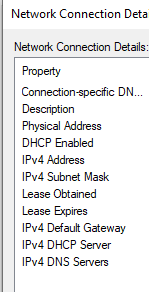
That also worked for me.
Just wondering (need time to research) what’s the effect of those steps. Some considerations:
Curious if the final “shutdown /r” from stackoverflow was the one that did the trick, may never know.
This solved my issue as well, thanks!
Compression likely kicked in after a reboot with low disk space, and apparently that is causing all sorts of problems. Before I encountered the internet problem, I had to solve a similar issue that prevented WSL to start due to a compression of
%USERPROFILE%\AppData\Local\Packages\CanonicalGroupLimited\LocalState, which prevented WSL to start. Link to that particular issue for reference.Uninstalling Docker desktop worked for me. Not a good solution though.
i’ve got no internet access in a newly installed ubuntu subsystem.
also running 19041.329.
Should the IPs of the subsystem and the virtual adaptor on the host be on the same subnet? they’re not in my case.
Finally I solved my problem. I had to set the WSL adapter to ‘External Network’ in Hyper-V Manager and configure the IP address in WSL2 to work with the bridged adapter. I’ll be happy to write up the steps for anyone who is still stuck on this, or see my comment here.
But the problem returned on 19037 and the previous solution doesn’t work
Fix DNS resolution in WSL2
This fixed it for me.
I got same issue on 18963.1000, WSL2. And @samscott89’s approach works properly.
If you don’t have
ifconfigcommand like me, use below commands:For the record, this is now fixed for me on build 18932.
WSL settings -> Networking Mode-> VirtioProxyresolved it for me thanksTo my astonishment resetting my router and dsl modem fixed this. I had not had to reset my router/modem in at least 6 months before this.
What worked for me was a combination of the above, and in Hyper-V Manager I made sure the switch was set to “Internal Network” (was Private Network). Don’t set it to “External Network”. I found that creates a bridge and then neither the host nor the guest have internet.
Hi! I’ve been dealing with this problem for a while, I’ve tried every solution possible with no results. The only solution that finally fixed it was completely uninstalling Checkpoint VPN, I even tried to stop every service related to Checkpoint but what solved it at the end was uninstalling it. I even had a ping running in the background and as soon as I uninstalled Checkpoint the ping started to respond.
check this solution. It worked for me after trying all the above suggestions. Answer here.
I have questions regarding the potential solution provided. Basically, I don’t know which commands get typed within Windows environment using powershell or cmd versus which get typed within the WSL environment. Could you clarify please?
I ask because the ip route command was not recognized by powershell or cmd, and when typed into the WSL (I had to use sudo, so that’s also worth mentioning above for us newbies), I get “RTNETLINK answers: File exists”
In my case, I disabled Hyper-V then it worked finally!
This works for me. Many thanks!
This is worked for me
This works for me! Thank you!
from my perspective, many are reporting this as an issue while the actual root cause isn’t the same at all.
following this one works for me. https://github.com/microsoft/WSL/issues/3438#issuecomment-751186376
I don’t know why but disabling Mobile Hotspot fixed it for me.
ifconfigis a no-go on some builds until you’re able to get internet access and installnet-tools.You probably forgot to add nameserver ‘IPv4 Address’ to your /etc/resolv.conf in wsl so you don’t manage to resolve names to IPs try to ping 8.8.8.8 and check if it works
Thank you, it works for me.
Hi, I’m able to connect to the “web” in example via curl, using this
But it’s impossible to use python pip. How solve this issue?
Thank you
@Laynkulan @Rogn I can’t uninstall CheckPoint VPN or disable Avast since this is a company machine.
Do you want what the problem is, so I can direct the IT?
@vluzrmos I found a better solution with restarting the service “LxssManager” from Windows task list. It is faster than rebooting the system and you keep everything opened. Only my WSL-connected VS Code needs a restart afterwards.
Here you can find a discussion about that topic: https://superuser.com/questions/1126721/rebooting-ubuntu-on-windows-without-rebooting-windows
i was upgrad to 19536.1000, but still not working. and i also reboot multi times.
#update after i run those lines in powershell as administrator, the wsl2 network become normal,
dism.exe /online /enable-feature /featurename:Microsoft-Windows-Subsystem-Linux /all /norestart dism.exe /online /enable-feature /featurename:VirtualMachinePlatform /all /norestartthen reboot .
after reboot, it’s look like working correct.
and actually, i already install wsl before upgrade to 19536.1000.
my another pc is 19041.1 , and i use
netsh winsock resetresolve the wsl2 network issue on 19041.1and 19041.1 has the same problem , the previous solution doesn’t work too.
hi @rm-bergmann
Try this https://gist.github.com/coltenkrauter/608cfe02319ce60facd76373249b8ca6 Thats work for me, but still must disable my firewall
Same sort of problem on 18990. Edit: problem is still there in 189950.
My subnet mask and IP route are set correctly automatically.
And on WSL
If I try to ping outside the computer, I can’t receive the packets back, but it resolves the ip address.
Edit: No other AV or firewall is installed on the system except Windows Security
My feedback too: https://aka.ms/AA627rw
feedback submitted
If you’re seeing this error could you help us by taking some networking logs when you’re trying to access the internet?
Instructions on how to do so are here. Thanks!
Because there are some people have this bug in
Build 18965, I will reopen it.ah, i just updated to insider 18963. the issue seems to be fixed in this build.
ipconfig :
ip a:
ip route:
You might be fine without the second step then. After applying that step, I see:
Where
192.168.64.1should match whatever ipconfig showed as the WSL ip address.You will probably need (at least) both lines. If the first line is already there, then either you are good to go, or the issue is elsewhere