docksal: VirtualBox installation fails on macOS High Sierra 10.13
macOS High Sierra 10.13 introduces a new feature that requires user approval before loading newly-installed third-party kernel extensions (KEXTs). When a request is made to load a KEXT that the user has not yet approved, the load request is denied. Apps or installers that treat a KEXT load failure as a hard error will need to be changed to handle this new case.
Approval is automatically granted to third-party KEXTs that were already present when upgrading to macOS High Sierra.
This issue affects anyone installing VirtualBox for the first time on a fresh macOS High Sierra 10.13. This effectively breaks our fully automated installation process on macOS, since the user now has to perform a manual approval and then restart the installation (reboot and rerun the installation in some cases)
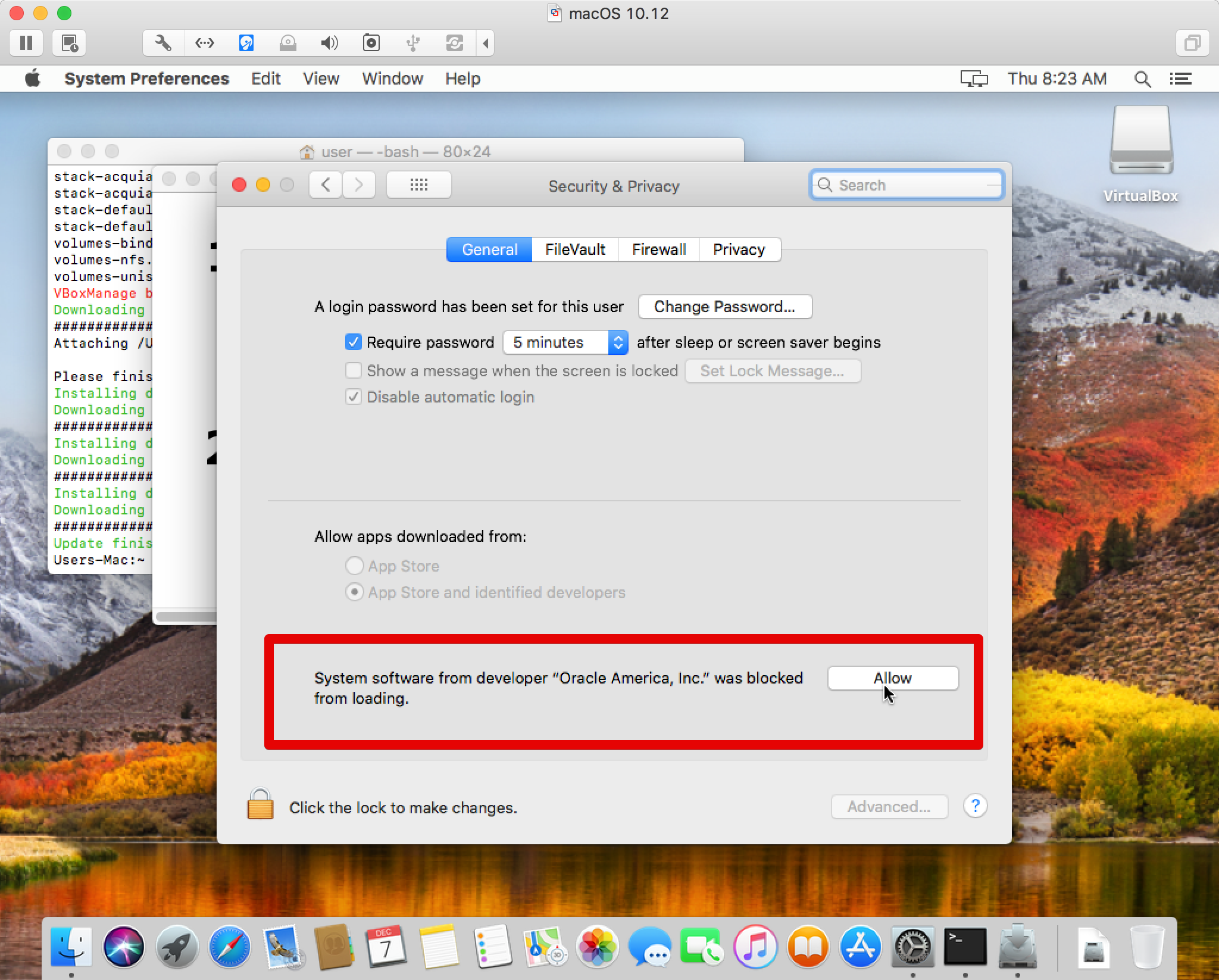
Note: If the Allow button does not show up, run sudo kextcache -system-caches
Note: If the Allow button is there but clicking it does nothing, use the Tab key to focus on it and the Space key to press (you will need Full Keyboard Access enabled for this method to work).
References:
- Originally posted with details in https://github.com/docksal/docksal/issues/377#issuecomment-349978511
- Official note from Apple: Technical Note TN2459: User-Approved Kernel Extension Loading
- StackExchange: VirtualBox 5.1.28 fails to install on MacOS 10.13 due to KEXT security
- Homebrew/Cask: Cannot install virtualbox on macOS High Sierra
- VirtualBox forums: VirtualBox fails to run on macOS High Sierra - kernel driver not loaded
- VirtualBox forums: 10.13 Failing installation; Kernel driver not loaded
- Comments in this issue: Getting the Allow button to show up
- Comments in this issue: If the Allow button is there but clicking it does not work (yes, for even that is an issue)
- Additional advanced reading: User Approved Kernel Extension Loading
This video covers the manual steps necessary to install VirtualBox successfully.
About this issue
- Original URL
- State: closed
- Created 7 years ago
- Reactions: 85
- Comments: 49 (14 by maintainers)
I had the same problem as PierBover but the solution from skhilko didn’t work for me. So I remembered another similar method I used when I tried to install a blocked safari extension:
brew cask reinstall virtualbox --forcein Terminal or run the installation againFor those who are still struggling, I was able to press the button by enabling Mouse Keys in accessibility settings.
It’s even worse.
I’m physically in this machine and I can’t click the “allow” button.
More info here:
https://discussions.apple.com/thread/8087342
Lesson learned/remembered: I was clicking “allow” and nothing was happening… so just to confirm, you can only click it locally (not remotely via vnc).
For me the solution was going to that button with Tabs and pressing Space! Omg…!
Well nothing much to be done as mentioned above. Just copy-paste the virtualbox.pkg file to your mac directory. Then run it.
@ColinLaws Dude, you’re a lifesaver! I’ve been fighting with this for weeks man! Thanks!
csrutil disable; rebootThis drove me nuts for hours today. I tried to install, I was prompted in Security and Privacy to allow Oracle. I allowed it to install the KEXTS, but to no avail I couldn’t get it running using any known method. So I thought this really might be a VirtualBox issue, and ended up buying Parallels Desktop for Mac. That didn’t work to my surprise, and contacted their support team. They told me to run that command at recovery and it worked for both Parallels and the VirtualBox installation. I cannot comment on what this implies as far as the security vulnerabilities you may be introducing to your machine, but it gets the job done.
@kennymc-c, you’re a life saver!
To add on - I understand that this cannot be automated, but it should be highlighted in the installation process. There should be a prompt to tell the user to go approve the exception. While some of us do read the docs, many do not. This is a necessary part of the installation, I’m uncertain why you’d expect the average user to not attempt the installation without scanning the docs for gotchas.
Sadly not - and I’m a reasonably careful reader-of-the-doco. But today I’m in a rush, it’s the usual installer program, I just click next. Google led me here.
You need to update the process, I’m afraid.
Actually, it isn’t just for the first time. I’ve had VirtualBox installed for quite a while… It took a lot of steps to get to this Issue, but the short of it is this: I had VirtualBox installed. I upgraded to 10.13.4 I ran vagrant up on a new VM. It failed to launch. I attempted to reinstall vagrant. I attempted to install an update for VirtualBox (which kept failing to install properly.) I found this issue. I reinstalled the update, accepted the security exception, and now the rest is good.
TL;DR: This impacts existing installations as well.
@lmakarov literally everyone who installs with VirtualBox will meet this issue. I think we need to update installation docs for macOS to say 1. Install VirtualBox and enable extension (screenshot) 2. curl…
@lmakarov tried that too… didnt appear.
Anyway…i guess is a bug of virtualbox 6.0.8… i don’t know…
Here is how i solved:
@arielfr @rsimbu89 please stop posting updates that do not solve the issue to this ticket. This repo does not control VirtualBox. We can not do anything to make it work. Please contact VirtualBox developers on the issues installing VirtualBox. Thanks.
@brandon-fryslie this is not VirtualBox repository, but as stated above if you make your workstation part of MDM you will be able to whitelist extensions.