etcher: Etcher broken on macOS Catalina
- Etcher version: 1.5.50
- Operating system and architecture: macOS Catalina 10.15 Beta (19A487l)
- Image flashed: http://director.downloads.raspberrypi.org/raspbian_full/images/raspbian_full-2019-06-24/2019-06-20-raspbian-buster-full.zip
- Do you see any meaningful error information in the DevTools?
{"stack":"Error: EPERM: operation not permitted, open '/Users/nathfreder/Downloads/2019-06-20-raspbian-buster-full.img'","message":"EPERM: operation not permitted, open '/Users/nathfreder/Downloads/2019-06-20-raspbian-buster-full.img'","name":"Error","code":"EPERM","syscall":"open","errno":-1,"image":"2019-06-20-raspbian-buster-full.img"}
About this issue
- Original URL
- State: closed
- Created 5 years ago
- Reactions: 38
- Comments: 135 (18 by maintainers)
Above approaches didn’t work for me, what did:
Hope this helps.
Workaround: Moving your image inside
balenaEtcher.appseems to do the trick. You can do this by selecting “Show Package Contents” onbalenaEtcher.appand dragging your image inside of it. Then you can select your image as usual from Finder and the flashing will go ahead. Make sure you select the image insidebalenaEtcher.appI bumped into this “issue” while looking for a solution for my own application (ApplePi-Baker). Since we’re all here with the same goal in mind (writing SD cards for RaspberryPi), I thought I’d help out and post my fix.
Under Catalina one must add the application to the security exceptions: Go to “System Preferences” -> “Security & Privacy” -> “Privacy“. Add the application to the list of “Full Disk Access“ items, and you should be good to go. No need to run as sudo.
Having this same issue.
This should be fixed in
v1.5.61After updated to Catalina. I have reinstalled i open up. It says macos says its a mailware. So i go to System Preferences >> Security & Privacy >> Open Anyway for Etcher Balena And Try to reopen again. Close the opened Window.
Open a New terminal window and type
xattr -d com.apple.quarantine /Applications/balenaEtcher.appAnd thensudo /Applications/balenaEtcher.app/Contents/MacOS/balenaEtcherType password for user. Then Select image & USB drive Then press Flash Then it starts working & Successfully Flashedthis worked for me!!!
this works for me.
Workaround listed above works for me as well. I think this error is in part to the recent changes made by apple (see here) regarding disk access permissions. “… apps must now get your permission before directly accessing files in your Documents and Desktop folders, iCloud Drive, and external volumes, so you’re always in control of your data.”
@cameroncooke That’s way simpler than my approach. 😀
This is working for me.
Thank you very much, this worked for me
Still working
Sudo trick now does not work with macOS 10.15 (19A602).
This method worked for me, thanks a lot.
I managed to notarize ApplePi-Baker successfully, but it will not resolve the disk access issue, as it only notarizes the distribution DMG or ZIP file (reference).
You will need to get an application specific password at https://appleid.apple.com/. This app specific password can be reused for following versions of the application.
Then with that code you have to notarize with:
xcrun altool --notarize-app --primary-bundle-id "com.compay.appname" -u "yourappleid@email.com" -p "app-specific-password" -t osx -f "yourappdmg.dmg"This will produce a Request UUID.
Once notarized, you will get an email confirming that it has been notarized. You can also check your status from Terminal:
xcrun altool --notarization-history 0 -u "yourappleid@email.com" -p "app-specific-password"After being notarized you will need to “staple” your DMG (or ZIP) before you can distribute it.
xcrun stapler staple “yourappdmg.dmg"This is how it worked out for me, and does not seem to be sensitive to using non X-Code development tools. Hope this is helpful.
Same issue, updated to 1.5.63 from 1.5.4x, went to Applications, balenaEtcher, right click, Open… and it worked. Thanks!!
Launching with
sudocurrently works withv1.5.52on10.15 Beta (19A512f)@cameroncooke Thank you, this worked for me.
If you’re still running into this: If you go to the Etcher page, and you have Noscript installed, and scroll down to the bottom and download a copy of Etcher, it’ll get you 1.5.45, which is ancient. Enable javascript for the page and it’ll update the links to the latest version.
Moving images inside the etcher package not working on Catalina Beta 8. Launching with SUDO does work. Log below:
Sandbox: balenaEtcher Hel(9055) System Policy: deny(1) file-read-data /dev/rdisk2 Violation: System Policy: deny(1) file-read-data /dev/rdisk2 Process: balenaEtcher Hel [9055] Path: /Applications/balenaEtcher.app/Contents/Frameworks/balenaEtcher Helper.app/Contents/MacOS/balenaEtcher Helper Load Address: 0x1098a9000 Identifier: io.balena.etcher.helper Version: 1.5.56 (???) Code Type: x86_64 (Native) Parent Process: bash [9054] Responsible: /System/Library/Frameworks/Security.framework/authtrampoline
For macOS Catalina 10.15 I believe we’ll have to notarise the Etcher application package as it’ll be a requirement for all applications from 10.15 on, which we’re already preparing for
Maybe Balena should codesign the app with disk access? Apple as been tightening the sandbox.
You just have to enable access to “Files and Folders” in System Preferences>Security and Privacy by checking the box for etcher.
Download latest version of Etcher 1.5.70 and replace the older one that for some reason won’t update. Seems to work fine now on latest OS versionCatalina 10.15.2
This worked for me also!
This was worked for me as well
fyi I already put all information (including MacOS version in my first post. But to be clear again:
balenaEtcher version: 1.5.59
Etcher won’t start either from Launcher (see screenshot in my previous post) of via sudo in terminal session with the following command:
sudo /Applications/balenaEtcher.app/Contents/MacOS/balenaEtcherThe result I get is: Killedcan’t make it anymore clear than that.
I was having trouble flashing an image while running the Official Release of macOS Catalina (10.15.0).
I tried the: “Go to “System Preferences” -> “Security & Privacy” -> “Privacy“. Add the application to the list of “Full Disk Access“ items” from above and that didn’t work either.
Then I did the “sudo /Applications/balenaEtcher.app/Contents/MacOS/balenaEtcher” and I was able to flash my image just fine.
Perhaps balenaEtcher app needs to be updated. In the meantime, the sudo workaround seems to work fine.
Thank you everyone for the discussion and I will be following this thread for future developments.
~e 🍻
macOS Catalina 10.15 Beta (19A526h) doesn’t even allow the app (>= v1.5.51 as far as I know) to start due to “check against the malicious software”.
v1.5.33 can start, but
sudohack doesn’t work anymore.@xcvista That would be a good idea. It’s required for Catalina.
This is the fix that worked for me, running 1.5.102 I needed to give Etcher Full Disk Access to flash an ISO from my Downloads directory to an external USB
@muuvmuuv yes we are actively working on this.
okay now it WORKS THANKSSSSS
@louisgex i have tested with version 1.5.59. You are running with version 1.5.51 . Please update to 1.5.59 or higher. Test it again
I did exactly as you said and I have an other crash message:
and it say :
thanks for your help
@daballiemo try
xattr -d com.apple.quarantine /Applications/balenaEtcher.appin Terminal, and then opening the app either via sudo in Terminal or double-clicking in the Finder.Hi all - I build a 2-line shell command and put this into “Automator” … a simply Wrapper - now I can start it by mousclick. its easy:
Open your Textedit and type ( replace <YOURPASSWORD> with your password
Save it as “WrapperBalena.sh” in your $HOME directory Applications folder ($HOME/Applications)
make the scrip executable - Open “Terminal” and type cd $HOME/Applications chmod a+x WrapperBalena.sh
Now open Automator and look for “Shell-Script Execution” and insert - s.Screenshot
Save it on your desktop as e.x. Belena-starter and your done … Doubleclick the new automator-file and BelenaEtcher starts as “root” and works on Catalina…
It´s only a fix - not a final solution ! -frank
@cameroncooke thank you, launching with SUDO works for me
@shawaj Thanks, after updating etcher version to 1.5.113, all of my problem about permission have solved.
And also, the official website latest version is also 1.5.113, my case is because of the network error of the request for fetching latest version.
Anyway, thanks for your help. 😃 😊
Actually, no! I just looked and I’m still using 1.5.111. Thanks for pointing that out, I’ll update it and see if it resolves the issue for me.
ping @shawaj
Seems the 1.5.74 release is problematic - check #3057 (and its duplicates)
@TMcSquared I’d recommend opening a balena forum issue in the Etcher room as this is a different issue to permissions, however the usual reason for this is that the image written to the media is corrupt, or the media itself is faulty. I’d recommend testing with a new download of the image (if it’s been downloaded and not created by yourself) and a different USB stick to start with. If you have the same issue, post an issue and we’ll look at it for you!
This worked for me. Thanks.
This worked for me.
It seems to be related to terminal permissions over removable volume?
MacOS Catalina 10.15 balenaEtcher v1.5.59
I’m facing with that screen too.
EDIT: This one worked for me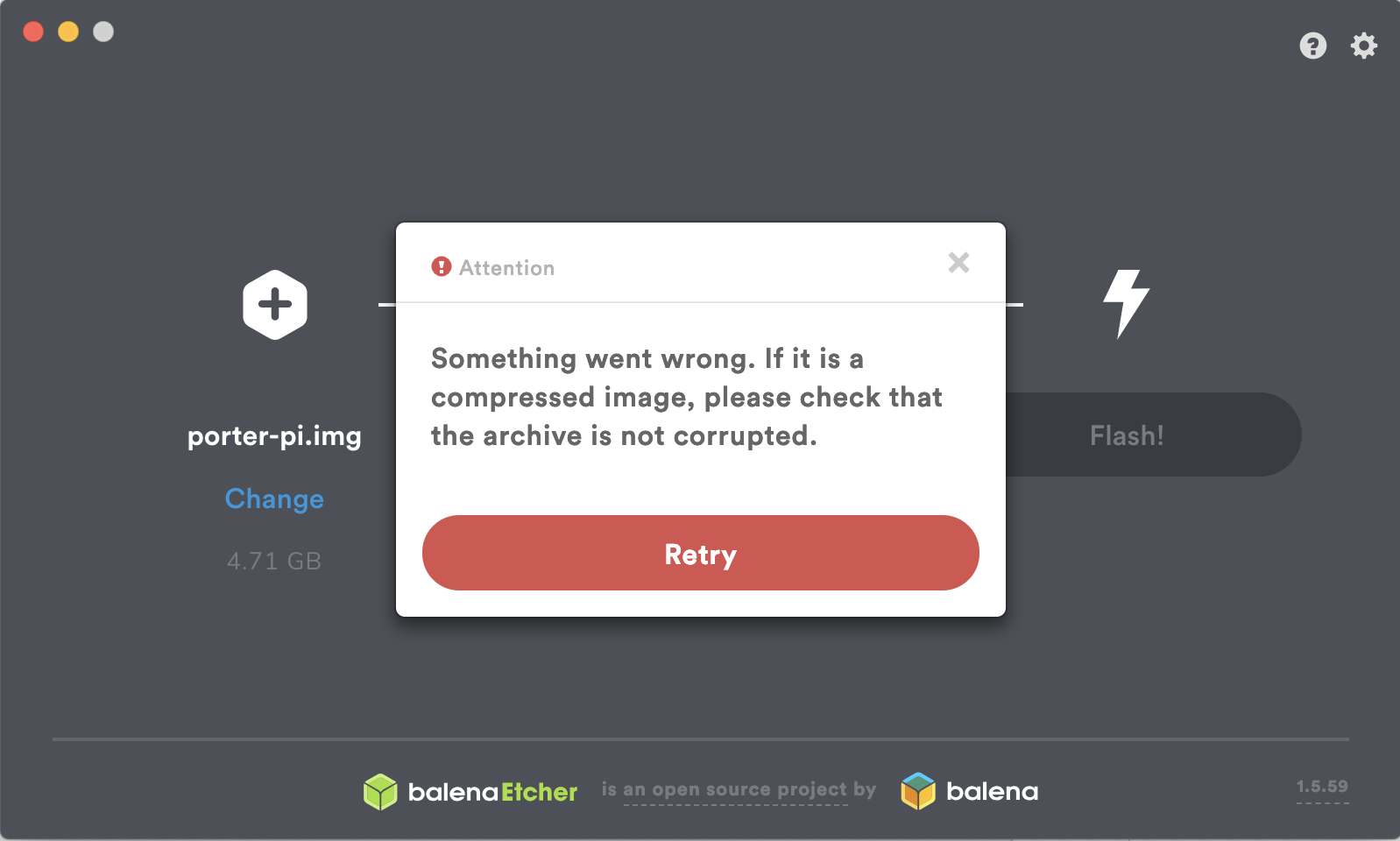
Also getting ‘Something went wrong… check the archive is not corrupted’ for every single ISO I try - over a dozen so far (Ubuntu 19.10, Void Linux, Pop_OS! 19.10, NomadBSD etc). The error pops up the second I enter my password, before the USB even starts being written.
I tried a complete removal (AppCleaner.app) and reinstall of the latest Version 1.5.59 (1.5.59), but still the issue persists. I’m on macOS Catalina 10.15 (with supplemental update). I have also ensured that the app has full disk access in Security & Privacy’s prefpane.
I’m also seeing the error that macOS could not scan the app for malware, and I have to command-click/right click it to launch (though xattr -d com.apple.quarantine /Applications/balenaEtcher.app sorted that).
FYI, just saying that the app does not work does not help. Please include your version of macOS with
sw_versin a terminal window or the hard way by clicking the Apple icon in the top left hand corner of finder and clicking About This Mac and then the System Report… button in the Overview tab. Then clicking Software in the navtree on the left hand side of the System Information window. Or use the thumbs up/down button on an existing comment that matches your version/build.The system integrity protection is there for a reason. I don’t think it is a good idea to disable it and to explain this as a way to work around the problem if there are other alternatives.
So try all the other approaches first and only if they all fail try the system integrity approach.
The workaround is two-fold: (tested with 1.5.58 on macOS 10.15)
Security & Privacyand allow etcher to run. There should be a warning that etcher was blocked but you can allow to run it anyway. This will get rid of the initial warning that the app has to be updated. However, then flashing still fails with the error message that the image is corrupt.sudo /Applications/balenaEtcher.app/Contents/MacOS/balenaEtcherallows you to flash as before.@nathfreder suggestion worked for me as well.